In brief
- Nano Banana 2.1’s model ID in the Gemini API is `gemini-nano-banana-2.1`.
- The model can generate images from text prompts; it can also edit images when given text and an image together.
- Google recommends Nano Banana 2.1 for new projects and mentions 1K, 2K and 4K resolutions.
- According to Google’s documentation, all generated images include a SynthID watermark.
What will you learn in this guide?
This guide covers how to write prompts for architectural and interior images with Nano Banana 2.1, generate a new image from text, and use text instructions to work with a reference image. The examples are organized around use cases such as exploring atmosphere, considering material direction and developing visual alternatives for presentations.
Nano Banana is the name Google uses for image generation capabilities in its Gemini models. The Gemini API documentation describes Nano Banana 2.1 as the recommended model for new projects involving image generation and conversational editing. The model ID to use in the API is gemini-nano-banana-2.1. The examples here do not guarantee architectural accuracy or preservation of dimensions; generated images should be treated as design explorations.
Requirements
This approach requires access to the Gemini API and a prompt to send to the model. For image editing, you can also include a reference image. Google’s API examples show how to create a client and start an interaction; in the REST example, the API key is used in a header. In this context, the documentation does not explain account setup, pricing or usage limits. Check API access and current terms before getting started.
Google’s Python example imports from google import genai, then creates a client with genai.Client(). In the flow shown in the source, text input is passed to an interactions.create call, and the returned image output can be accessed through the output_image field. This guide does not describe additional installation or authentication steps not shown in the source.
When editing, upload only images you have the right to use. Google reminds users that they must have the rights to images they submit. The documentation also states that all generated images include a SynthID watermark. According to the source, Nano Banana 2.1 supports image generation at 1K, 2K and 4K resolutions; it does not describe the API parameters for selecting a specific output size here.
Step by step: generate an architectural image from text
Define the purpose. First, decide which design question the image should help answer. For example, explore daylight in a library or consider how wood and stone might work together in a lobby design. Choosing a single visual goal makes the prompt clearer.
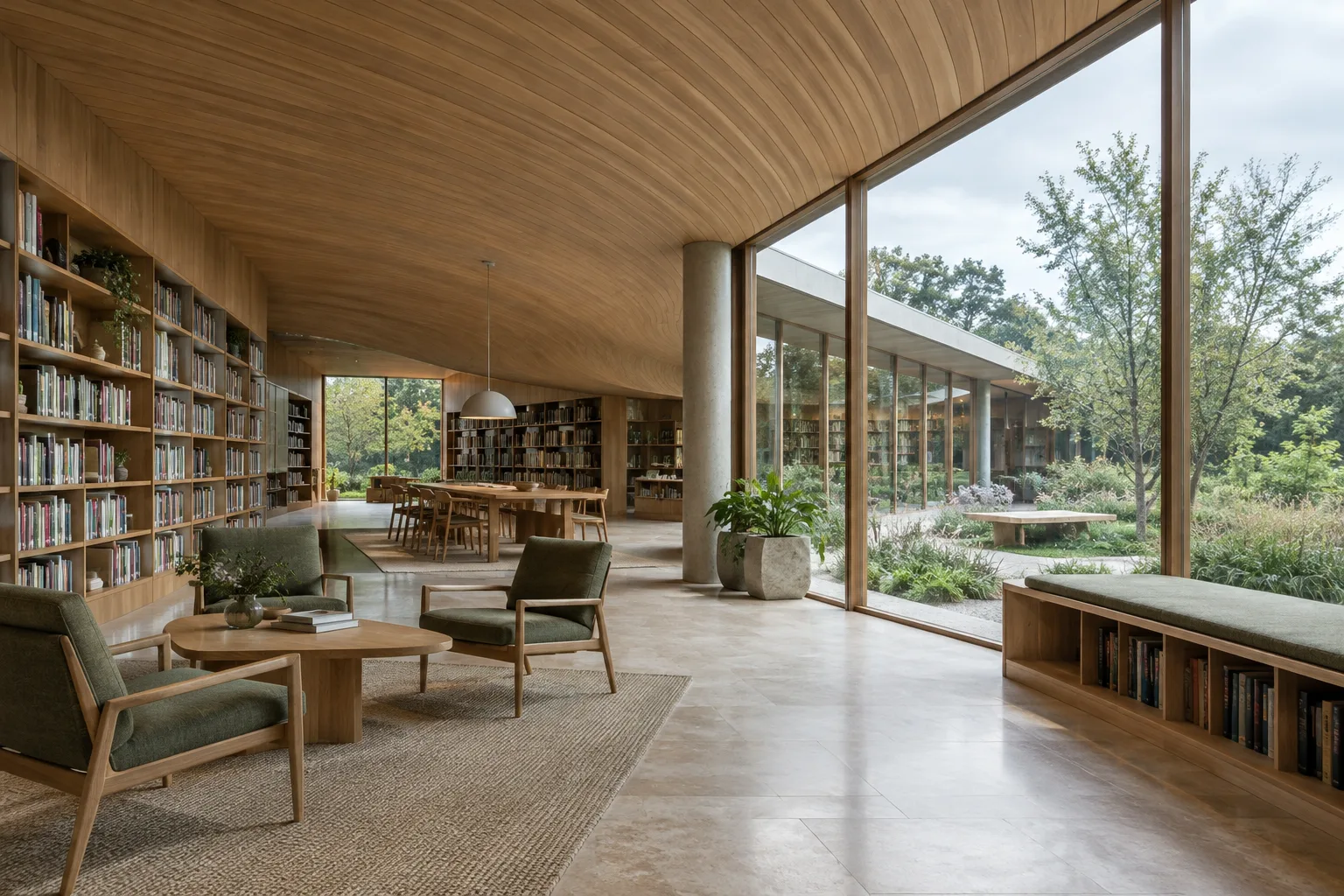
Break the scene into components. Describe the space’s function, primary materials, lighting conditions and camera viewpoint separately in the prompt. Instead of a general phrase like “a contemporary interior,” specify the elements and atmosphere you want to see. The following is a newly written architectural prompt:
Create an architectural visualization of a small community reading room with a curved timber ceiling, pale stone flooring, built-in shelves and a planted courtyard beyond tall windows. Show a wide eye-level interior view in soft overcast daylight, with restrained natural colors and realistic material detail. Keep the room quiet and uncluttered; no people, no signage.The prompt brings the space’s function, material approach, lighting and framing together in one description. The result is not a project drawing or an actionable material specification, but a proposal that can be used to explore visual direction.
Send the prompt to the API. In the API example’s basic flow, the model ID and text are included in a request to create an interaction. Once image generation is complete, the output can be retrieved from the image field in the interaction object. The documentation includes examples for Python, JavaScript, Java, Go and REST; you can choose one of these and follow the same prompt structure in this guide.
Review the first result. Evaluate the image against your design intent: Is the function of the space clear? Do the lighting and material descriptions move in the right direction? Does the framing suit the presentation? Instead of rewriting every detail you dislike, identify the specific point you want to change in your next instruction.
Iterate on the prompt. Nano Banana 2.1 is presented in the documentation as supporting multi-turn editing and consistency. For example, make a new request about the lighting or a particular material direction while keeping the atmosphere of the first image. In each turn, clearly state what should change and what should remain the same; still, don’t assume reference details will be preserved exactly.
Step by step: work with an existing image
Choose a reference file. This method is based on including an image alongside text in the request. You might use an interior image, a screenshot of your own design, or a reference you have the right to use. Don’t upload an image without checking your rights to use it.
Set a single change goal. Google’s documentation shows that an image can be edited by using text and an image in the same input. You can define different goals, such as describing a new visual element, changing an existing detail or shifting the overall color and style in another direction. The following example focuses on the color atmosphere of an interior image:
Adjust the provided interior image toward a warm, muted color palette. Keep the room arrangement, furniture positions, viewpoint and visible architectural details as close to the reference as possible. Do not introduce people or signage.The prompt specifies both the desired color direction and the features that should be retained. However, the source does not guarantee that framing or geometry will remain exactly the same after editing. Check the output against the reference.
Evaluate the result and continue. After the first edit, review what changed in the image. If you don’t get the result you want, make the goal clearer in the next turn or request a different change to the same image. Working through separate requests instead of changing multiple design decisions at once makes it easier to understand which instruction affected the result.
Using it in architecture and visualization workflows
This kind of image generation can be used to create atmosphere options in the early design stages or to open up an interior concept for discussion within a team. Architects and interior designers can explore different ways to express a space’s lighting and material direction; visualization specialists can compare visual concepts before a presentation. For students, experimenting with how prompt descriptions affect the images can also help build skills in explaining design decisions.
However, the source does not say that Nano Banana 2.1 generates dimensionally accurate BIM data, CAD geometry or technical drawings. Therefore, don’t use its images in place of a project model, dimensions or verified technical decisions. The model’s stated support for 1K, 2K and 4K resolutions provides information about output options; the source does not describe compatibility with specific architectural software, local hardware requirements or an output workflow.
For office use, review API pricing and terms in advance; the cited documentation does not provide pricing. Pay attention to rights for reference images and factor the SynthID watermark into delivery or presentation workflows. The design team should review an image before it is used as a definitive representation of a project.
Common mistakes
Keeping the prompt too general: Clarify the visual goal by describing the space’s function, materials, lighting and viewpoint.
Changing too many things in one turn: Set one primary goal for each edit and evaluate the result against it.
Assuming the reference will be preserved exactly: Specify the details you want to retain, but check the result regardless.
Treating the image as proof of technical accuracy: The source discusses image generation and editing; it does not promise dimensional or project validation.
Uploading an image with unclear rights: Use only references you have the right to upload and use.
Assuming pricing and output terms: The documentation cited here contains no pricing information; check the API terms before use.
Next steps
Write separate prompts for lighting, materials and framing in the same space. Focus on one variable in each turn and compare the results side by side. This lets you observe which descriptions change the visual direction and supports clearer design discussions within the team.
Then try text-to-image generation and reference image editing separately. When selecting a model, take into account Google’s recommendation of Nano Banana 2.1 for new projects, its stated resolution options and the SynthID information. Review the current documentation separately for API access, pricing, usage terms and suitability for your workflow.
Source and license
This guide is adapted into Turkish based on the Nano Banana model descriptions, text-to-image generation and image editing examples in Google’s Gemini API image generation documentation. The source is licensed under CC BY 4.0.
Sources
1 sourceSource texts are not republished; short quotes are marked, everything else is our own summary and commentary.
For architecture offices and students in Turkey, quickly generating visual alternatives from text can fuel early design discussions. Preparing initial images to communicate material and atmosphere options is a particularly practical use; however, these outputs should not replace a dimensionally accurate model or technical drawings.
Offices should not commit their workflow to the API before assessing its costs and terms; the source does not provide pricing. Hardware requirements are also not explained. Rights to reference images, the SynthID watermark and review of generated results by the design team should all be factored into the decision-making process.
Frequently asked questions
What is Nano Banana 2.1’s Gemini API model ID?
The documentation gives the model ID as `gemini-nano-banana-2.1`.
Can you edit an existing architectural image with Nano Banana 2.1?
Google’s documentation shows an editing workflow that sends text and an image together. Check the result; according to the source, there is no guarantee that framing or geometry will be preserved exactly.
Do images generated with Nano Banana 2.1 include a watermark?
According to Google’s documentation, all generated images include a SynthID watermark.