In brief
- The Gemini API documentation recommends Nano Banana 2.1 for new projects.
- The model’s API identifier is listed as `gemini-nano-banana-2.1`.
- The API workflow supports generating images from text and editing images using both text and image inputs.
- The documentation lists 1K, 2K, and 4K resolution options for Nano Banana 2.1.
What will you learn in this guide?
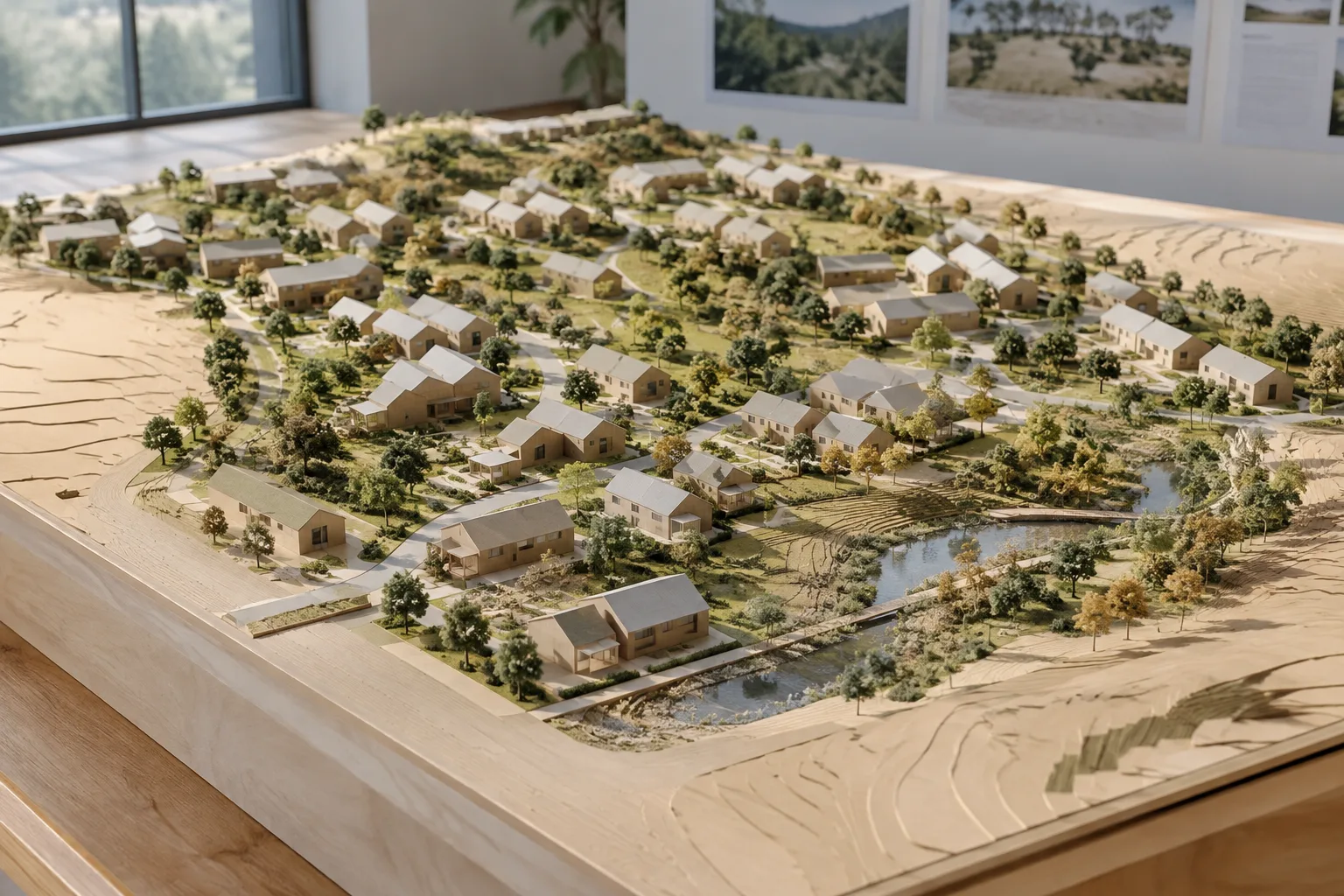
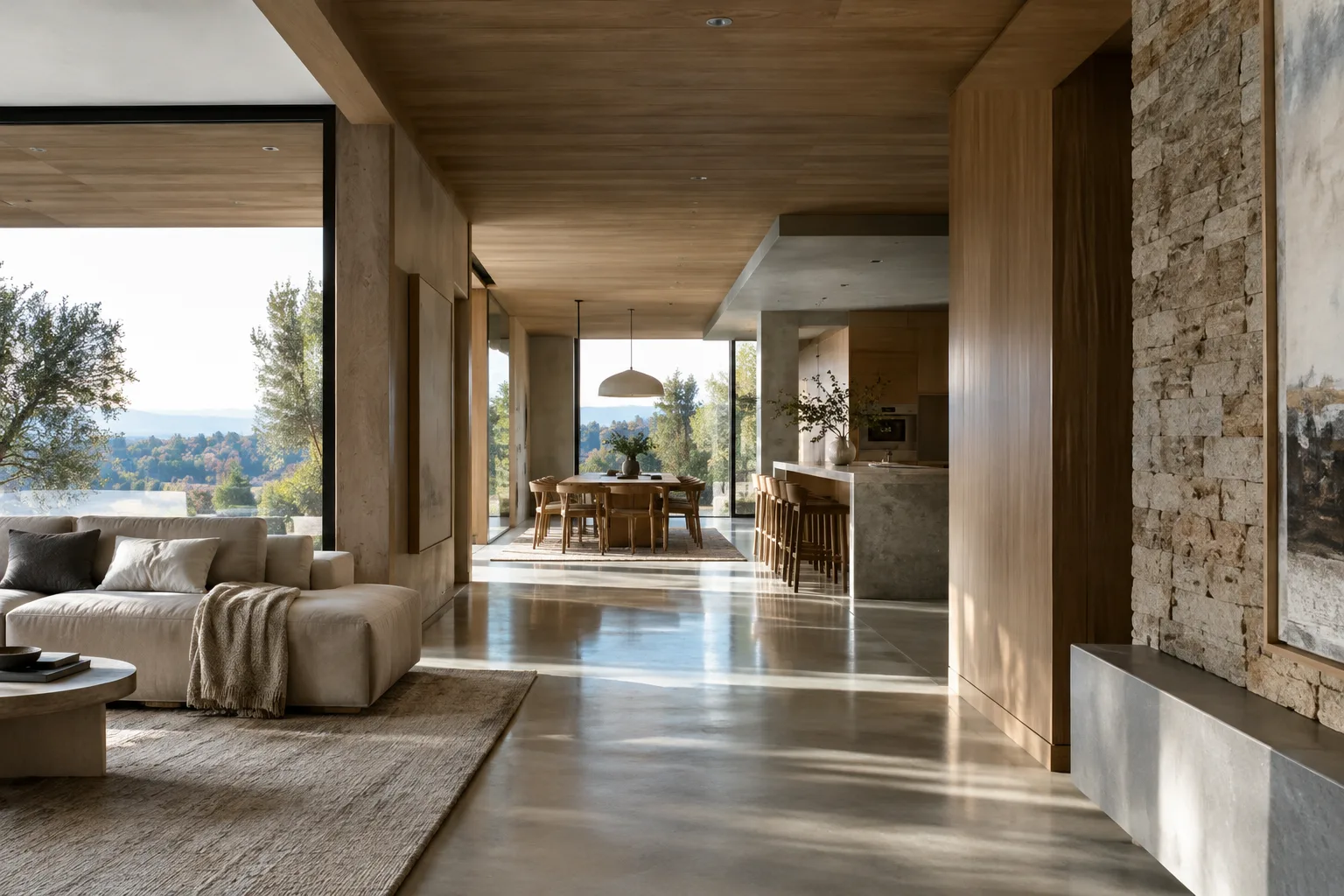
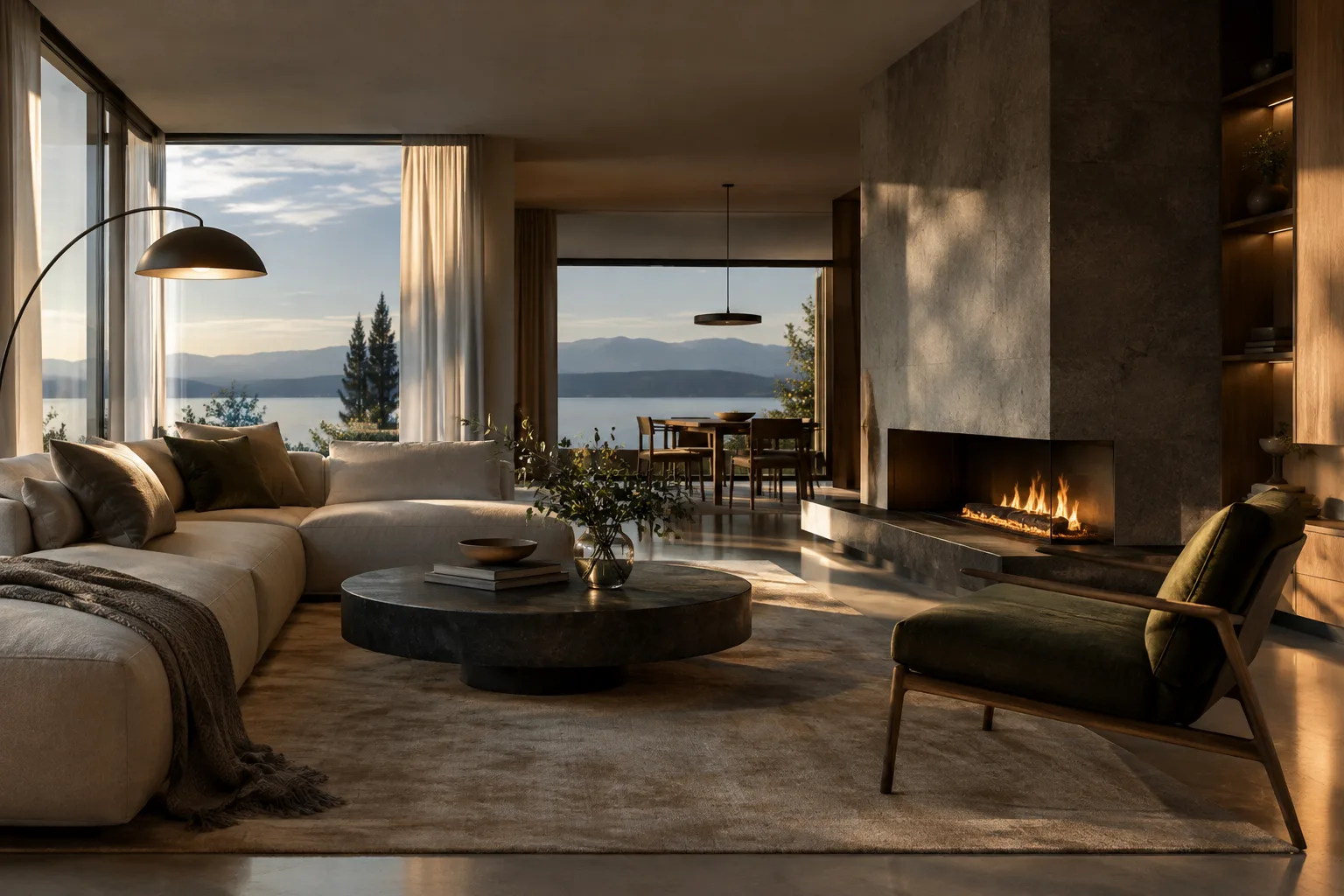
This tutorial focuses on using Nano Banana 2.1 through the Gemini API to create architectural concepts and interior images. First, we’ll set up a workflow for generating a new scene from a text prompt, then request changes to an existing image using written instructions. In the final section, we’ll cover how to make prompts more precise, iterate on results, and keep key production considerations in mind.
The examples here are intended for developing visual ideas for presentations or design research. Images generated through the API should not be treated as verified technical drawings for a construction project; prompts describe a visual’s mood and composition. Review the model’s output and check separately that it aligns with your design decisions.
Requirements: model, access, and files
Google’s Gemini API image generation documentation gives gemini-nano-banana-2.1 as the model identifier for Nano Banana 2.1. The documentation recommends using this model for new projects. Nano Banana 2.1 is described as a high-efficiency main model for image generation and conversational editing. The same description mentions 1K, 2K, and 4K resolutions; however, this guide does not show a parameter or menu step for setting these options in an API request.
To set up the example workflow in Python, you’ll need a Python environment using the Google Gen AI SDK. The source documentation does not specify a minimum SDK version or installation command, so we are not recommending a particular version or command here. The documentation’s REST example shows an API key named GEMINI_API_KEY being used in the request. Account access requirements and usage fees are also not explained in these sources; check the current API terms separately before starting a project.
The example for editing an existing image uses a PNG file and the image/png MIME type. For a clear starting point, prepare the image you want to edit as a PNG and update the file path to match your working environment.
Step-by-step guide
1. Define the scene’s purpose and constraints
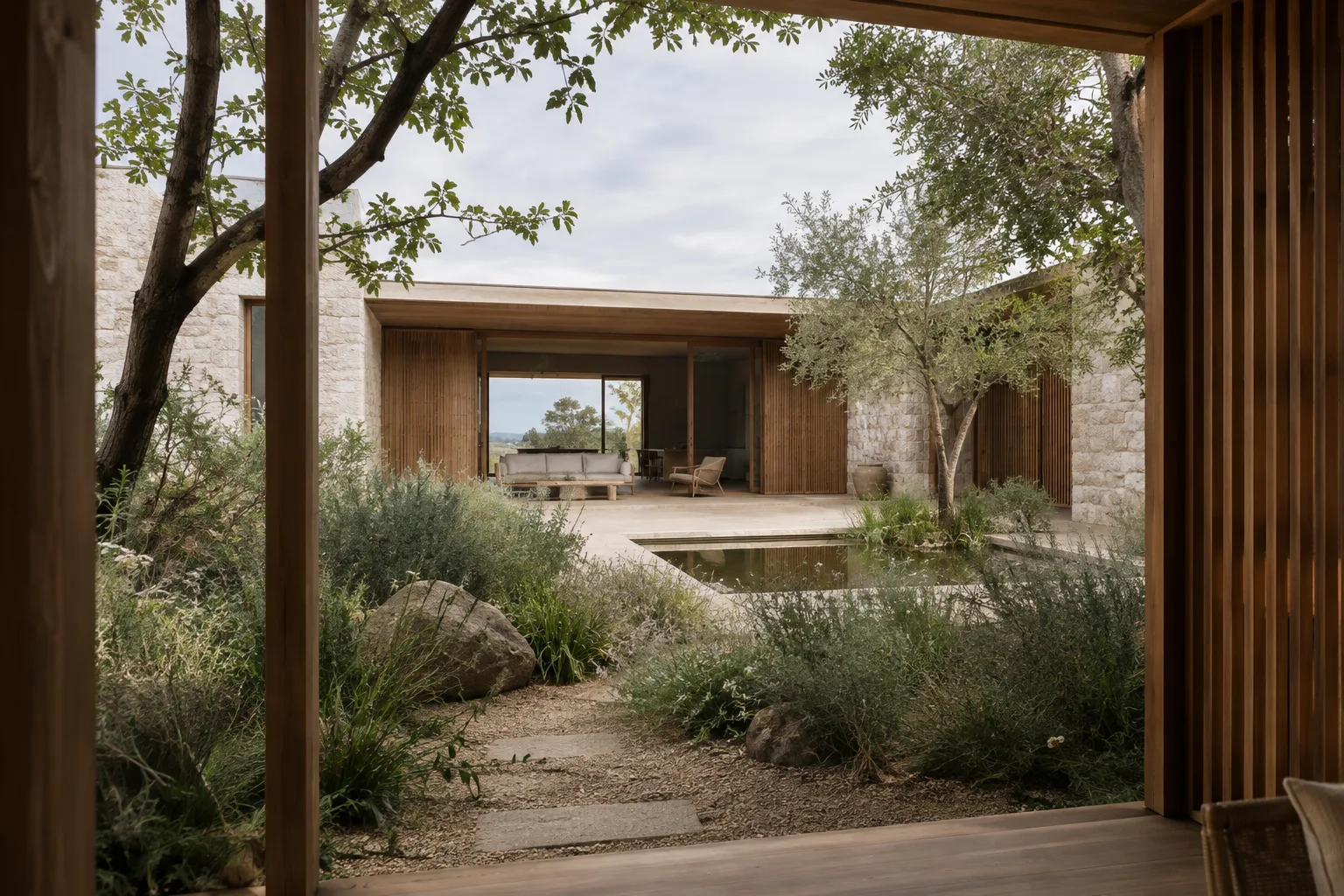
Before writing a prompt, decide what the image should convey: a residential facade, lobby, kitchen, or courtyard, for example. Then describe the viewpoint, materials, lighting, and framing clearly. Google’s prompt design guide recommends giving clear, specific instructions and explicitly stating constraints and output format where needed. The following original prompt is designed for an architectural concept image:
Create a photorealistic architectural visualization of a compact courtyard house in a coastal climate. Show a quiet eye-level view from the garden toward the entrance. Use pale limestone, warm timber screens, native planting, soft overcast daylight, realistic material textures, and a calm restrained palette. Keep the building proportions plausible and the composition uncluttered. No people, signage, or decorative text.This prompt describes the building type, viewpoint, materials, and lighting separately. Choosing a single visual goal for the first generation makes it easier to understand which instructions shaped the result. If a particular composition is essential, state it directly, for example: “show the entrance from the garden.”
2. Generate an image with an API call
The following Python example uses the interactions.create workflow shown in the documentation. It sends the prompt text to the model and writes the returned image data to a file. Note that the image data is retrieved from interaction.output_image and decoded from Base64.
from google import genai
import base64

client = genai.Client()
prompt = "Create a photorealistic architectural visualization of a compact courtyard house in a coastal climate. Show a quiet eye-level view from the garden toward the entrance. Use pale limestone, warm timber screens, native planting, soft overcast daylight, realistic material textures, and a calm restrained palette. Keep the building proportions plausible and the composition uncluttered. No people, signage, or decorative text."

interaction = client.interactions.create(
    model="gemini-nano-banana-2.1",
    input=prompt,
)

with open("courtyard-concept.png", "wb") as image_file:
    image_file.write(base64.b64decode(interaction.output_image.data))
You can change the filename to suit your project. If the request fails or no image data is returned, first check the prompt and API access; the example in the source documentation relies on retrieving the output image from the output_image field.
3. Request edits to an existing image
In the second workflow, you provide the model with both text instructions and an image input. The documentation shows the image being read from a file, converted to Base64, and added to the request with the image/png type. The following prompt aims to change the material feel of an existing interior image:
Edit the provided interior image. Keep the room layout, camera position, windows, and furniture placement unchanged. Change the floor to light oak, make the wall finish a warm off-white plaster, and soften the daylight while preserving the original overall composition.This prompt clearly separates the elements to preserve from the surfaces to change. The image must be sent alongside the text input in the API call; using the text alone is not the same as editing the source image. Review the first result, then try another iteration by describing one specific change more clearly.
4. Refine the result in small steps
The prompt design guide treats prompt writing as a process of experimentation and refinement. If the result falls short of expectations, change only one part of the prompt—for example, the camera angle or lighting description—instead of rewriting all the instructions. This makes it easier to compare which wording affected the result.
If you need several constraints, state them in short, separate sentences: the spatial arrangement to preserve, the materials to change, and the desired lighting. Support vague adjectives with concrete descriptions. Instead of saying “warmer,” describe a specific wood tone or the quality of the daylight. With each iteration, compare the image against your design intent; don’t automatically assume that the materials or details generated by the model are accurate.
Common mistakes
Giving a prompt too many tasks: Changing the plan, facade, furniture, and atmosphere all at once can make it harder to track which instruction shaped the result. Start with one main goal.
Failing to say what should stay the same: When editing an existing image, explicitly state which elements—such as the camera, windows, or layout—must be preserved. The documentation describes workflows for adding or removing elements with text and images, making changes, and adjusting style and color.
Ignoring rights to the source image: The documentation reminds users to have the necessary rights to images they upload. Check usage rights before sending an image to the API.
Confusing model selection with resolution information: Although the source lists 1K, 2K, and 4K support for Nano Banana 2.1, it does not explain a parameter for selecting these in a request. Don’t guess at setting names that aren’t in the documentation.
Treating the output as a final technical decision: This workflow is for image generation and editing. It does not provide verified technical data such as project dimensions or construction details.
Next steps for architecture and visualization workflows
Architects and interior designers can explore text-to-image generation as a way to investigate material and atmosphere options at an early stage. Visualization teams can also test the editing workflow to try limited changes to an existing PNG. However, the sources do not specify workstation hardware, local execution requirements, or license pricing; base access and cost decisions on the current API terms.
Review generated images for consistency and visual accuracy before including them in a project presentation. The documentation states that generated images contain a SynthID watermark. It can also make the process easier to reproduce and evaluate if teams record which source image they used, what prompt they used to request changes, and which result they selected.
Sources and license
This tutorial is adapted from Google’s Gemini API “Nano Banana image generation” and “Prompt design strategies” documentation. Both sources are licensed under CC BY 4.0. The architectural prompts in this guide were written specifically for it; the sample prompts in the sources have not been copied.
Sources
2 sourcesSource texts are not republished; short quotes are marked, everything else is our own summary and commentary.
For architecture firms and visualization teams in Turkey, the practical value of this workflow lies in how quickly it lets them test alternatives for atmosphere and materials during the concept stage. The option to edit an existing image with text can also be useful for teams looking to develop an initial draft in different directions.
However, the sources do not explain API access terms or fees; if you’re planning regular use, verify cost and licensing information separately. Hardware requirements are also not specified, so it would be unwise to make assumptions based on local computer capacity. Checking outputs for technical accuracy and usage rights should be part of the production process.
Frequently asked questions
What is Nano Banana 2.1’s Gemini API model identifier?
The model identifier is `gemini-nano-banana-2.1`. The documentation recommends using Nano Banana 2.1 for new projects.
Can Nano Banana 2.1 edit an existing architectural image?
The Gemini API image generation documentation shows a workflow for editing an image with text instructions. In the example, the image is included in the API request alongside the text input.
Which resolutions does Nano Banana 2.1 support?
The source documentation mentions 1K, 2K, and 4K resolutions. This guide does not explain a parameter for selecting the resolution in a request.