In brief
- Gemini Omni Flash is recommended as the default option for generating short videos from text and images and editing them over multiple turns.
- Veo 3.1 offers features for workflows that require scene extension, end-frame control, and frame-specific generation.
- The Gemini API guide recommends writing prompts with clear instructions, explicit constraints, and examples.
- The sources do not provide information about pricing, account requirements, or availability in Turkey.
What will you learn in this guide?
To turn an architectural concept into a short video, first define what you need and then choose the right video-generation workflow. The Gemini API’s video guide identifies Gemini Omni Flash as the general-purpose default model, and Veo 3.1 as an option to consider when specific video controls are needed. This guide covers how to distinguish the use cases specified in the sources, write clear instructions for an architectural scene, and refine the results iteratively.
The examples are designed for visual presentations of interior, residential, and public-space concepts. The prompts are new instructions tailored to architectural scenarios, not translations of the examples in the sources. There is no guarantee that the output will reproduce every prompt detail exactly; Gemini’s prompting guide also recommends experimenting and revising based on the results.
Requirements and model selection
This workflow is based on the video-generation options in the Gemini API. The sources do not specify a required account type, pricing, usage limits, or a particular local software version. Before getting started, check the API documentation for the latest access and usage terms.
Let the desired result guide your choice:
Gemini Omni Flash: Intended for generating short videos from text or images and refining results over multiple turns. Google’s guide recommends it as the default choice for video generation. The model can process text, image, audio, and video inputs together, and supports multi-turn editing through the Interactions API.
Veo 3.1: Designed for needs such as video generation with native audio, scene extension, frame-specific generation, and visual guidance. The guide specifies the
generateContentAPI for visual guidance.
These are not presented as equivalent options that will produce the same results for every project. First determine whether you need a general concept video with iterative editing, or controls such as scene extension or frame-specific generation.
Step-by-step architectural video workflow
Describe the scene in one sentence. Decide what the video should communicate—for example, a transition from a home’s entrance to its shared living area, or the atmosphere of an interior at different times of day. Make the main subject and the impression you want the scene to leave clear in the initial instruction.
Specify the input and task. Say in your prompt whether you’re working from text alone or from text and an image. If you have an image to guide the result, Gemini Omni Flash can use text and images for video generation. As in the example below, describe the task, scene, and desired visual language together.
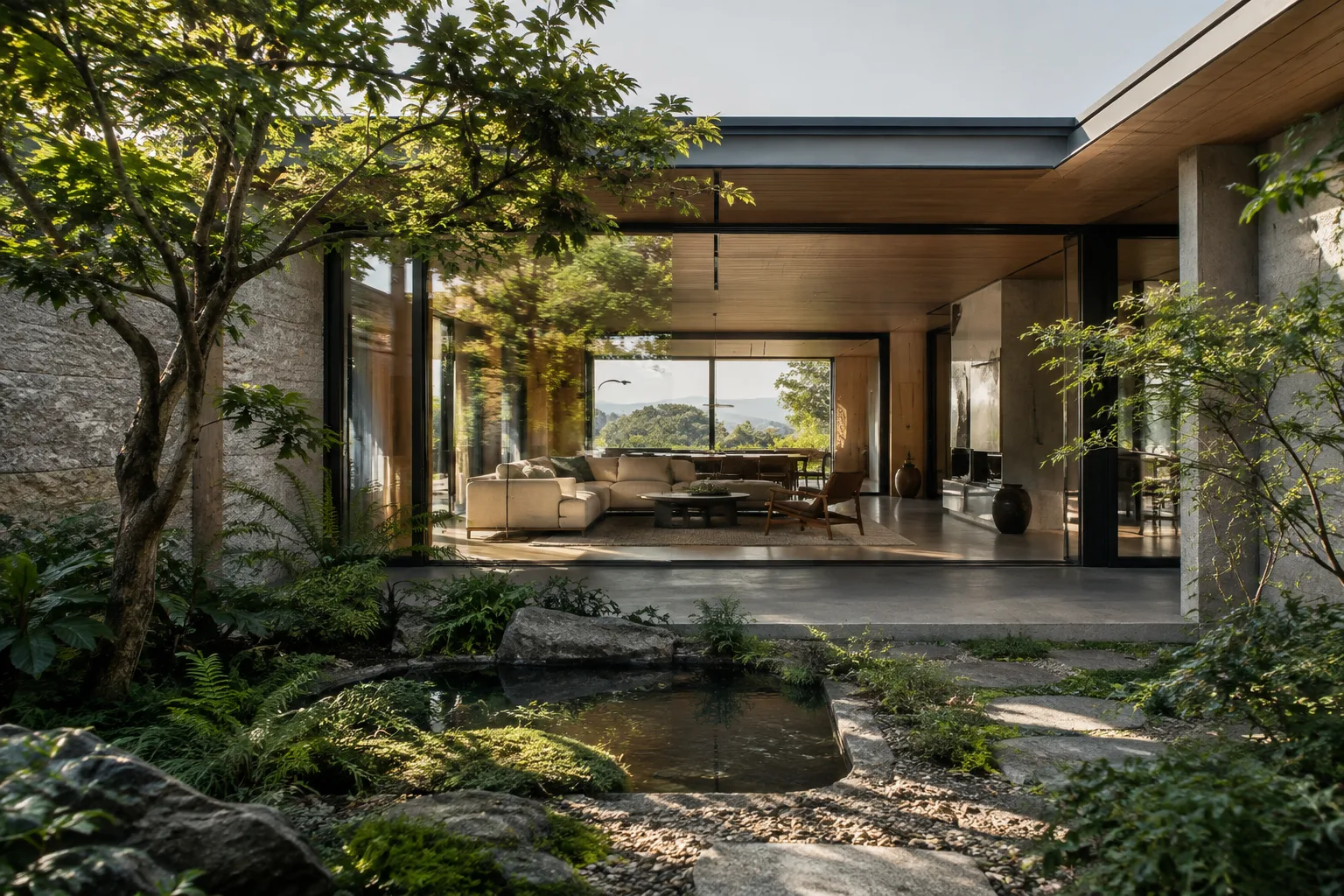
Create a short architectural concept video of a quiet contemporary courtyard house. Begin with the entrance garden and move the visual focus toward the shared living area. Emphasize the relationship between the courtyard, daylight, and the interior. Keep the mood calm and the architectural presentation clear.This opening prompt describes the scene and visual focus; it does not request a specific camera parameter or guarantee a particular output format. After generation, observe which elements stand out in the result.
Review the first result and request one change. When using Omni Flash’s conversational, multi-turn editing approach, focusing on one priority per turn makes it easier to track changes. For example, address the perception of materials first, then the effect of daylight. Rather than requesting several changes at once, take smaller steps that let you evaluate the result.
Refine the video to give more attention to the transition between the courtyard and the living area. Keep the original architectural concept and calm mood. Make the daylight visible in both spaces without changing the main focus of the scene.This instruction redirects visual attention to the relationship between the two spaces while preserving the existing concept. Check how consistent the result remains with the previous video; if necessary, make the request shorter and more specific.
Consider Veo 3.1 if you need a specific video control. If continuing a scene, focusing on a particular frame, or taking visual direction from an image is important, the Veo 3.1 features described in the source may better suit your workflow. For example, describe a specific spatial moment based on an existing image.
Use the provided architectural image as visual direction for a short video of this interior. Focus on the connection between the seating area and the adjacent courtyard. Preserve the image's overall spatial character and create a calm architectural presentation.This example describes visual guidance and the scene’s focus. The source mentions Veo 3.1’s image-based guidance, but does not guarantee that a particular material, framing, or movement will be reproduced exactly.
Clarify the desired result with constraints. Gemini’s prompt design guide recommends clear, specific instructions, constraints on unwanted outcomes, and a description of the desired response format. In architectural work, you can add project-specific boundaries such as “preserve the spatial relationship” or “don’t change the main focus.” Treat these as creative direction for the model, not as technical parameters.
Generate again and compare. A good first result does not mean the prompt is finished. According to the guide, prompt creation is iterative: try different, specific instructions and revise based on the results. Taking notes on what changed in each round makes it easier for a team to track decisions.
Common mistakes
Vague instructions: A general request such as “create an impressive video” leaves the model considerable room to interpret the scene and its purpose. Clearly describe the space, focus, and atmosphere.
Too many goals in one prompt: If you combine many different editing requests in the same instruction, it can be difficult to tell which one affected the result. Try priorities one at a time.
Treating expectations as technical guarantees: Describing camera movement or material appearance in a prompt does not mean the result will be generated exactly as requested. Review the output and rephrase the request as needed.
Choosing the wrong workflow: The source highlights Omni Flash for general short-video generation and conversational editing, and Veo 3.1 for specific needs such as scene extension, end-frame control, or frame-specific generation. Choose a model based on the features you need, not its name alone.
Not using examples: The Gemini guide notes that a few examples can help guide format and scope. If you need a repeatable output structure, try including an example of the expected result in the prompt.
Implications for architecture and visualization workflows
This approach is for architects, interior designers, and visualization teams who want to communicate a spatial idea in a short video for concept presentations, or use an existing image to guide an animated presentation. Omni Flash’s multi-turn editing approach offers a workflow for starting with an initial result and clarifying the narrative step by step. Veo 3.1’s scene-extension and frame-specific generation features can be considered when those controls are needed.
However, the sources do not provide information about specific hardware requirements, licensing costs, access in Turkey, or direct integration with architectural software. Rather than making assumptions about these details, check the latest Gemini API documentation and your organization’s usage terms before starting a project. Treat the generated video not as a replacement for design decisions, but as a tool that can help test how a concept is perceived and improve the presentation narrative.
Next steps
Start with a single space and a single narrative goal. Review whether the scene was interpreted correctly in the first generation, then change only one priority in the next turn. If you need scene extension, end-frame control, or image-based guidance, use the Veo 3.1 documentation as your reference. For general short-video generation and multi-turn editing, start with the Gemini Omni Flash guide.
Sources and licensing
This guide has been adapted into Turkish based on Google’s Gemini API documentation for video generation and prompt design. Both sources are licensed under CC BY 4.0.
Sources
2 sourcesSource texts are not republished; short quotes are marked, everything else is our own summary and commentary.
For architecture firms and visualization teams in Turkey, one of the most useful applications could be exploring different ways to present a concept through short video iterations and making spatial relationships easier to understand in client presentations. Omni Flash’s multi-turn editing approach lends itself to making small revisions rather than expecting a perfect result in one go.
However, the sources do not explain pricing, account requirements, local availability, or hardware requirements. Before incorporating video generation into a workflow, review the latest API terms and licensing requirements. Keep in mind that video output is a tool for presentation and idea development, not design validation.
Frequently asked questions
Should I use Gemini Omni Flash or Veo 3.1 for an architectural concept video?
Gemini’s guide recommends Omni Flash as the default option for short-video generation and multi-turn editing. If you need scene extension, end-frame control, or frame-specific generation, consider Veo 3.1’s features.
Can Gemini Omni Flash generate videos from images?
According to the source, Gemini Omni Flash can create short videos from text and images. It also supports multi-turn editing through the Interactions API.
What are the pricing and hardware requirements for Gemini API video generation?
The sources reviewed do not specify pricing or hardware requirements. Check the Gemini API documentation for current access and usage terms.