In brief
- Google’s Gemini API documentation recommends Nano Banana 2.1 for new projects.
- The model supports text-to-image generation and editing with text and image inputs together.
- The official documentation lists 1K, 2K, and 4K resolution options.
- Prompting guidance recommends clear instructions, explicit constraints, and iterative refinement.
What will you learn in this guide?
This hands-on guide offers a prompt framework for creating concept visuals for architectural design and interior projects with Nano Banana 2.1. We’ll cover how to describe a space’s function and composition, specify material and lighting choices clearly, and request targeted changes to an existing image. The example prompts below were created specifically for architectural use and can be copied as starting points.
Google’s Gemini API documentation describes Nano Banana as the name for Gemini’s built-in image generation capabilities. It also notes that images can be edited using text and image inputs. The official prompt design guide recommends giving clear, specific instructions, reviewing the output, and refining the prompt iteratively. The workflow here follows the same principle: establish the main scene first, then adjust specific decisions rather than expecting a perfect result in one go.
What you need: model, access, and an image
The model ID used in this guide is gemini-nano-banana-2.1. Google describes it as a high-efficiency workhorse model for image generation and conversational editing, and recommends using 2.1 instead of Nano Banana 2 for new projects. The documentation lists 1K, 2K, and 4K resolution options for Nano Banana 2.1. Nano Banana Pro is also mentioned as a separate option for more complex image tasks; the prompt examples in this guide are designed for 2.1.
You can generate images through the Gemini API, and use Google AI Studio to try prompts and manage API keys. The source documentation outlines options for creating an API key and using AI Studio, but this guide does not give a fixed value for account eligibility, current usage quotas, or cost. Check the latest terms separately if you’re planning production volumes. The sources also specify no requirements for local computer hardware, so we don’t suggest any particular graphics card or memory requirements.
If you’re editing an existing image of a space, prepare a file that you have the right to use and upload. Google’s image editing documentation notes that users must have rights to uploaded images and should avoid content that infringes on others’ rights.
Step by step: creating an architectural prompt
Start by stating the purpose of the scene. Decide whether the image is for a concept presentation, a material study, or an interior atmosphere. Then specify the type of space, camera angle, and composition. Instead of a broad description such as “a modern interior,” say what should be in the frame.
Describe materials, lighting, and atmosphere separately. For example, clearly specify the stone’s surface character, the wood tone, and the direction of the light. Add constraints for anything that should not appear. This narrows the model’s interpretation and makes it easier to track which decision to change in subsequent attempts.
Try the prompt below for an initial concept. This example describes the framing, materials, and lighting together in a residential interior.
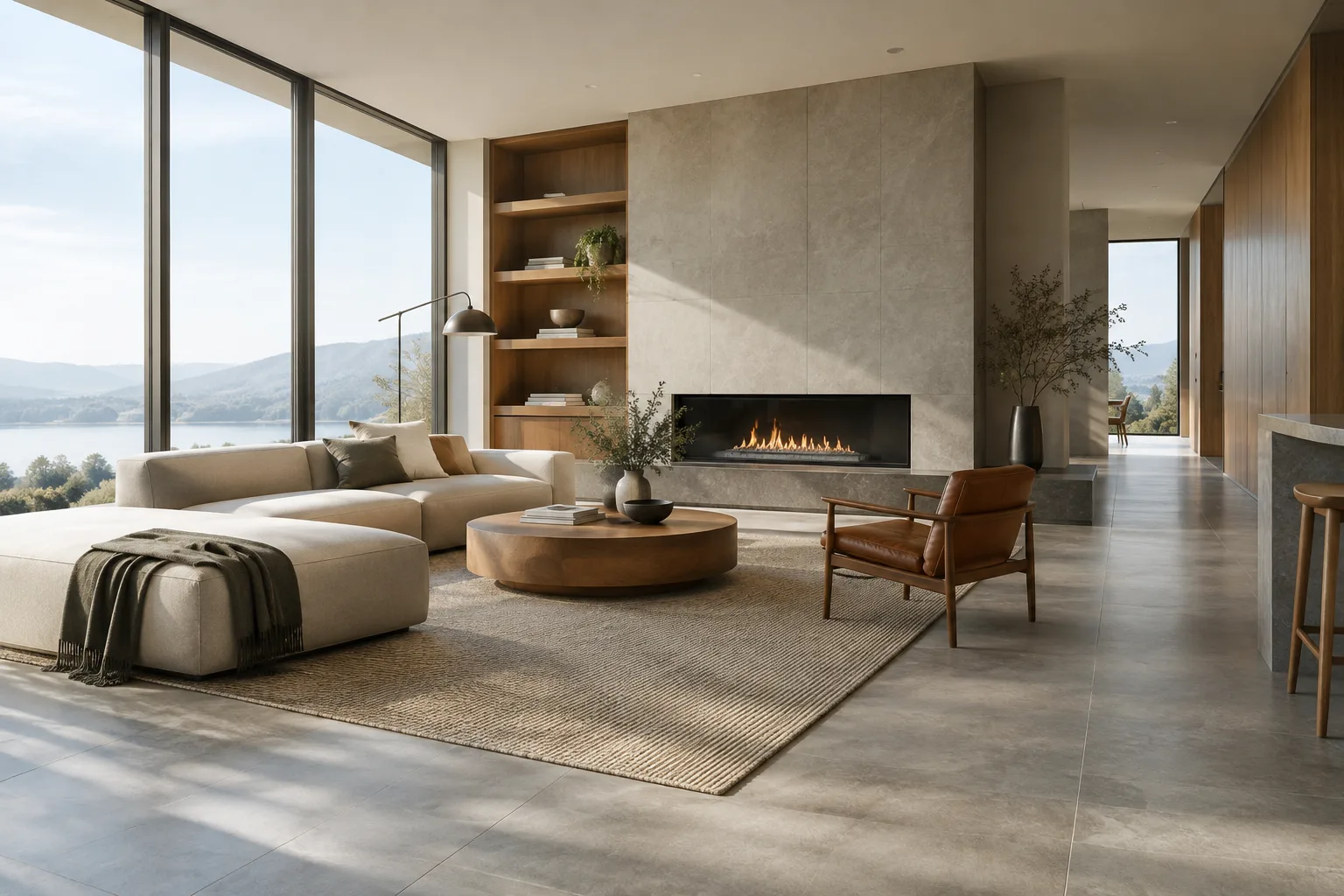
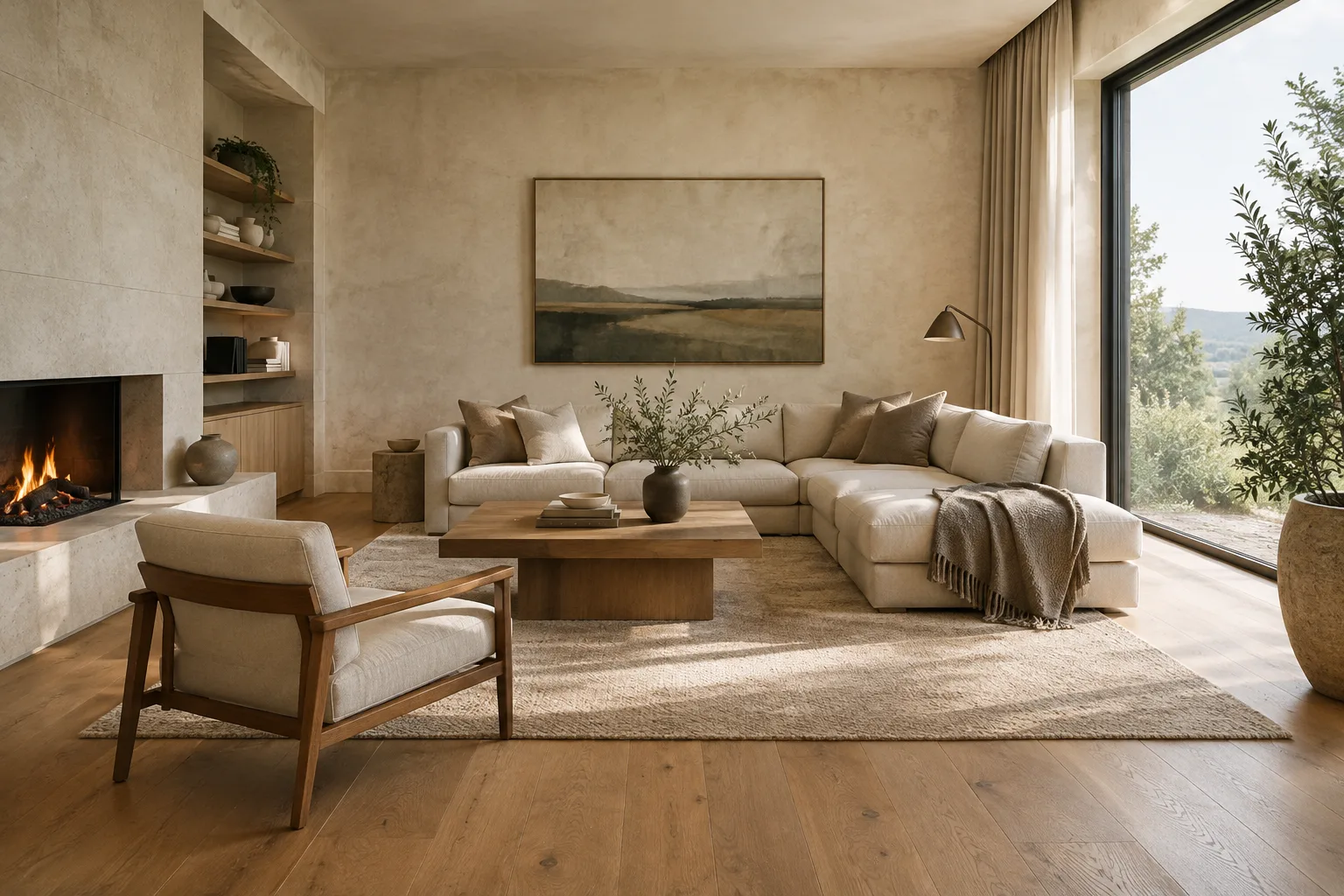
Create an architectural interior concept image of a calm contemporary living room in a compact urban apartment. Show the full seating area and a large window from eye level, with a clear view of the room layout. Use warm oak flooring, pale limestone walls, a soft neutral fabric sofa, and restrained dark metal details. Soft natural daylight enters from the left. Keep the composition uncluttered and the materials realistic. No people, no text, no decorative signage.When reviewing the first output, don’t just decide whether you like it. Identify what isn’t working: the framing, materials, lighting, or amount of furniture? Changing only that decision in the next prompt makes it easier to compare attempts.
Change the atmosphere while keeping the same space. Use the prompt below to vary the lighting and color choices while preserving the composition. It’s designed to keep the main design scheme fixed while adjusting the atmosphere.
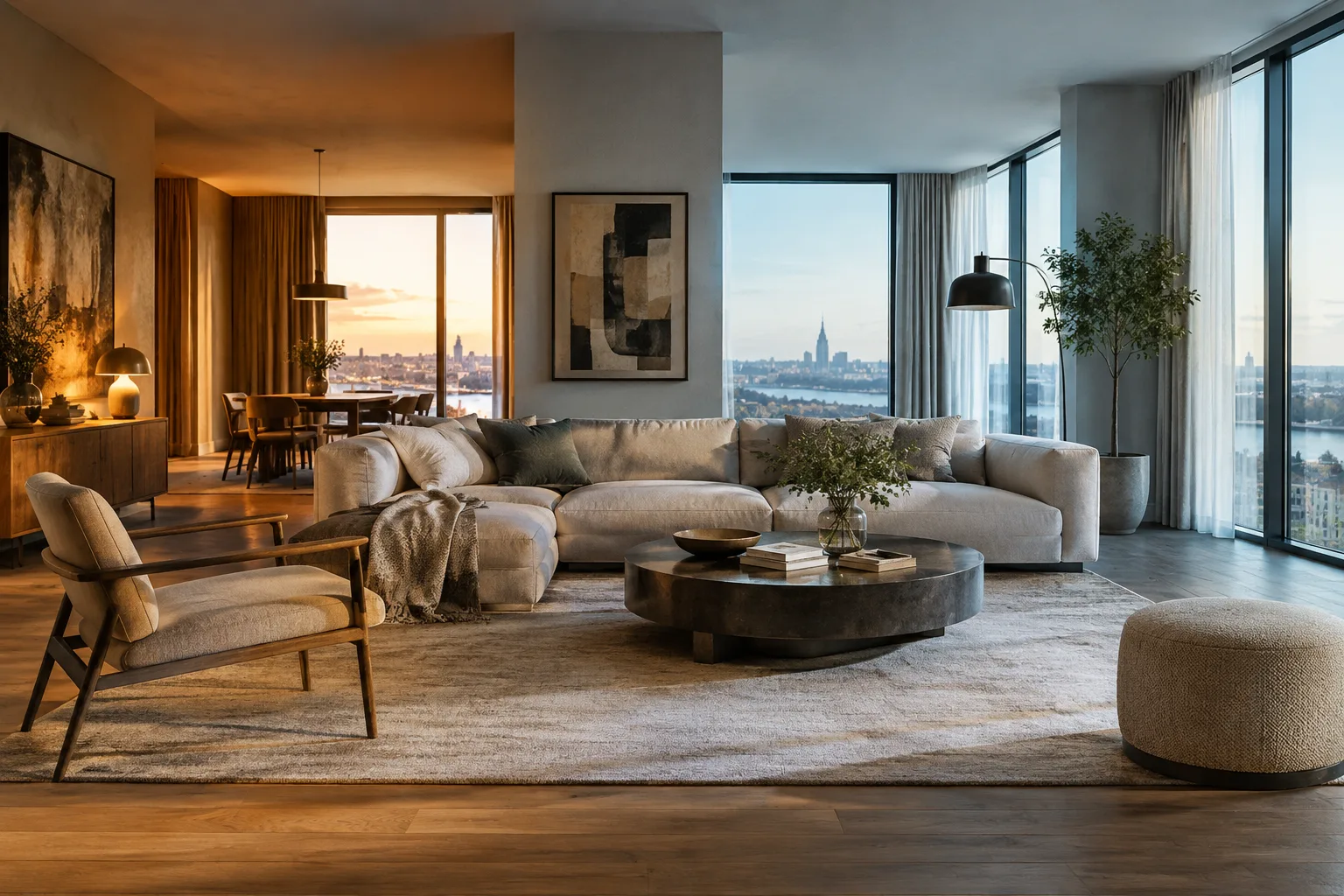
Create a refined architectural visualization of the same contemporary living room layout: eye-level view, full seating area, and large window. Preserve the room arrangement and the oak floor, pale limestone walls, neutral sofa, and dark metal details. Change the atmosphere to late-afternoon sunlight with long, soft shadows and a warmer tonal balance. Keep the image realistic and uncluttered. No people, no text, no added furniture.This example specifies what must remain unchanged with the request to “preserve the same layout,” then identifies the lighting and color attributes to change. Don’t assume the model will follow these instructions perfectly every time; review the image and narrow the prompt as needed.
Make a targeted edit to an existing image. The Gemini API documentation describes an editing workflow that accepts text and images in the same request. When you provide an interior image, you can request one specific change. For example:
Using the provided interior image as the reference, change only the wall finish to pale limestone with a subtle natural texture. Preserve the camera view, room layout, furniture, floor, window, and lighting. Do not add objects or alter the proportions of the room.This prompt focuses on a single surface choice and separately lists the elements to preserve. You need to attach the input image to the API request as an image; text alone won’t edit an existing file. The source documentation notes that details about multiple image inputs are covered in a separate image understanding guide.
Compare material options. Prepare prompts that keep the material choices and framing fixed while changing the description of just one surface. The example below focuses on the countertop in the same kitchen layout.
Create a realistic architectural visualization of a compact contemporary kitchen, viewed from the entrance at eye level. Keep a simple linear layout, flat-front oak cabinetry, a pale backsplash, and soft daylight from a side window. Use a honed dark stone countertop as the main material accent. Show the full counter run clearly. Keep styling minimal. No people, no text, no extra appliances.For comparison, change only the countertop description in the prompt; keep the layout, lighting, and camera wording intact. This makes it easier to assess which prompt change caused the difference between results.
Try an isometric scene for presentations. The official image generation guide includes an example showing how to use a 45-degree top-down isometric view and soft material descriptions. The original architectural example below applies that approach to a small public courtyard.
Create a clear 45-degree top-down isometric architectural visualization of a small public courtyard between contemporary buildings. Show the full courtyard plan, including a central planted area, simple paved paths, seating edges, and surrounding ground-floor entrances. Use soft natural materials, gentle daylight, and subtle shadows. Keep the composition readable, with a plain muted background beyond the site. No labels, no people, no text.You can try an isometric view for concept presentations that explain site layout and open-space relationships. Check whether the model has arranged the space as intended, particularly the positions of paths, entrances, and seating areas.
Common mistakes
Relying on vague adjectives: Instead of using words like “elegant,” “spacious,” or “modern” on their own, describe visible spatial features, materials, and lighting conditions.
Changing too many decisions at once: Changing the composition, materials, and lighting all in a single iteration makes it harder to tell which adjustment worked. Start with one variable.
Leaving out what you don’t want: If you don’t want text, people, or extra furniture in the image, state those constraints explicitly in the prompt. Still, don’t assume they’ll be followed perfectly in every generation.
Ignoring rights to the reference image: Check that you have the right to use an image you upload for editing. Google specifically advises against content that infringes on others’ rights.
Treating the first output as a final design document: The generated image should be considered a concept study. Review design decisions and spatial consistency separately with your team.
Next steps
Start by making a few attempts with the same prompt and noting common issues. Then create a new iteration by changing just one feature—for example, update only the light direction, wall finish, or framing. Google’s prompt design guide also treats experimentation and refinement as part of the process of getting good results. When editing an image, keep the requested change narrow and explicitly list the features that should be preserved.
Before using an image in a project presentation, check whether the materials, openings, and spatial layout accurately reflect the design intent. Also check the selected model’s current cost and usage terms before moving to regular use; the source documentation does not provide a fixed price for Nano Banana 2.1.
Sources and license
This guide has been adapted into Turkish based on Google’s Gemini API image generation and prompt design documentation. The source documentation is licensed under CC BY 4.0. The architectural example prompts were created originally for this article; the source prompts have not been copied.
Sources
3 sourcesSource texts are not republished; short quotes are marked, everything else is our own summary and commentary.
For architecture firms and visualization teams, this approach can help quickly describe and discuss atmosphere and material options during early concept development. Clear constraints and iterations that change one variable at a time make the outputs more useful for comparison, but they don’t replace design review.
In Turkey, teams should assess API access, usage costs, and image usage rights in the context of their own workflows before adopting the tool regularly. The sources provide no specific pricing or local hardware requirements. A cautious approach is to start with a small test set, assess quality and workflow fit, and then plan production volumes.
Frequently asked questions
What do I need to create architectural visuals with Nano Banana 2.1?
According to Google’s Gemini API documentation, the model ID is `gemini-nano-banana-2.1`. It’s available through the API; Google AI Studio is also provided for trying prompts and managing API keys.
Can Nano Banana 2.1 edit an existing interior image?
Yes. The documentation says text and image inputs can be provided together to add, remove, or change elements in an image. You must have the right to use the uploaded image.
What resolutions does Nano Banana 2.1 support?
Google’s image generation documentation lists 1K, 2K, and 4K resolution options for Nano Banana 2.1.