In brief
- Nano Banana 2.1’s model ID in the API is gemini-nano-banana-2.1.
- The model supports creating new images from text prompts and editing images using both image and text inputs.
- Google recommends Nano Banana 2.1 for new projects; the model supports 1K, 2K, and 4K resolutions.
- All generated images include a SynthID watermark.
What will you learn in this guide?
We’ll cover how to structure prompts when using Nano Banana 2.1 for architectural concepts and interior visualizations, how to use a reference image as an editing input, and how to refine results iteratively. This guide is based on working through the Gemini API; it does not describe menu steps in desktop modeling or rendering software.
The examples here are designed for creating a concept image from scratch or changing specific qualities of an existing image. The generated output is not a project document that replaces design decisions; it should be treated as a tool for developing ideas, exploring atmosphere, and testing visuals before a presentation. The available sources do not state that the model guarantees spatial accuracy for every prompt.
Requirements and model selection
The official Gemini API image generation documentation lists gemini-nano-banana-2.1 as the model ID for Nano Banana 2.1. The examples cover Python, JavaScript, Java, Go, and REST. In the REST example, the request is sent with an API key; for application development, choose the method that suits your own environment. The sources provided here do not explain pricing, access conditions, or account requirements in detail.
Google recommends Nano Banana 2.1 for new projects. According to the documentation, the model works at 1K, 2K, and 4K resolutions and offers improvements in image quality, text generation, multi-turn consistency, and grounding with Google Search. These are the provider’s descriptions of the model. Nano Banana 2 Lite is positioned for tasks where speed and cost are priorities; it is stated to be unoptimized for multiple reference images or sequential multi-turn editing. For more complex image tasks, the documentation describes Nano Banana Pro as the higher-tier option.
To generate a new image, send a text prompt. In an editing workflow, provide an image input alongside the text prompt. The generated image data in the API response can be retrieved and saved to a file. If you upload an existing image, make sure you have the rights to use it; the official documentation also warns about this.
Step-by-step prompt writing for architectural images
1. Define the purpose of the image. Start the prompt by clearly stating whether the image is an interior concept, a façade study, a material exploration, or a presentation visual. Describing the desired output helps the model understand the scope of the task. If the design decisions are not yet settled, frame the prompt as an exploratory visual.
2. Describe the space and what must remain unchanged. Specify visible elements such as the type of space, key materials, lighting quality, and framing. If you are editing an image, state separately which qualities should be preserved and which should change. The example below is an original prompt for creating an interior concept from scratch:
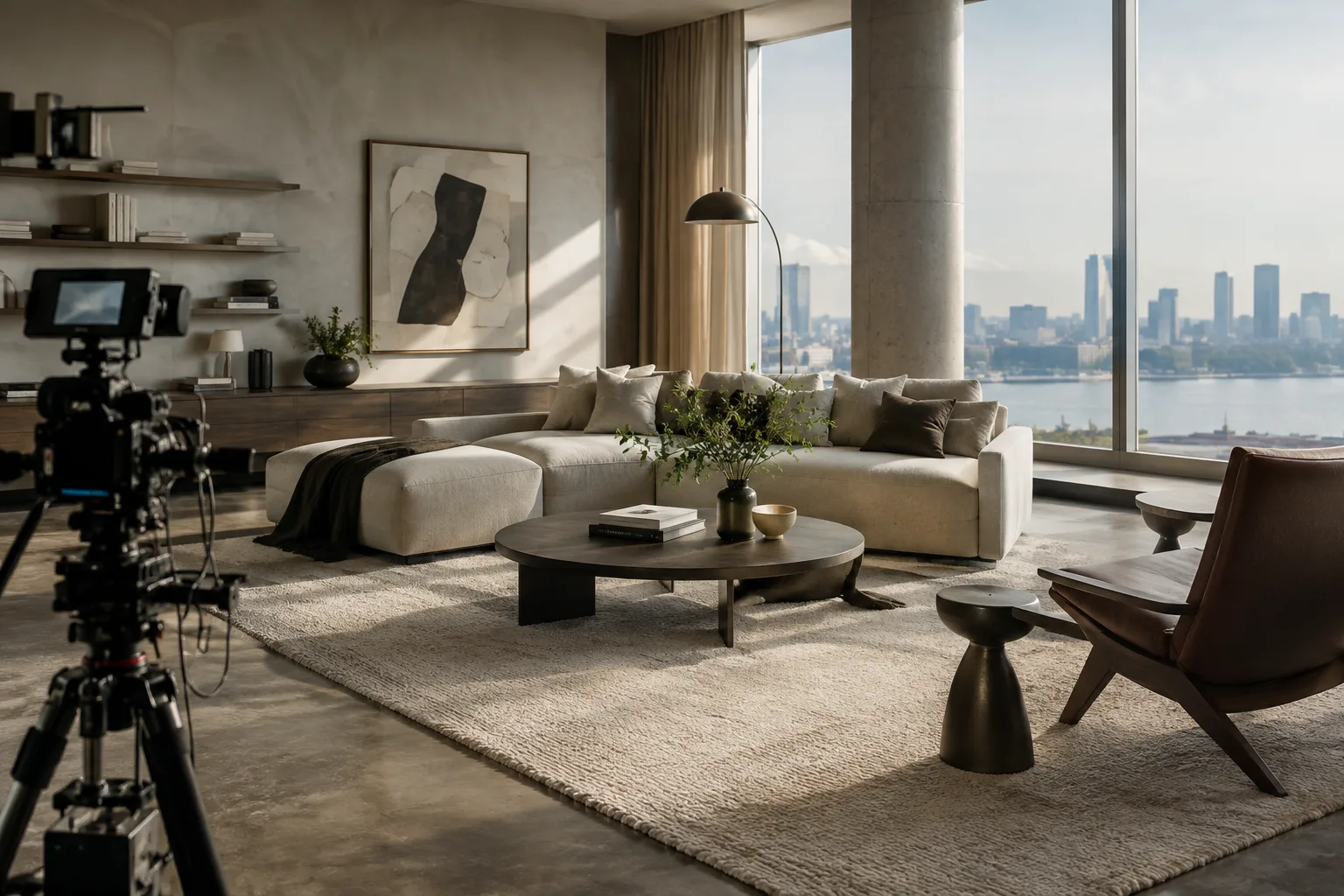
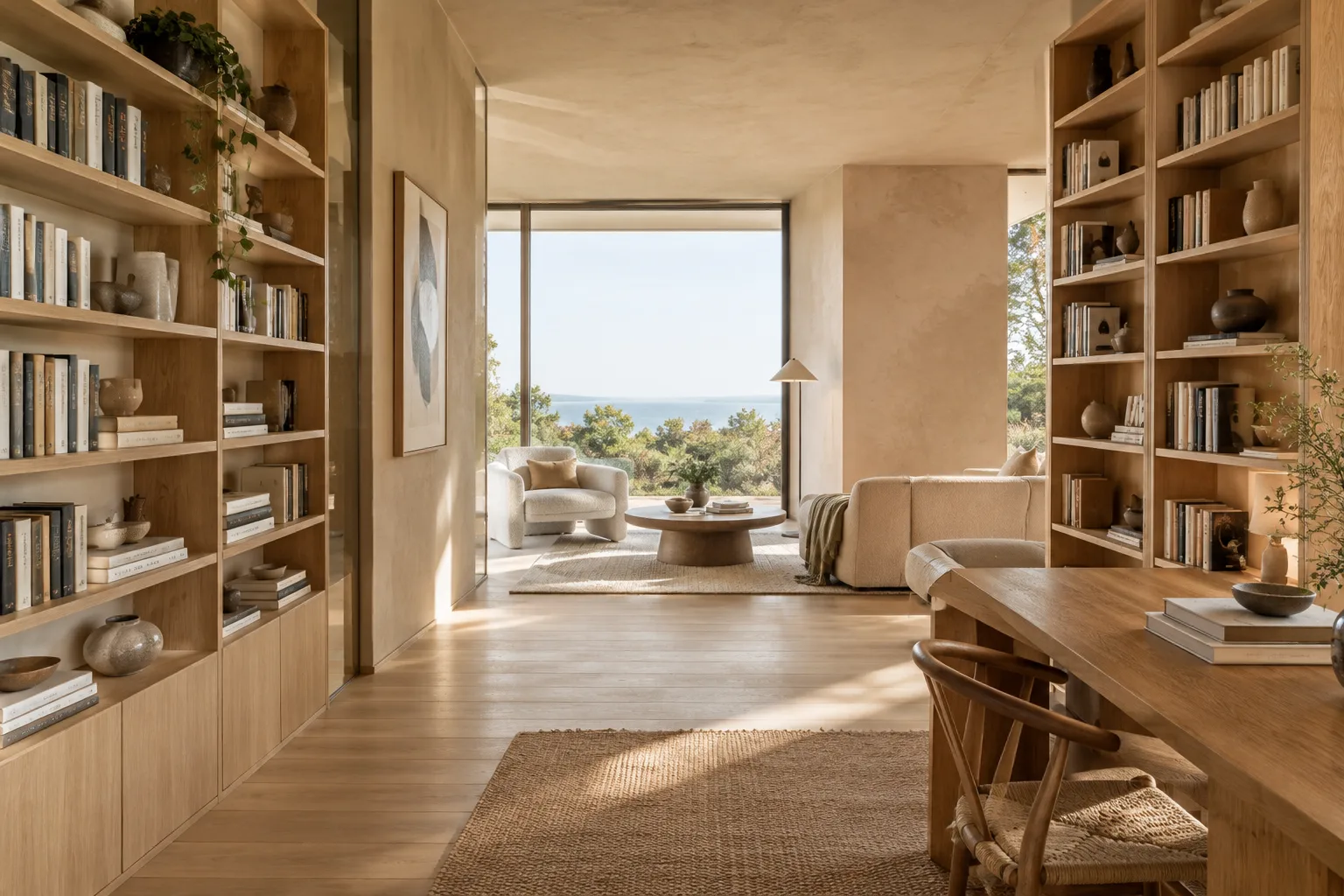
Create an editorial architectural visualization of a calm contemporary reading room in a small urban apartment. Use pale oak, warm off-white plaster, a muted olive fabric sofa, and soft daylight entering from a tall side window. Show a clear view from the entrance toward the seating area. Keep the composition realistic, restrained, and focused on material atmosphere. No people, no text, no logos.This prompt gives the room type, materials, lighting, and viewing direction as separate details. It does not guarantee specific furniture dimensions or construction details; use the image to evaluate a design idea.
3. Describe the framing and visual style. Specify how the image should be viewed: at eye level, from above, in an isometric view, or as a close-up of a material, for example. Explain the desired atmosphere through lighting and surface qualities rather than relying on general adjectives. For instance, you can ask for soft daylight and a limited color palette to create a “calm” atmosphere. The following example is a concept prompt that emphasizes the relationship between the façade and entrance:
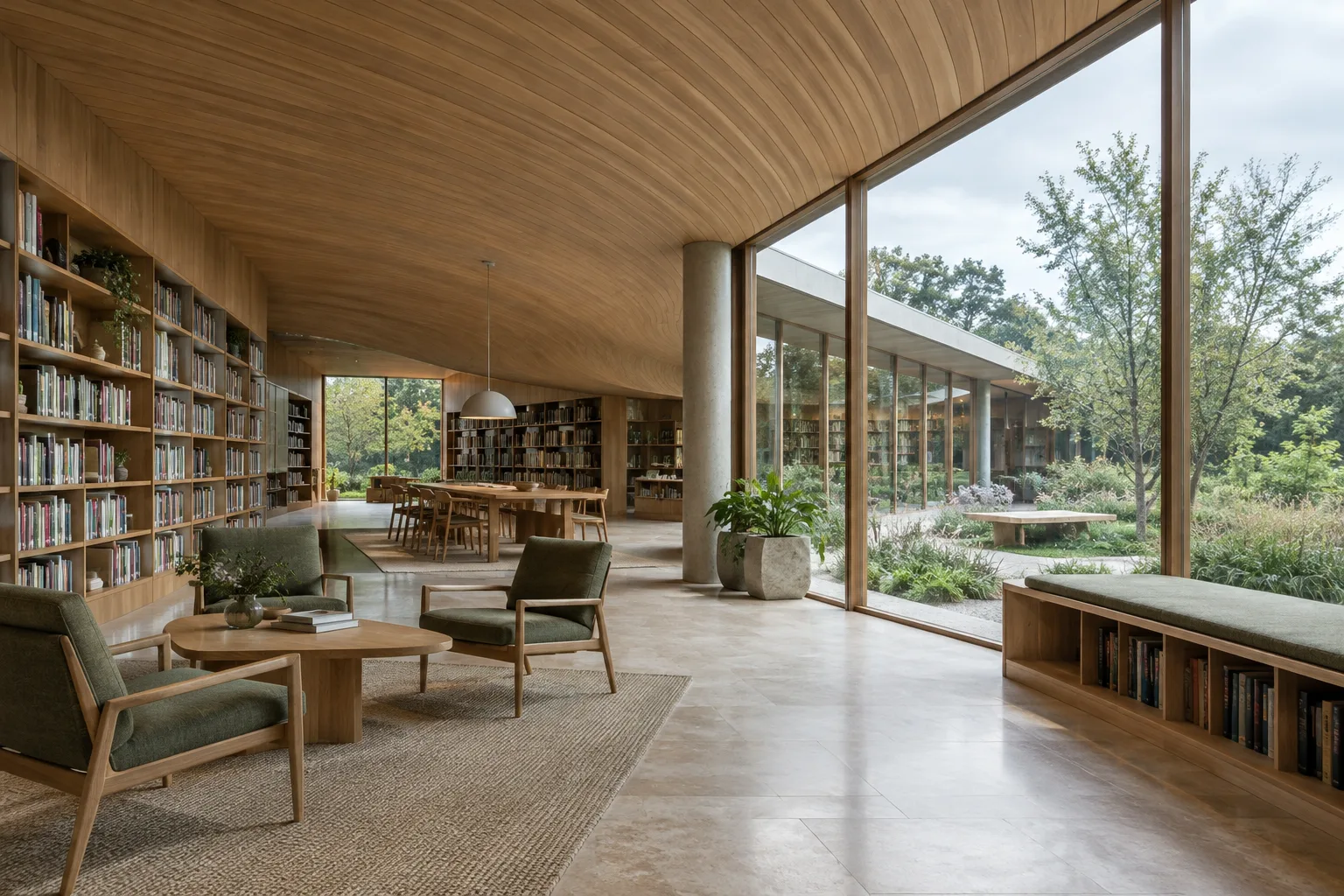
Create a realistic architectural concept image of a compact public library entrance, viewed from pedestrian eye level. Emphasize a deep timber-framed doorway, pale stone cladding, and a sheltered threshold. Use overcast daylight with soft shadows and a quiet street setting. Keep the building geometry legible and the image suitable for an early design presentation. No signage, no text, no logos.Here, the viewing level, entrance threshold, façade materials, and lighting conditions are clearly specified. These kinds of descriptions make the prompt more precise, but they do not verify dimensions, regulations, or construction conditions for a real project.
4. Edit using a reference image. Include the image you want to work on in the API request alongside the text input. Keep the scope of the change narrow and clearly state what should be preserved. For example, if you want to test only the wall finish in an interior image, ask for the layout and camera angle to remain unchanged:
Edit the provided interior image. Change only the wall finish to a warm, light-toned lime plaster with subtle texture. Preserve the room layout, furniture positions, camera viewpoint, window openings, and existing daylight direction. Do not add objects or alter the architecture.For this example, the existing image must also be sent as an editing input. The prompt distinguishes the requested surface change from the elements that should remain unchanged. Instead of changing several things at once, try a single change first; this makes it easier to assess which instruction influenced the result.
5. Review the result and refine it in a new turn. If the first output misses the intended atmosphere, identify what is lacking rather than completely rewriting the prompt. For example, if the light should be softer or the framing should face the entrance, clarify only those points in the next request. According to the official documentation, the model supports conversational image editing and improvements to multi-turn consistency; even so, do not assume every design detail will be preserved in each turn.
Google’s prompt design guide also recommends giving clear, specific instructions, stating constraints, and iteratively refining prompts based on observed results. Specifying the desired output, scope, and what not to do is a practical approach for architectural image workflows as well.
Common mistakes
Relying on vague adjectives: A general description such as “a modern and beautiful interior” does not explain what materials, lighting, or framing you expect. Add visually verifiable qualities.
Not stating what to preserve: When editing a reference image, omitting details such as the layout, camera angle, or openings that must not change can lead to unwanted differences in the result. List the elements that should remain unchanged in the prompt.
Requesting too many changes at once: Changing the materials, lighting, furniture, and shape of a space together can make the result difficult to evaluate. Work on one goal first, then continue with a new turn.
Treating the output as project validation: The sources do not say that the model provides technical drawings, dimensional checks, or construction suitability. Treat the generated image as concept exploration and validate project decisions separately. Also make sure you have the necessary rights to use any uploaded images.
Next steps: workflows for studios and students
Studios can use this approach to discuss different atmospheric and material directions at an early stage. Students can explore visuals by testing different lighting or framing descriptions for the same spatial concept. Before production, determine which tasks will be handled through the API, how images will be shared within the team, and at what stage the results will inform design decisions. Since the sources do not specify pricing or licensing terms, these should be reviewed separately before actual use.
All generated images are stated to include a SynthID watermark. Keep this in mind, along with the relevant usage conditions, before using outputs in presentations, publications, or client communications. The image data returned by the API must be retrieved and saved by the application; the sources do not describe a feature for transferring results directly into a local 3D scene or CAD/BIM file.
Sources and licensing
This guide has been adapted into Turkish using Google’s Gemini API image generation and prompt design documentation. Both sources are licensed under CC BY 4.0. The architectural example prompts were written specifically for this guide.
Sources
2 sourcesSource texts are not republished; short quotes are marked, everything else is our own summary and commentary.
Nano Banana 2.1’s most practical use for architectural teams is to quickly open up discussion of atmosphere and material directions during early design. Asking for limited changes to a reference image can also help explore alternatives before a presentation; however, it would be wrong to treat the result as verification of dimensions, geometry, or construction.
For studios and students in Turkey, API access conditions, usage costs, and the rights under which images can be used will be key considerations. Since the sources do not provide pricing or licensing details, these should be checked separately before moving into regular production. The SynthID watermark should also be factored into plans for sharing outputs.
Frequently asked questions
What is the API model ID for Nano Banana 2.1?
The Gemini API documentation lists gemini-nano-banana-2.1 as the model ID.
Can Nano Banana 2.1 edit an existing interior image?
Yes. You can edit an image by providing an image input alongside a text prompt in the API.
Do images generated with Nano Banana 2.1 have a watermark?
According to the documentation, all generated images include a SynthID watermark.