In brief
- ShrinkWrap accepts NURBS surfaces, SubDs, meshes, point clouds and point objects as input.
- Target edge length can be calculated automatically; Polygon Optimization can be set from 0% to 100%.
- Check reports errors in the selected object’s data structure, but does not guarantee that it will find every geometry issue.
- Rhino documentation does not specify dedicated hardware requirements or licensing information for ShrinkWrap.
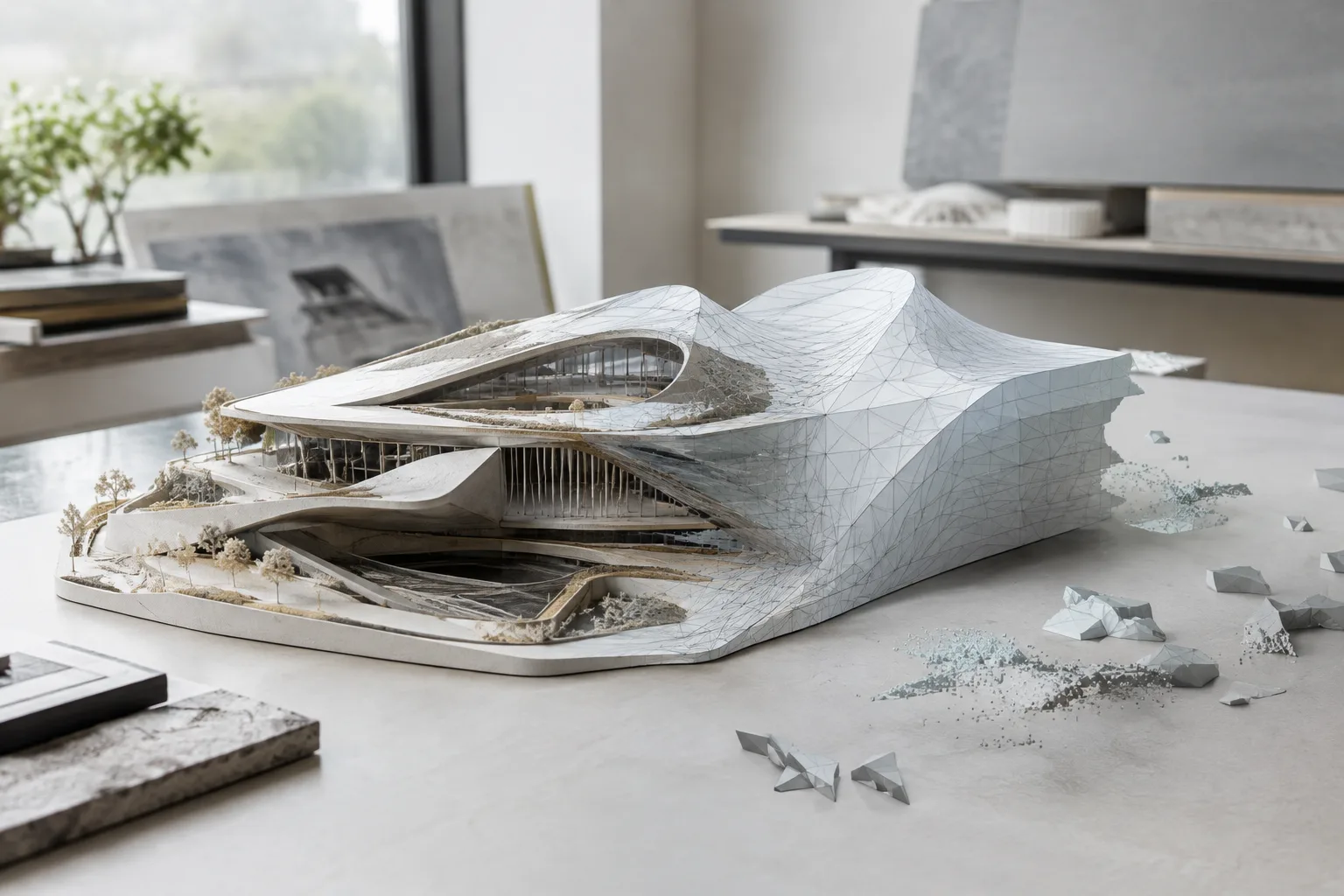
This guide covers how to use the ShrinkWrap command in Rhino 8 to create a mesh from complex or problematic input, then inspect the result. The command can create a new mesh around NURBS surfaces, SubDs, meshes, point clouds and point objects. McNeel documentation presents ShrinkWrap as suitable for tasks such as creating 3D-printing meshes, solid meshes from multiple objects, and meshes from 3D scan fragments. The steps below are based on the commands and options documented for Rhino 8.
1. Check the input with Check
Before converting, select the object you want to inspect and run Check from Analyze › Diagnostics › Check. The command reports errors in the object’s data structure, helping to reveal potential issues before processing. If an error is listed, it makes more sense to review the object’s structure first rather than changing ShrinkWrap settings.
A clean result from Check does not prove that the model is flawless in every respect. Rhino documentation notes that some surface issues, such as surfaces that fold back on themselves or intersect, can be difficult to detect automatically. Treat Check as a general structural check, not as a test that certifies the geometry as a whole.
You can also use the CheckNewObjects command to monitor for invalid objects created during modeling or file import. If the command reports an issue, note which operation produced it. If you receive a warning during normal modeling, undo the operation and copy the relevant objects into a new file; include information about the command and active options in your problem report.
2. Choose ShrinkWrap settings for the task
Open the command from Mesh Tools › Mesh › Shrink Wrap. First, decide how much detail the output needs to preserve. ShrinkWrap’s Target Edge Length option sets the approximate length of mesh edges; the documentation says its default value is calculated automatically. So don’t expect one fixed default value.
| Setting | Suggested value | Effect |
|---|---|---|
| Target Edge Length | Automatic calculation or an approximate edge length suited to the task | Sets the approximate size of edges in the output mesh. |
| Offset | A positive or negative value as needed | A positive value inflates the mesh outward and increases the face count; a negative value shrinks the mesh and reduces the face count. |
| Smoothing iterations | 0 if smoothing should be disabled | 0 disables smoothing. Higher values reduce more faces and shrink the mesh further. |
| Polygon Optimization % | Between 0 and 100, depending on the desired simplification | Reduces the face count by adaptively merging vertices; higher values remove more faces, while faces along sharp edges are preserved. |
Increasing Polygon Optimization can also increase deviations from the target edge length. So weigh the need for a mesh with fewer faces against the level of detail required. Offset has a more limited effect on target edge length. Rather than assuming that increasing a setting will always improve the result, use the preview to check the output.
3. Manage point data, holes and color options
Inflate Vertices and Points creates output from vertices in the input mesh or points in a point cloud. The option is on by default for point and point cloud inputs, and off for other object types. For NURBS surfaces and SubDs, it uses vertices from the objects’ render meshes. Customizing the render mesh can help if more vertices are needed. Inflated meshes merge into larger meshes only when they intersect. A negative offset pulls the output back toward the input vertices or points.
Fill holes in input objects closes holes in the input objects before creating the mesh. This can be useful in many cases, but it may also close very small gaps that were left intentionally, so consider the model’s purpose. This option has no effect with point or point cloud inputs when Inflate Vertices and Points is enabled.
If colors need to be preserved in the output, consider the Compute vertex colors option. It transfers vertex colors from meshes and display colors from point clouds to the ShrinkWrap mesh as vertex colors. Use Hide input objects if you don’t want the source objects visible in the preview; Draw mesh wires displays the mesh as a wireframe. Preview lets you see the result during the command session before creating the mesh. Delete input objects deletes the inputs if the output is created successfully, so take care with this option if you need to keep the source geometry.
4. Inspect the output and potential mesh issues
After creating the mesh, use Check again to inspect the object’s data structure. This doesn’t mean ShrinkWrap has fixed every geometry issue; if the mesh is intended for 3D printing, inspect mesh-specific defects separately. Rhino documentation notes that some STL/SLA printers may run slowly, produce unexpected results or run out of memory when working with meshes containing many long, thin faces. MeshRepair can be considered for editing these kinds of print meshes.
For specific defects, the documentation points to these tools:
CullDegenerateMeshFacesfor invalid faces and zero-length edges.For non-manifold edges, first use
CullDegenerateMeshFaces, thenExtractNonManifoldMeshEdges.Use
ShowEdgesto find naked edges; tryFillMeshHole,FillMeshHolesorMatchMeshEdgeto close them.Use
ExtractDuplicateMeshFacesfor duplicate faces andUnifyMeshNormalsfor faces whose orientation needs correcting.Use
SplitDisjointMeshfor disconnected mesh pieces.
Rather than applying these tools indiscriminately to every output, choose the one suited to the issue found during inspection. Check’s structural assessment and mesh diagnosis and repair are not interchangeable.
Impact on architecture and visualization workflows
ShrinkWrap can be useful in workflows for architecture, interior design and visualization teams, especially when combining 3D scan fragments, creating a solid mesh from multiple inputs or trying to create a closed mesh from difficult-to-repair geometry. According to the documentation, the command is also intended for 3D printing and reverse engineering. Set the level of detail, how holes are handled and whether color transfer is needed according to the model’s intended use.
Rhino documentation does not provide specific hardware requirements, licensing terms or compatibility information for other software here. Teams should therefore check the ShrinkWrap output against the requirements of the next stage, paying particular attention to the option that deletes source objects and, for 3D printing, to mesh defects.
Common mistakes
Raising the Polygon Optimization value without accounting for deviations from the target edge length.
Overlooking that
Fill holes in input objectsmay close micro-gaps that were left intentionally.Treating a clean Check report as proof that all surface and intersection defects have been found.
Assuming the source geometry will be preserved when
Delete input objectsis enabled.Using the mesh for 3D printing without checking for naked edges and long, thin faces.
Sources
2 sourcesSource texts are not republished; short quotes are marked, everything else is our own summary and commentary.
For architecture and visualization offices in Turkey, ShrinkWrap’s practical value lies in its ability to create a new mesh from scan data and complex inputs. It can help organize meshes for 3D printing or reverse engineering, but it shouldn’t be treated as a solution that fixes every defect on its own.
For efficient use, build preview and Check inspections into the workflow, and consider from the outset whether you need to preserve the source objects. Since the documentation does not explain hardware requirements or licensing terms, offices should also verify their own setup and licensing status.
Frequently asked questions
Which objects does Rhino 8 ShrinkWrap support?
The command accepts NURBS surfaces, SubDs, meshes, point clouds and point objects as input.
What does Polygon Optimization do in Rhino ShrinkWrap?
This option, which ranges from 0% to 100%, reduces the number of faces in the output mesh. Higher values remove more faces, while faces along sharp edges are preserved.
How can you check a ShrinkWrap output before 3D printing?
Check can be used to inspect errors in the object’s data structure. Depending on the mesh defects, you can also consider ShowEdges, MeshRepair and relevant repair commands.