In brief
- FLUX.2 recommends ordering prompts by subject, action, style, and context to create consistent results.
- Information placed at the beginning of a prompt can influence what the model prioritizes.
- You can describe colors using HEX codes associated with specific objects.
- FLUX.2 [max], [pro], and [flex] can be tried in Playground; [klein] is available through the API and Hugging Face.
What will you learn in this guide?
A good prompt for architectural image generation involves more than simply asking for “a modern house.” You need to clearly describe what the space is, how it appears in the frame, which visual approach to use, and how lighting affects the scene. FLUX.2’s official prompting guide organizes this information around subject, action, style, and context. For architectural scenes, you can think of these as the building or interior, its appearance, the visual language, and the environmental conditions.
In this tutorial, you’ll progress from a brief concept description to more controlled interior and exterior prompts. We’ll also cover how to assign color codes to specific surfaces, describe complex scenes in JSON, and reduce common prompting mistakes. The examples were created specifically for architecture and interior design scenarios; they are not copied from the source materials.
Requirements: model and access
The FLUX.2 [max], [pro], and [flex] models can be tried in the official Playground through a browser; the documentation says no setup is required for this. [klein] is available through the API and Hugging Face. The source documentation does not explain account requirements for Playground or provide detailed setup steps for API use.
Consider your needs when choosing a model. According to the official model comparison, [max] stands out for the highest quality and grounding search; [pro] for production-scale use; and [flex] for control over typography and fine details. [klein] focuses on real-time, high-volume generation. The documentation says [klein] 4B runs on consumer GPUs with approximately 13 GB of VRAM. Since licensing terms vary by model variant, check the relevant model’s license before choosing—especially for local use or commercial workflows. Apache 2.0 is listed for [klein] 4B, and the FLUX NCL license for 9B.
Step by step: building an architectural prompt
1. Start with the main scene and its priority
Build a single core idea in your first prompt. Lead with the main space or structure; according to the guide, information near the beginning of a prompt can receive more of the model’s attention. Short prompts work well for quickly exploring ideas. The guide classifies 10–30 words as short, 30–80 words as generally ideal for most tasks, and prompts over 80 words as long and suited to complex scenes.
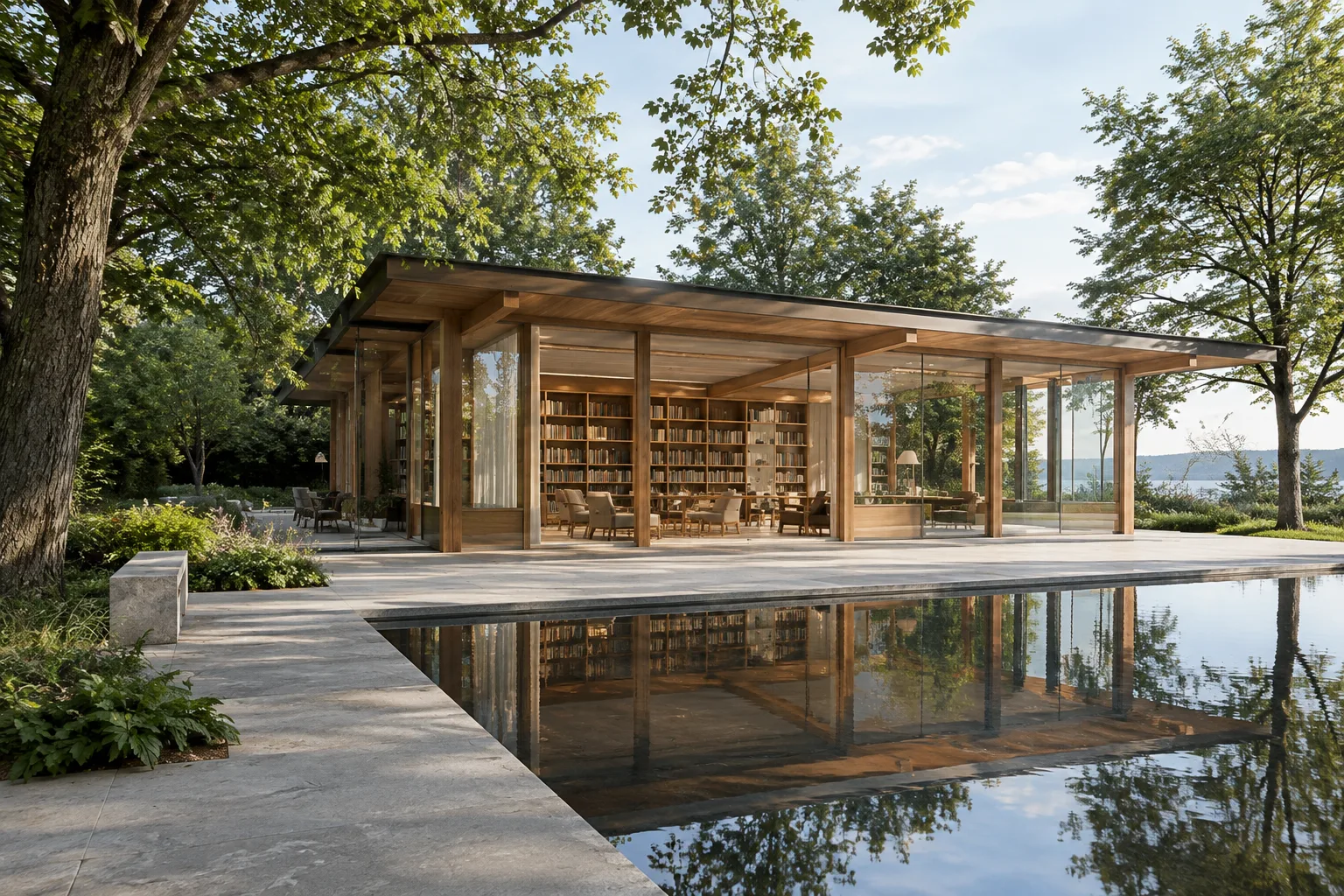
A compact contemporary library pavilion beside a quiet reflecting pool, warm timber structure, broad glass facade, soft morning light, photorealistic architectural visualization, eye-level wide composition.This example leads with the building type and surroundings, then adds materials, lighting, and visual style. Start with a single scene idea for your first attempt. It’s easier to compare results by adding details after identifying what’s missing than by writing a long, unfocused description from the outset.
2. Specify the interior, lighting, and framing
For interior prompts, describe the room type, key furniture, surfaces, and lighting conditions separately. Rather than simply calling the lighting “beautiful,” specify the time of day and the quality of the light. Details such as camera and lens simulation can also help achieve photorealism; the official guide includes examples of camera models, focal lengths, and apertures.
A calm apartment living room with a low oak coffee table, pale limestone floor, textured off-white walls and a deep green sofa, late-afternoon sunlight entering from the left, natural materials, photorealistic interior photography, 35mm lens, eye-level view.Here, the furniture and surfaces establish the scene’s contents, while the direction and time of the light shape its atmosphere. Camera details help describe how the framing should look. Rather than changing everything at once, adjust the lighting in one attempt and the framing in the next; this makes it easier to assess each change’s effect on the image.
3. Associate colors with surfaces
FLUX.2 supports color control using HEX codes. Associating codes with specific objects or surfaces in the scene is more descriptive than saying “use these colors.” Don’t assume that color matching will be exact in every case; the source recommends clearly connecting each code to the relevant object.
A contemporary kitchen with matte cabinet fronts in color #6B766B, a warm oak island in color #B8895B, pale walls in color #E9E4DA and charcoal stone countertop in color #343638, soft diffuse daylight, clean photorealistic interior visualization.Here, each code is assigned to a specific surface. If you’re comparing color palettes for a concept, keep the rest of the scene description fixed and change only the colors. This lets you explore the same spatial idea with different material and color choices. Clearly specifying which element each code applies to prevents the palette from becoming ambiguous in the prompt.
4. Structure complex scenes
You can use JSON prompts for generations that include multiple elements, positions, lighting, and framing details. The official documentation recommends this approach particularly for production workflows, automation, multi-element scenes, and cases where you need to edit components separately. The example below is an original architectural scene description based on the structured prompting approach in the guide.
{
  "scene": "A small urban courtyard framed by a contemporary residential building",
  "subjects": [
    {
      "description": "A shallow reflecting pool with a stone edge",
      "position": "foreground center",
      "action": "reflecting the facade and soft sky"
    },
    {
      "description": "A mature tree and planted seating area",
      "position": "left side of the courtyard",
      "action": "creating a shaded place to sit"
    }
  ],
  "style": "photorealistic architectural visualization",
  "color_palette": ["#D8D1C5", "#53665A", "#8A684C"],
  "lighting": "soft overcast daylight",
  "mood": "quiet and welcoming",
  "background": "simple urban surroundings",
  "composition": "wide view from the courtyard entrance",
  "camera": {
    "angle": "eye level",
    "lens": "wide-angle",
    "depth_of_field": "facade and courtyard in clear focus"
  }
}
Give each JSON field a clear role: the scene provides overall context, subjects describe the spatial elements, positions define their relationships in the frame, and lighting and color fields specify visual decisions. This format doesn’t guarantee a particular result, but it makes it easier to track where each piece of information belongs and change one element independently of the others.
5. Iterate by changing one design decision at a time
When generating alternatives with your final prompt, don’t rewrite everything from scratch. For example, change only the lighting conditions or color palette in the same interior description. Keep the main scene details at the start of the prompt; this makes it easier to identify which design decision you changed in subsequent iterations.
A compact gallery entrance with a curved reception desk, pale stone floor and warm timber wall panels, early evening light entering through a tall side window, subtle indirect interior lighting, photorealistic architectural visualization, eye-level wide composition.In this variation, the core space and material descriptions stay the same while the lighting conditions change. FLUX.2’s documentation also describes using multiple reference images; the supported number varies by model. For example, it lists a maximum of 4 for [klein], up to 8 via API for [max], [pro], and [flex], and up to 10 in Playground. Keep the prompt simple if you don’t need references; if you do, check the limits for your model.
Common mistakes
Filling the prompt with negative instructions: FLUX.2 doesn’t support negative prompts. Instead of listing unwanted elements, describe the intended scene positively and concretely.
Leaving important information until the end of the prompt: State core elements, such as the main building or space, at the beginning of the description. Add lighting, materials, and secondary details afterward.
Providing a HEX code without specifying an object: Giving a code without saying which surface or object should use it can lead to inconsistent results. Associate the color with the relevant element.
Changing too many variables in a single prompt: If lighting, materials, framing, and colors all change at once, it becomes difficult to tell which instruction affected the result. Update one decision—or a few related ones—at a time.
Next steps: impact on architectural workflows
This approach can help architects exploring early concepts, design teams visualizing interior alternatives, and visualization artists working with reference images. Treating generated images as options or tools for developing ideas in design discussions can help make clear which decisions the team needs to examine further. It’s also important to check that an image aligns with the actual design requirements before using it in a final presentation or project decision.
For offices and students in Turkey, the main considerations are model choice, hardware requirements, and licensing. The source materials do not state API pricing amounts; check current pricing before use rather than assuming a cost. Those considering local use should review the license and hardware requirements for [klein] variants; those evaluating the online Playground should separately verify account requirements and access details. Comparing color, material, and lighting alternatives can be useful, but treat the generated image as input for the design team to assess, not as a verified design outcome.
Sources and licensing
This tutorial draws on Black Forest Labs’ official FLUX.2 product documentation and FLUX.2 prompting guide. The source materials do not specify a particular license for these pages. The prompt examples in this article were written originally for architectural and interior design use; prompts from the source materials have not been reproduced verbatim.
Sources
2 sourcesSource texts are not republished; short quotes are marked, everything else is our own summary and commentary.
FLUX.2’s prompt structure is useful for teams that want to systematically explore lighting, material, and framing alternatives for the same space, especially during the concept stage. The documentation discusses prompting in multiple languages but does not specifically confirm support for Turkish. As a result, Turkish-language prompts should be evaluated separately in a real production workflow.
Cost and hardware considerations depend on how you use the tool. Since the documentation does not give pricing amounts, API costs cannot be calculated in advance; for local use, the approximately 13 GB of VRAM listed for [klein] 4B should be taken into account. Because licensing differs by variant, offices should check license terms and current pricing before moving to a production workflow.
Frequently asked questions
Does FLUX.2 support Turkish prompts?
The official documentation says FLUX.2 understands multiple languages and prompts can be written in the content’s natural language. However, the sources don’t specifically mention Turkish, so support for Turkish is not explicitly confirmed.
Does FLUX.2 support negative prompts?
No. According to the official prompting guide, FLUX.2 doesn’t support negative prompts; describe the desired features directly instead.
What does FLUX.2 [klein] require for local use?
The documentation says [klein] 4B runs on consumer GPUs with approximately 13 GB of VRAM. It lists Apache 2.0 for [klein] 4B and the FLUX NCL license for 9B.