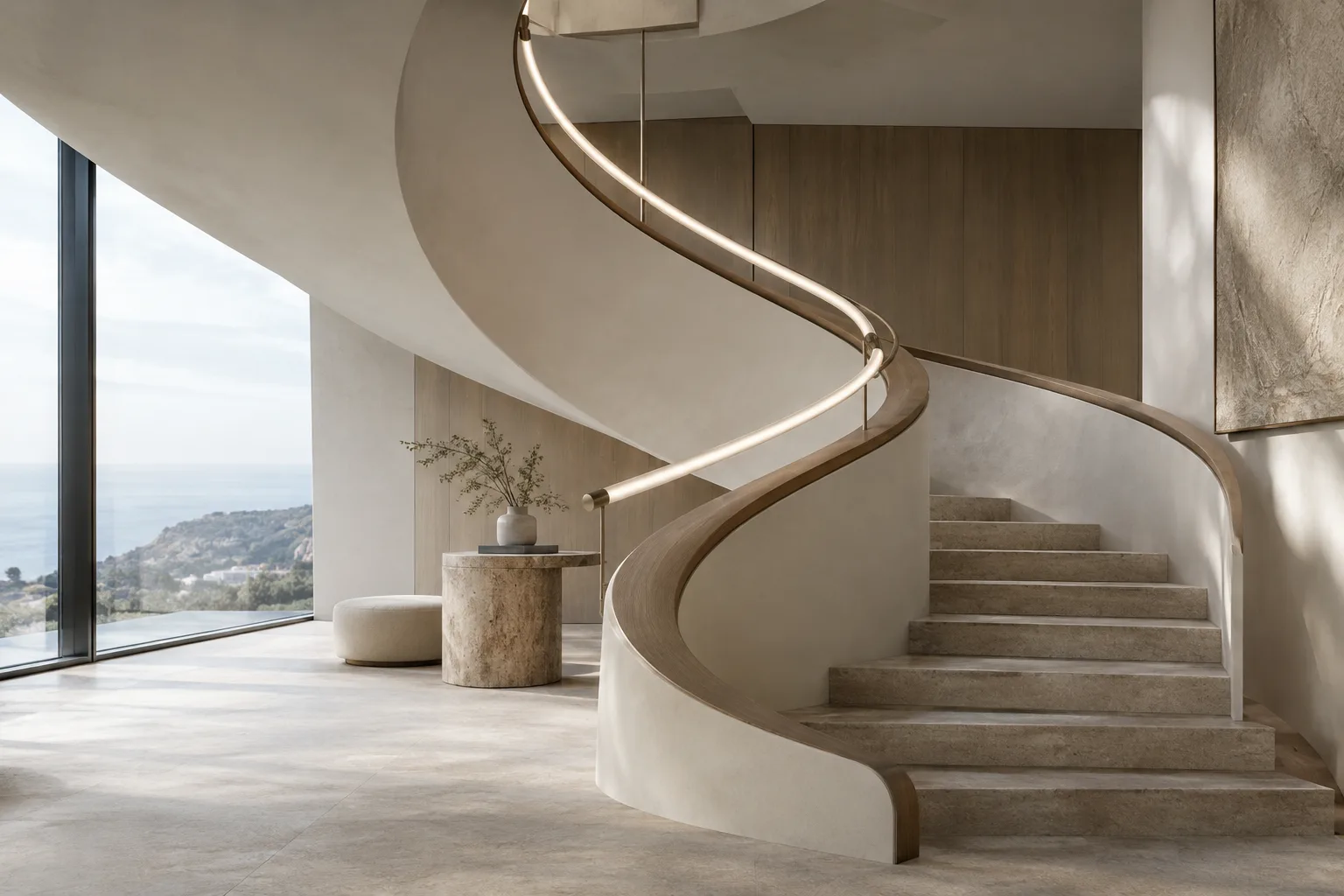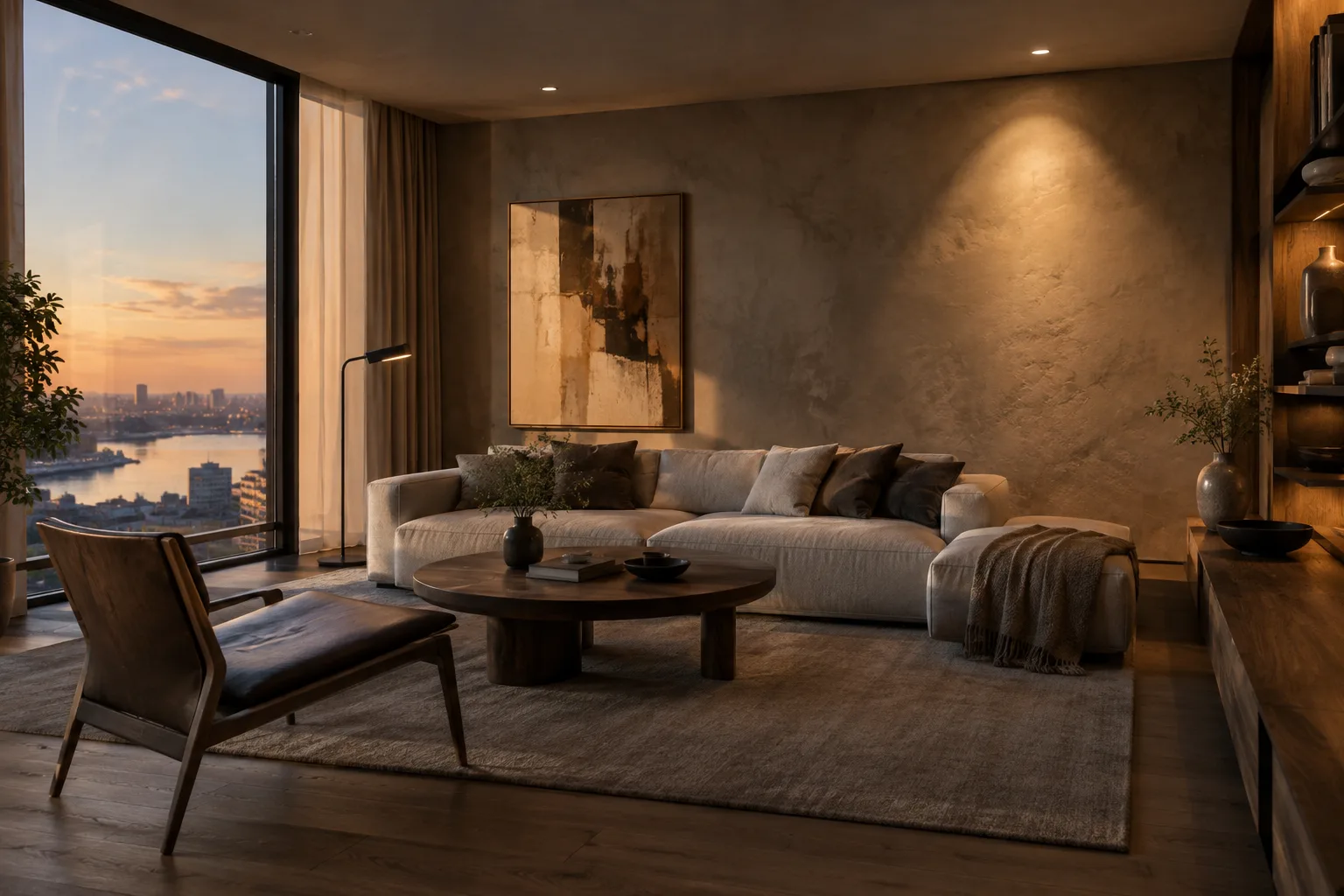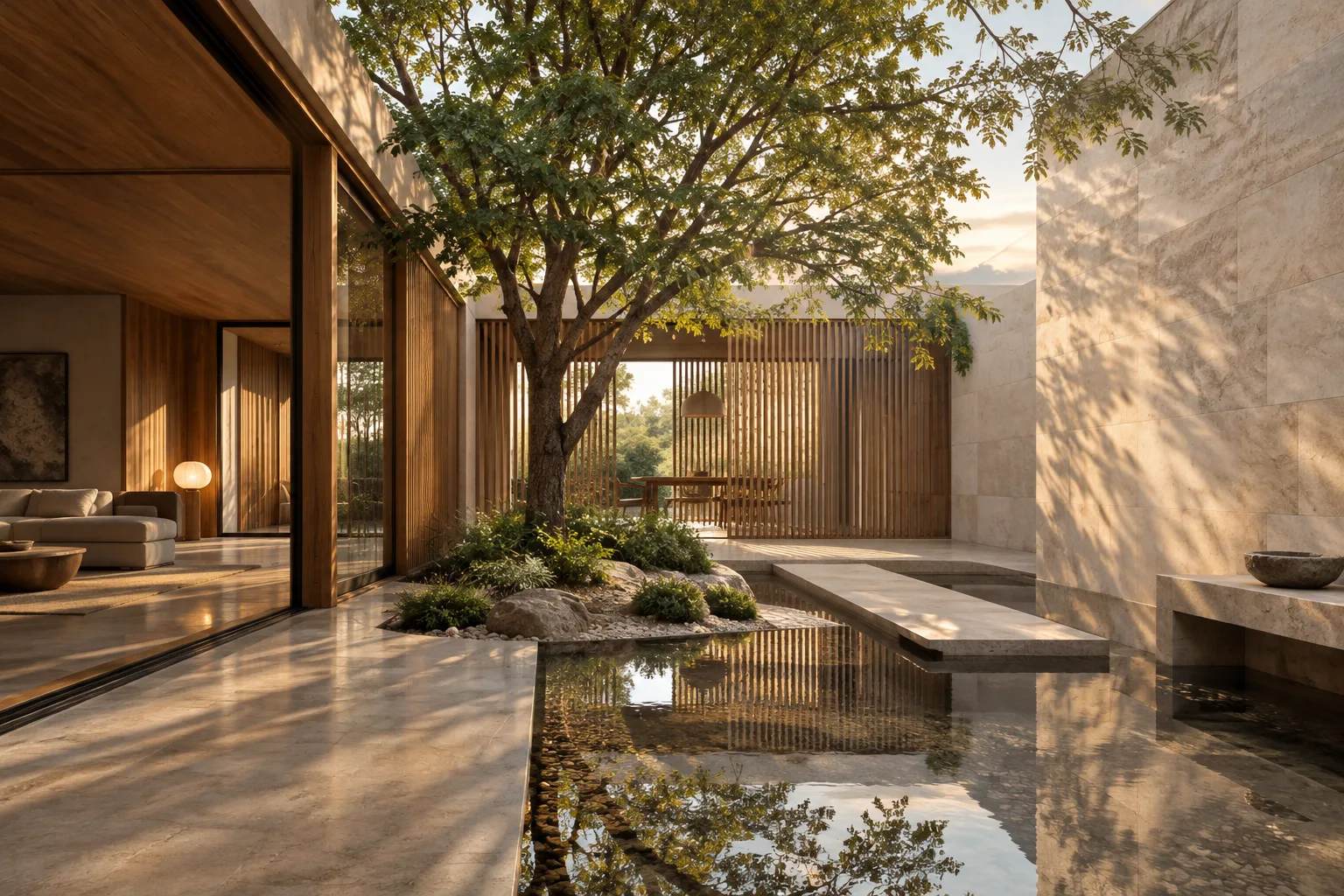
In brief
- Nano Banana 2.1 is available in the Gemini API for image generation and conversational editing.
- Google’s documentation recommends Nano Banana 2.1 for new projects.
- Prompts can clearly specify the task, scene, materials, lighting, and constraints.
- An existing image can be supplied alongside a text prompt as an input for editing.
What will you learn in this guide?
Instead of leaving an architectural image prompt as a brief description like “create a modern interior,” we’ll turn it into a more useful brief that describes the scene and visual goals. Along with generating images from scratch with Nano Banana 2.1 in the Gemini API, we’ll also cover how to edit an existing image using text instructions.
The examples here are original prompts designed for concept exploration, testing atmospheres, and generating visual alternatives before a presentation. Don’t treat the generated result as a substitute for technical drawings, a dimensioned model, or a verified material sample; consider it a visual draft that can help you discuss design decisions.
Requirements
Google’s Gemini API documentation lists Nano Banana 2.1 for image generation and conversational editing, and recommends the model for new projects. The model name in the API examples is gemini-nano-banana-2.1. The documentation includes a REST request, as well as examples in Python, JavaScript, Java, and Go.
The software you need therefore depends on your preferred access method: one of the SDKs shown in the documentation, or REST. The examples include an API client and API key. The sources don’t specify a particular application account plan, pricing, computer hardware, or local graphics card requirements, so don’t make assumptions about them.
If you’re editing an image, make sure you have the rights to use it as input. Google’s guide reminds users to have the necessary rights for uploaded images and to avoid content that infringes on others’ rights.
Step-by-step prompt writing
Decide what you want to do. First, choose whether you want to generate a new scene or change an existing image. The first requires text-to-image generation; the second requires an editing workflow that uses text and image inputs together. Each request should have one main goal—for example, exploring a material atmosphere or making the composition feel calmer.
Make the scene specific. Describe the type of space, viewpoint, key architectural elements, and visual style. In the example below, the requested scene and lighting are spelled out:
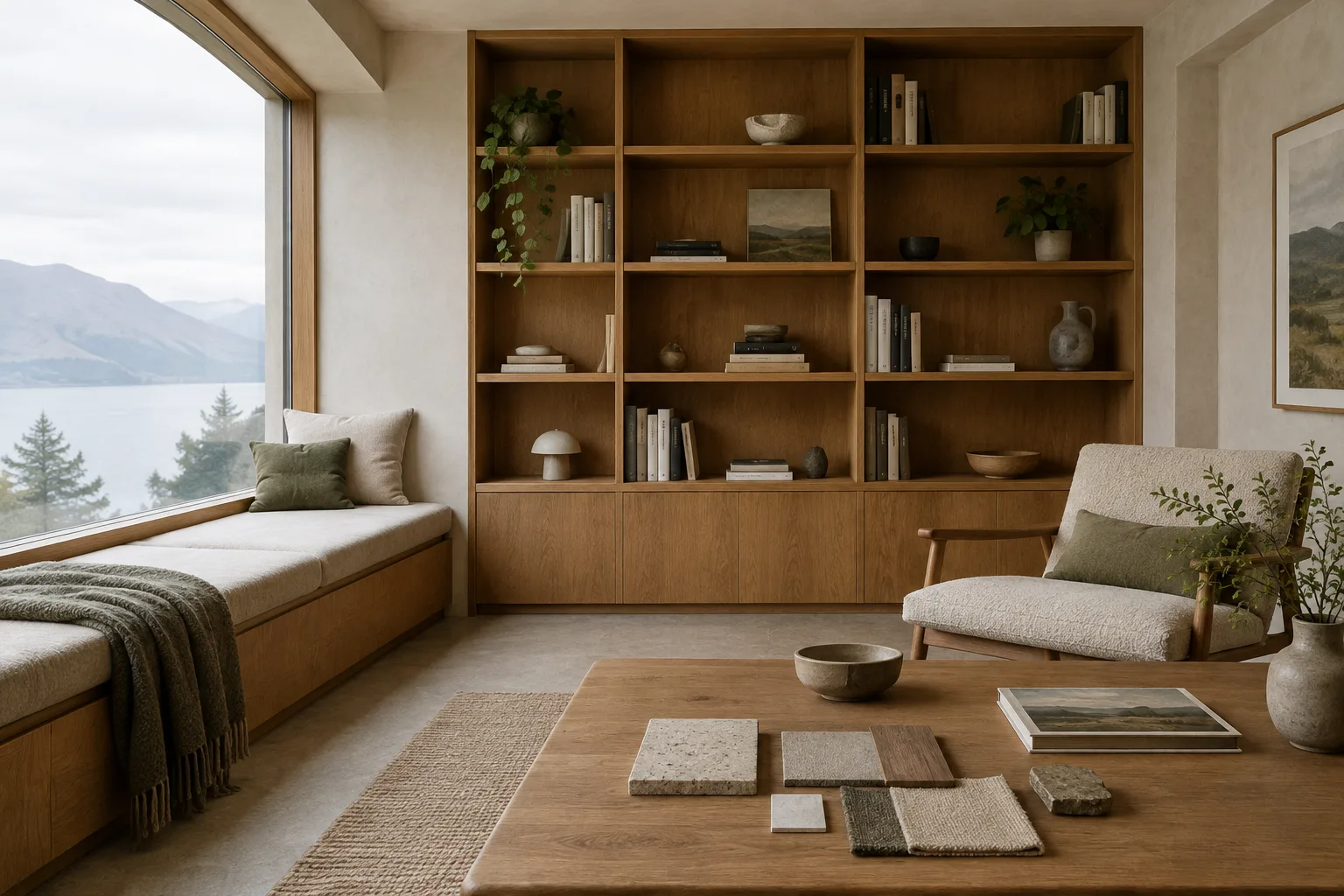
Create an architectural visualization of a quiet contemporary reading room in a compact urban home. Show a full-height oak bookshelf along one wall, a low reading bench beside a large window, and a small side table. Use a calm, restrained palette of warm oak, pale plaster, and muted green. Soft overcast daylight enters from the window. Keep the room uncluttered and the architecture as the focal point.The prompt specifies the function, main elements, material colors, lighting conditions, and visual priority separately. That makes it clearer which features the image should focus on than an open-ended description like “a beautiful room.”
Add visual hierarchy and constraints. Say what should remain dominant in the output, and define unwanted changes as clearly as possible. This is especially useful when exploring the atmosphere of a render and specifying that you expect the geometry or composition to stay intact.
Create an architectural visualization of a small gallery interior with a simple rectangular plan, pale mineral walls, and a polished concrete floor. Place one sculptural bench in the center and keep the walls mostly empty. Use diffuse daylight and a quiet, museum-like atmosphere. Make the space and its proportions the focus; avoid decorative clutter and dramatic colored lighting.The example describes the number of objects and the visual priority to help keep the scene from becoming cluttered. The model may not always follow these constraints exactly; treat the prompt as an instruction for generating an image, not as a design decision.
Edit an existing image with text. The source guide explains a workflow in which you provide an image and use a text prompt to add, remove, or change elements, or adjust style and color. For example, you can supply a render as input and ask only for a change in atmosphere:
Edit the supplied interior visualization to create a warmer evening atmosphere. Preserve the existing room layout, camera viewpoint, furniture positions, and architectural openings. Adjust the color mood and lighting only; do not add furniture, artwork, or new architectural elements.This prompt specifies separately what should change and what should remain as it is. In an editing workflow, you need to send the text and image together; implementation details vary depending on whether you use an SDK or REST.
Make changes in small steps. If the first result is close, use follow-up prompts focused on one goal rather than describing everything again. The documentation says Gemini can work with images conversationally and that Nano Banana 2.1 has improved multi-turn consistency.
Keep the current architectural composition and materials. Make the daylight softer and more diffuse, reduce contrast in the shadows, and preserve the existing furniture and camera position.This example asks for changes to lighting and shadows only. If other elements change too, specify more clearly what needs to stay the same in the next turn and narrow the request.
Test materials separately. Asking for too many variables to change in one scene makes it harder to track which instruction affected the result. Test the relationship between materials and lighting first, then develop the direction you prefer in a separate prompt.
Create a close architectural interior view of a quiet residential kitchen. Focus on the relationship between matte pale stone, natural oak cabinetry, and soft window light. Keep the composition simple, avoid visible branding, and make the material surfaces easy to distinguish.This example doesn’t verify a product or the real-world performance of a material. Its purpose is to explore how different surfaces and lighting work together in a visual draft.
Common mistakes
Relying on vague adjectives: Words like “elegant,” “luxurious,” or “minimal” don’t explain on their own what a scene should look like. Support them with descriptions of the space, materials, and lighting.
Giving one prompt too much to do: Set priorities rather than changing the composition, layout, furniture, materials, colors, and atmosphere all at once. When editing an image, ask for only one or two changes in the first pass.
Not specifying what should stay the same: When working on an existing image, say explicitly if you want the geometry, framing, or furniture to remain fixed. Otherwise, the result may include changes beyond the requested edit.
Treating the output as verified project data: Image generation doesn’t guarantee that project dimensions or buildable details are accurate. Use the result for concept development and communication; check design and implementation decisions against the project documents.
Next steps
Prepare three separate prompts for the same scene: one focused on the spatial layout, one on the material atmosphere, and one on lighting. As you compare the results, note which wording you changed in each round. This can help you adapt effective descriptions for your office’s or training project’s visual briefs.
The Nano Banana 2.1 documentation mentions image quality at 1K, 2K, and 4K resolutions, as well as search grounding. However, don’t make assumptions about output resolution or suitability before verifying the selected model, API workflow, and project requirements. Google also states that all generated images contain a SynthID watermark.
Sources and licensing
This guide is adapted from Google’s Gemini API documentation on image generation and prompt design. Both sources are published under the CC BY 4.0 license. We wrote the example prompts for architectural and interior design use; the source prompts have not been reproduced verbatim.
Sources
2 sourcesSource texts are not republished; short quotes are marked, everything else is our own summary and commentary.
For architecture and visualization offices, the practical value of this approach lies less in producing a quick first draft than in breaking a visual brief into more testable parts. Addressing materials, lighting, and framing in separate rounds can make internal reviews easier, but the results are no substitute for project accuracy.
For offices and students in Turkey, it’s important to check API access conditions and usage costs before getting started; the sources don’t specify pricing. Hardware requirements are also not explained, so don’t assume you’ll need a local graphics card upgrade. The rights to uploaded images and the SynthID watermark in the output should also be factored into the workflow.
Frequently asked questions
Can I edit an existing render with Gemini Nano Banana 2.1?
Yes. The Gemini API documentation explains that you can provide an image alongside a text prompt to add, remove, or change elements, and adjust style and color.
Which programming languages are included in the Nano Banana 2.1 examples?
The documentation includes examples in Python, JavaScript, Java, and Go, along with a REST request.
Do generated images include a watermark?
According to Google’s documentation, all generated images contain a SynthID watermark.