In brief
- The Images API supports generating images from text prompts and editing existing images.
- To generate images through the Responses API, select a main model that supports the image generation tool.
- You can add an image to an API request for analysis using a URL or a Base64-encoded data URL.
- Multiple images can be sent in a single request; according to the source documentation, image inputs are counted and billed as tokens.
What you’ll learn in this guide
GPT Image models can be used to create new images from text prompts and edit existing visuals. This guide covers how to describe a request for generating an architectural concept or interior image through the API, how to provide an existing image as input, and how image analysis differs from image generation.
The examples are intended to produce visual studies that communicate design decisions. They should be treated as explorations for developing ideas and visual communication—not as substitutes for completed architectural drawings or verified technical information.
Requirements: API and model selection
Start by deciding what you want to do. The Images API can be used to generate an image from scratch or edit an existing one. The GPT Image model specified in the source documentation, gpt-image-2.5-sunburst, supports text-to-image generation and image editing through this API.
When using the Responses API, select a main model that supports the image generation tool; the tool handles the image model selection. The documentation examples use the gpt-6-astra main model and the image_generation tool. These model names are options documented in the examples; check the latest API documentation for availability before implementation.
You’ll need an appropriate client and API access to make API calls. The official examples create a client, add a text prompt to the request, and call either the Images API or the Responses API. In the example, the image data returned by the image generation tool is received as Base64 and written to a PNG file. This shows that an image returned by the API can be saved within an application.
Image analysis is a different task from image generation. A model with vision capabilities can describe an image, read visible text, or answer questions about objects, shapes, colors, and textures. The image can be provided as a full URL or a Base64-encoded data URL. Multiple images can be added to the content array in a single request; according to the documentation, images count toward token usage and billing.
Step by step: prompts for architectural images
1. Define the purpose of the image
Before writing a prompt, clarify which design question the output should address: massing, interior atmosphere, or material combinations? Rather than giving a single request many different goals, clearly list the subject of the image and the qualities you want. The examples below are original prompts written for architectural visualization.
2. Prepare a generation request for a massing and facade concept
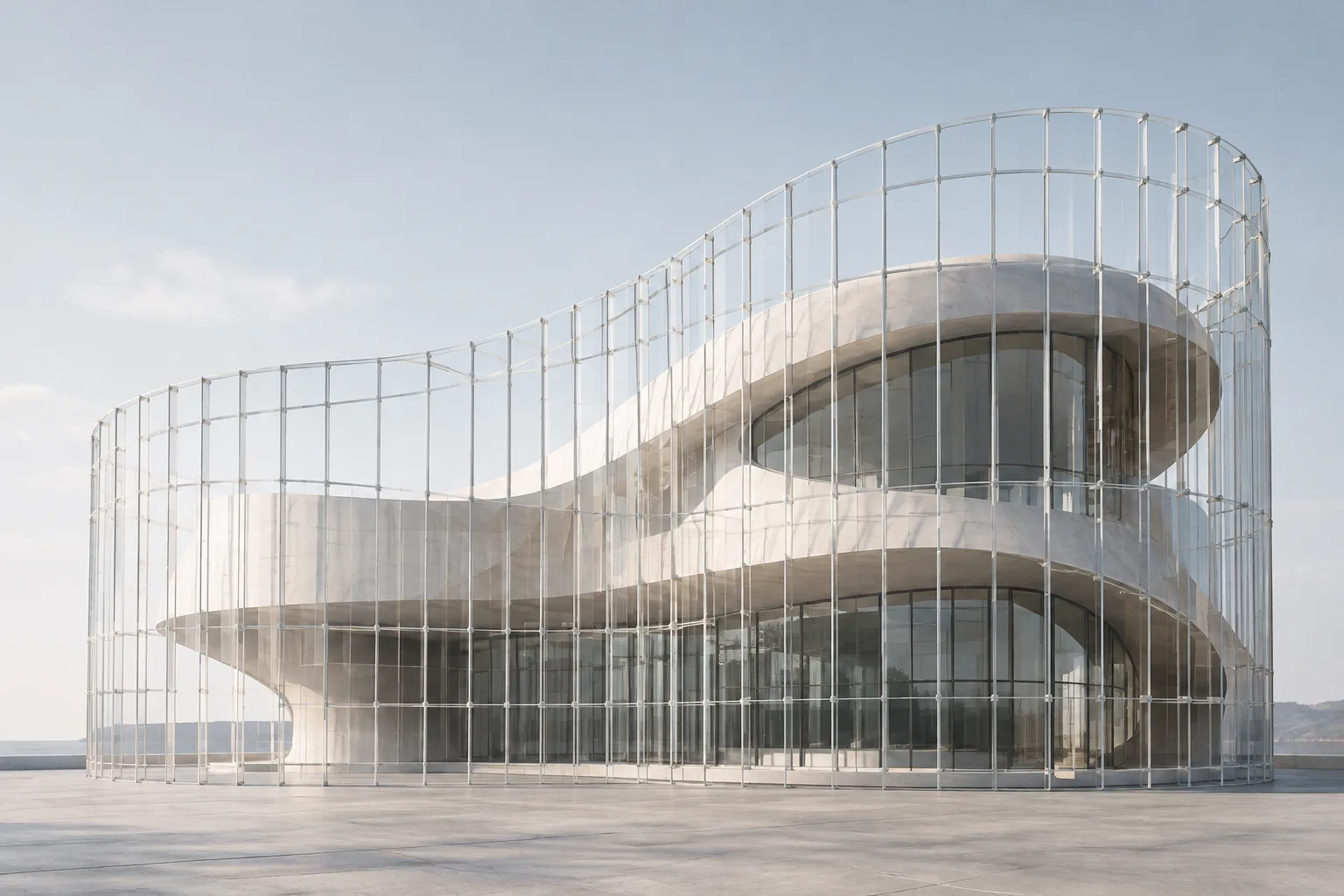
Create a photorealistic architectural concept image of a compact public library on a quiet urban corner. Show a clear street-level view, a restrained stone and timber facade, deep window reveals, soft overcast daylight, a few pedestrians for scale, and a calm civic atmosphere. Keep the building geometry legible and the surrounding context understated.This prompt describes the building’s function, viewpoint, material character, lighting, and relationship to its surroundings. If the facade concept gets lost in the first result, revise the prompt by making only the relevant description more explicit; don’t assume a special parameter for image generation that isn’t described in the documentation.
3. Create an interior atmosphere
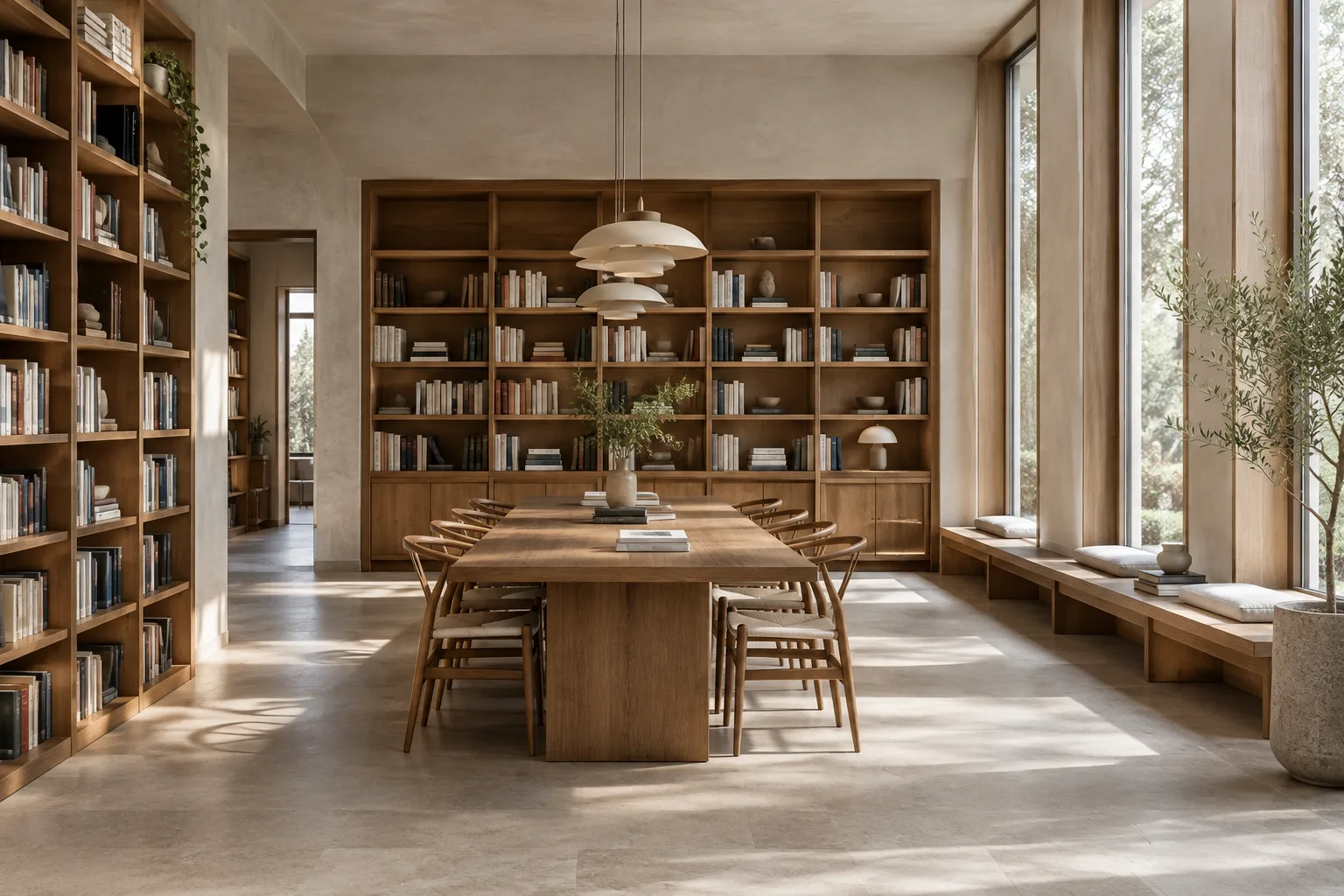
Create a photorealistic interior concept image of a small reading room with built-in timber shelves, a long communal table, pale mineral walls, and warm indirect lighting. Show the room from eye level, with a clear view of circulation and furniture proportions. Use a quiet, uncluttered composition and soft daylight from tall side windows.The key elements here are the room’s use, built-in features, materials, and lighting. Don’t treat dimensions or construction details in the image as verified; the prompt is designed to explore a design idea visually.
4. Submit an existing image for editing
Edit the provided interior image by changing the wall finish to a light, matte mineral surface. Preserve the existing room layout, camera viewpoint, furniture positions, and window openings. Do not add new furniture or alter the architecture; keep the lighting and overall composition consistent with the reference.To edit an existing image, add it as input to the API request and describe the intended change in text. This example asks for changes only to the wall finish, while explicitly stating that the layout and viewpoint should be preserved. The sources support image editing, but they don’t guarantee that every detail will remain unchanged.
5. Analyze a reference image
Describe the visible materials, colors, lighting, and spatial arrangement in the provided architectural image. Separate direct visual observations from uncertain interpretations. Do not infer dimensions, structural performance, or hidden construction details that cannot be seen.The goal here is not to generate a new image, but to get a text-based response about the image you provide. Add the image to the request as a URL or a Base64-encoded data URL. Treat the analysis response as an observation; the documentation also recommends keeping model limitations in mind.
Common pitfalls
Confusing generation with analysis: Use the image generation endpoint or tool to create a new image. To ask what’s in an image, choose an analysis workflow that accepts image inputs.
Leaving the prompt vague: A short request such as “create a beautiful interior” gives little direction on function, viewpoint, materials, or lighting. Describe the design goal using a few concrete qualities. On the other hand, combining too many conflicting instructions in one prompt can also make the result harder to evaluate.
Treating analysis as technical verification: The model can answer questions about shapes and materials in an image, but it shouldn’t be assumed to verify dimensions or construction layers that aren’t visible. The documentation specifically advises accounting for model limitations when evaluating analysis responses.
Overlooking the cost of multiple image inputs: You can add multiple images to a request, but each image counts as tokens and is billed. Choose the number of references based on what the task requires.
Assuming API model names are fixed: Compare example names and usage patterns in the documentation against the latest official documentation before implementation. The sources for this guide don’t specify pricing, access requirements, or which model is suitable for a particular project.
Where it fits in an architecture and visualization workflow
This approach can support early-stage concept exploration, atmospheric variations, and presentation ideation in offices and student projects. The ability to edit an existing image can be used to test a specific visual change to a scene, while the analysis workflow can describe qualities visible in a reference image. These are general API capabilities described in the sources; no direct integration with a specific CAD, BIM, or 3D application is specified.
Before moving into a real workflow, check API access, the current status of the model you plan to use, and pricing. Also account for sending reference images to the API and for multiple images counting toward token costs. Don’t use generated images to verify project dimensions, material performance, or technical drawings; the sources don’t describe such a verification capability.
Next steps
For your first test, choose one design goal and evaluate the results visually. For generation, clearly describe the subject, materials, lighting, and viewpoint; for editing, separately specify what should change and which features you expect to preserve. For analysis, ask the model to describe visible elements and don’t confuse its inferences with project data.
Once the workflow is established, it can be useful to compare different prompt drafts for the same design question and record which descriptions affect the result. However, this guide doesn’t specify a particular quality setting, image size limit, or special parameter; consult the latest API documentation if you need such options.
Sources and license
This guide is adapted from official OpenAI developer documentation and help center content about generating and editing images, and analyzing image inputs with the GPT Image models through the API. The source records specify K1 and K2 as license=free. The architectural prompts are original examples written for this guide.
Sources
2 sourcesSource texts are not republished; short quotes are marked, everything else is our own summary and commentary.
For architecture firms and visualization teams in Turkey, API-based image generation offers another option for concept and atmosphere studies. In particular, describing a specific change to make to an existing image can help teams discuss alternatives at an early stage; however, it shouldn’t be treated as technical drawing or construction verification.
When making a decision, factor in model access, API usage costs, and the fact that reference images are billed as tokens. The sources don’t explain hardware requirements, local operation, or integration with specific 3D applications. It’s therefore important to check the latest API documentation and the licensing and pricing terms relevant to your project before getting started.
Frequently asked questions
Can I generate architectural images with the GPT Image API?
Yes. The Images API supports generating images from text prompts, and GPT Image models can also be used to edit existing images.
How do I submit an architectural image for analysis through the API?
The image can be added to an analysis request as a full URL or a Base64-encoded data URL. Multiple images can be included in the same request; image inputs count as tokens and are billed.
What do I need to generate images with the Responses API?
Select a main model that supports the image generation tool and add the image generation tool to the request. The official examples use the `gpt-6-astra` model and the `image_generation` tool.