In brief
- Nano Banana 2.1’s Gemini API model ID is `gemini-nano-banana-2.1`.
- The API can generate images from text prompts and edit images using both text and image inputs.
- According to Google’s documentation, Nano Banana 2.1 supports image generation at 1K, 2K, and 4K resolutions.
- The sample prompts in this guide are designed to clearly describe a space’s use, materials, lighting, and framing.
What will you learn in this guide?
This tutorial focuses on using Nano Banana 2.1 for architectural and interior visualization: creating concept images from text and requesting text-based changes to an existing image. The goal is to write workable prompts that describe the space type, composition, material character, and lighting, rather than relying on a vague, one-line request.
In Google’s Gemini API documentation, Nano Banana refers to a family of models used to generate images and modify existing ones. The documentation explains that users can guide the process not only with text, but also with inputs such as images and video. This guide focuses on text and image inputs that are useful in architectural workflows. Treat generated results as concept visuals to review and revise as needed, not as design decisions or construction documents.
Requirements: API, model, and inputs
The model ID in Google’s documentation is gemini-nano-banana-2.1. The examples use the Gemini API. The official Python example uses the google.genai, PIL, and base64 modules, but the source page does not specify an account type, installation command, or version number for these components. Check the latest Gemini API documentation for API access, authentication, and terms of use; this guide does not assume any particular price or account eligibility.
For text-to-image generation, you send the model a text input and can retrieve image data from the response. For editing, you also include an image with the text prompt. The source shows an example of encoding an image in Base64 and specifying its MIME type. Make sure you have the necessary rights to use the image you submit; Google’s documentation also reminds users to check the rights for uploaded images.
When writing prompts, define the desired result first, then add spatial and visual constraints. Instead of a broad description such as “a modern interior,” specify the room’s function, viewpoint, surfaces, lighting conditions, and the elements you want to see in the frame. Google’s prompt design guide recommends giving clear, specific instructions and, when needed, describing the output format and constraints separately. Prompting is not a one-off task: reviewing the result and improving the text are part of the process.
Step by step: creating and refining a concept image
Define the purpose of the image. Be clear about whether you are working on a lobby atmosphere, a residential kitchen, or a courtyard. The prompt should describe the goal of the drawing or render; don’t rely on vague adjectives alone.
Describe the space and its appearance together in the first prompt. The example below combines the room’s function, viewpoint, material language, and lighting conditions in one request:
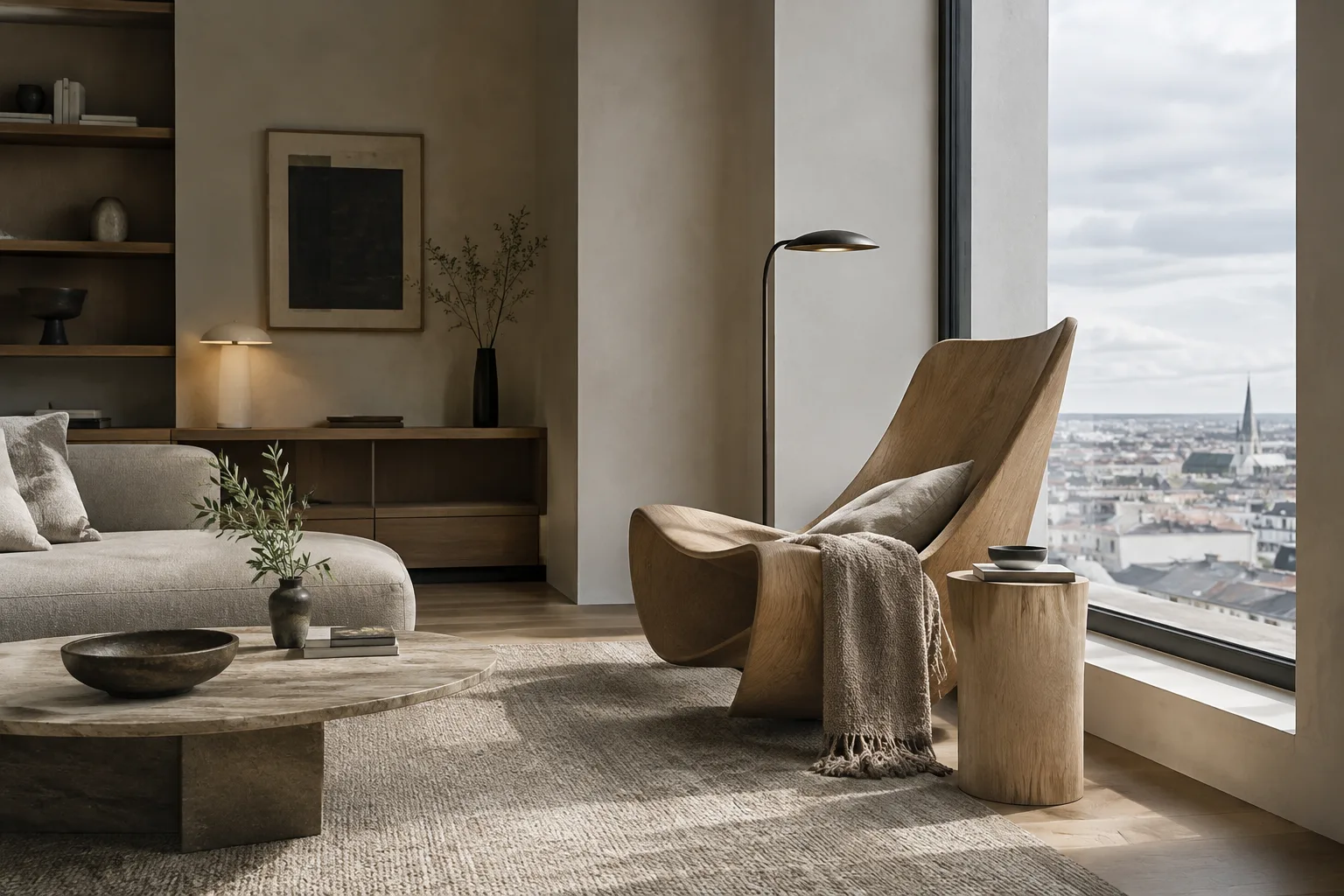
Create a photorealistic architectural visualization of a quiet apartment reading nook beside a full-height window. Show the space from eye level, with a built-in oak bookshelf, a compact upholstered chair, a small side table, pale mineral plaster walls, and soft overcast daylight. Keep the composition calm and uncluttered, with realistic material textures and natural shadows.This starter prompt clearly explains what the image should show and the atmosphere it should convey. When reviewing the result, check whether the furniture, materials, and lighting align with the design intent; describe any mismatches specifically in the next prompt.
Clarify the framing and visual style. If the first result depicts the space correctly but doesn’t have the angle you want for a presentation image, describe the composition more precisely in a new attempt. If you plan to choose between multiple image outputs, decide on your evaluation criteria in advance.
Create a photorealistic architectural interior image of a small neighborhood café. Use a wide interior view from near the entrance, showing the counter, seating area, and front windows in one coherent composition. Include warm timber, muted green wall surfaces, simple pendant lighting, and soft morning daylight. Keep the space believable and avoid decorative clutter.This example specifies which areas should be visible in the frame. Asking for presentation-critical elements—such as the entrance, service counter, and seating area—to appear in the same composition makes the spatial relationships you need to evaluate visible.
Limit the scope of changes when editing an existing image. Include an interior image as input and state which feature you want to change. Separating the requested change from the elements that should remain intact makes the instruction clearer.
Edit the provided interior image. Replace the dark wall finish behind the dining table with a light warm-gray plaster surface. Keep the table, chairs, window positions, camera view, and overall room layout unchanged. Preserve the existing natural daylight and realistic material appearance.This prompt identifies the surface to change and the spatial elements to preserve. Send the source image to the API with the text input; PNG is shown in the source as one of the supported image MIME types. For other file types or larger inputs, consult the Gemini API’s image understanding documentation.
Iterate against your criteria. If the first output isn’t good enough, identify what’s missing instead of simply extending the prompt with general language. If the lighting is too harsh, revise the lighting description; if the material is wrong, refine the surface description; if the framing feels cluttered, restate which elements should be visible. The source guide treats prompt design as a process of testing and refinement based on observed results.
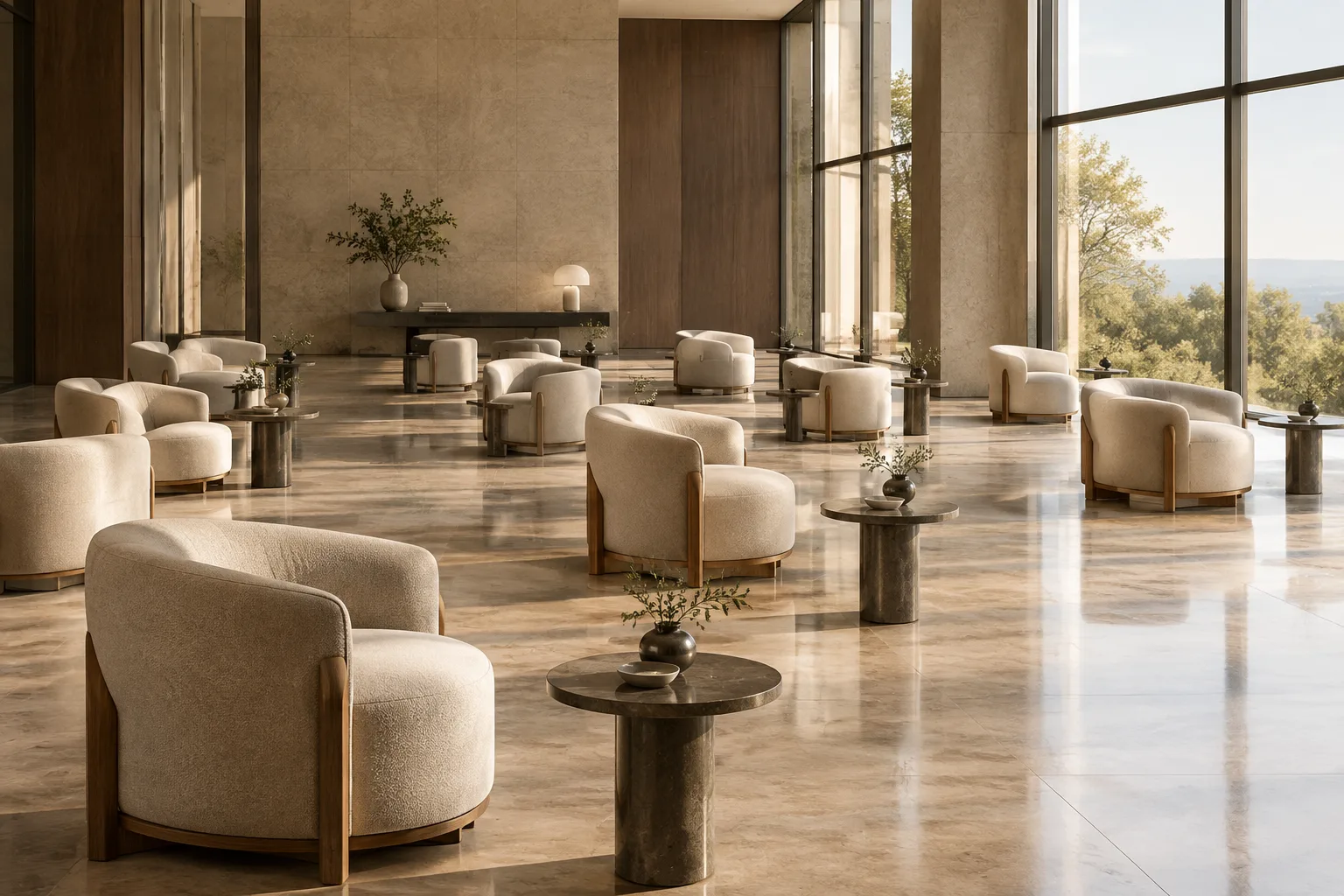
Create a photorealistic visualization of a compact hotel lobby with a clear view from the entrance toward the reception desk. Use pale stone flooring, a restrained timber reception counter, soft indirect lighting, and a small waiting area. Keep the circulation route visually open, use balanced daylight and interior lighting, and avoid adding signage or decorative objects that distract from the layout.This example emphasizes a legible circulation path and a reception desk that can be seen from the entrance. In a concept study, criteria like these make it possible to discuss not only the image’s atmosphere but also the spatial organization.
Common mistakes
Being too vague: A prompt such as “create a stylish interior” says little about the function, viewpoint, or visual priorities. Clearly define the space and the desired result.
Changing too many things at once: Requesting many different edits to an image can make it difficult to determine which change affected the result. Focus on one surface or design decision per iteration, and explicitly say which other elements should remain unchanged.
Treating the first output as a final project image: Consider the model’s output a visual experiment within the design process. Don’t assume guarantees of accuracy—especially for dimensions, construction decisions, or material suitability—that the source does not provide.
Ignoring image rights: Check that you have the right to use any images uploaded for editing. Google’s documentation also notes restrictions on generating content that infringes others’ rights or is misleading, harassing, or harmful.
How it fits into architecture, interior design, and archviz workflows
This approach can help architects who want to explore atmospheres and material alternatives during early concept design, interior designers who want to test a specific surface idea on an existing interior image, and archviz teams evaluating different visual directions before a presentation. Text-to-image generation and image editing do not replace project models or technical drawings. Use the results as drafts for client discussions, concept research, or exploring a visual direction; verify design dimensions, geometry, and construction decisions separately.
Google’s product documentation describes Nano Banana 2.1 as an option that retains a focus on fast generation and cost efficiency. According to the company, it includes improvements to image quality at 1K, 2K, and 4K resolutions, text rendering, consistency across multiple turns, and use of Google Search. Nano Banana Pro is listed as the premium option for more complex visual tasks. Nano Banana 2 Lite is positioned for work where speed and cost are the priority; it is not optimized for multiple reference images or sequential, multi-turn editing. When choosing a model, check factors such as reference image use in your workflow, the need for repeated edits, API access, and current pricing. The documentation also states that all generated images include a SynthID watermark.
Next steps
Start by trying a concept prompt for the same space, then refine it by changing just one feature, such as the framing or material. For image editing, provide the source image along with the requested change and the elements to preserve. When reviewing results with your team, note which design decision each prompt was testing. If you’re working through the API, follow the official documentation examples for retrieving and saving image outputs; also keep in mind the warning that a single convenience field may not contain the full content of complex text and image outputs.
Sources and license
This tutorial was adapted into English from Google’s Gemini API documentation on image generation and editing and its prompt design guide. Both sources are available under the CC BY 4.0 license. The sample architectural prompts were written specifically for this guide, following its principles of clarifying instructions and iterative refinement.
Sources
2 sourcesSource texts are not republished; short quotes are marked, everything else is our own summary and commentary.
For architecture firms and visualization teams in Turkey, one of the most practical uses is quickly exploring atmospheres and surface alternatives during concept design. Requesting a limited change to an existing image can also make it easier to compare ideas while preparing a presentation; however, the result should not be treated as a measured or technically verified project output.
Before adding it to a workflow, check API access and current pricing; the provided sources do not explain costs or account requirements. Model choice may also depend on the need for multi-turn editing and reference images. Teams should consider usage rights for source images and note that generated images include SynthID.
Frequently asked questions
What is Nano Banana 2.1’s Gemini API model ID?
Google’s documentation gives the model ID as `gemini-nano-banana-2.1`.
Can Nano Banana 2.1 edit an existing interior image?
Yes. You can send an image to the Gemini API along with a text prompt to request edits such as adding, removing, or changing elements, or adjusting colors.
What resolutions does Nano Banana 2.1 support for image generation?
Google’s documentation mentions image generation at 1K, 2K, and 4K resolutions for Nano Banana 2.1.