In brief
- An effective prompt can describe elements such as the space, action, framing, camera movement and lighting.
- In architectural scenes, choosing a single camera movement and a clear focal point makes the prompt easier to understand.
- The Gemini API version of Veo 3.1 Preview was shut down on 22 October 2026.
- Gemini Omni Flash is identified as the current model for video generation and conversational editing with the Gemini API.
What will you learn in this guide?
An architectural video prompt is about more than saying, “Generate a video of a modern house.” You can also describe which space the model should show, what changes in the scene, how the camera moves and what kind of atmosphere the lighting creates. In this guide, you’ll learn how to bring these elements together in a structured way for architectural visualisation and interior presentations.
An important update: according to Google’s Gemini API documentation, the Veo 3.1 Preview versions in this API were shut down on 22 October 2026. Gemini Omni Flash is now used for video generation with the Gemini API. The approach below adapts the visual storytelling principles found in Veo prompt guides for architectural scenes; it is not an instruction for using the discontinued Veo 3.1 API versions.
What you need: model, version and access
For this exercise, all you need is a project idea and an approach for turning it into a short, describable scene. The current Gemini API documentation cited here lists Gemini Omni Flash for video generation and conversational video editing, and the Interactions API for multi-turn editing. The prompt guides do not specify any particular computer hardware or software version.
The sources provided do not contain enough information about account types, pricing, quotas or how to enable access to Gemini Omni Flash. Before getting started, check the access and pricing terms on the platform you use. The Gemini API documentation also states that GA models can be used through the Gemini Enterprise Agent Platform; however, this does not change the prompt guidelines explained here.
If your workflow uses the old Veo 3.1 API preview, bear in mind that this model version has been shut down. The current model name is Gemini Omni Flash. Since the sources do not provide detailed architectural generation settings or hardware requirements for the new model, this guide makes no claims about menus, parameters or performance.
Steps: creating a prompt for an architectural scene
Define the space and main subject. First, write down what will be at the centre of the video: a residential facade, courtyard, lobby or workspace. Then choose the space’s distinguishing features. For example, specify a few visible elements such as materials, openings, vegetation or furniture. Rather than packing every detail into the same sentence, foreground what viewers should notice at first glance.
Describe the action in the scene. Action turns a static architectural image into a video. Choose a single observable change in the scene, such as sunlight moving across a wall, a curtain shifting gently or the camera moving from a courtyard towards an interior. When depicting a real architectural project, do not add elements that are not in the source and that would alter the design itself.
Choose the framing and camera movement. A wide shot can show the entire interior or the building in its surroundings, while a close-up can highlight a material or joint detail. Specify the camera movement separately: a static shot, slow pan, tilt or dolly, for example. Stick to one main movement in each prompt. Since the direction and movement of the camera can change the result, check that the scene reads clearly in your first attempt.
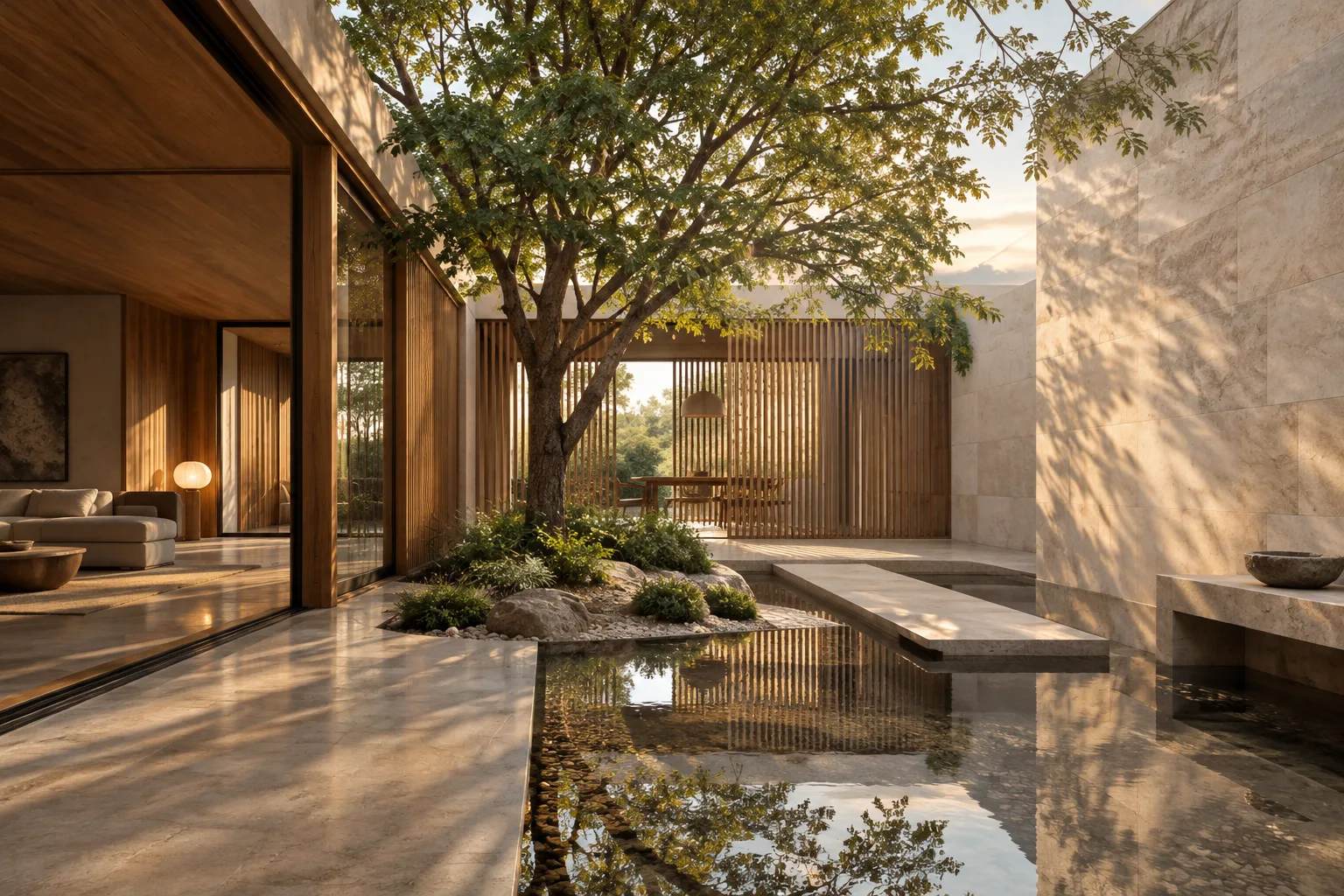
A photorealistic architectural visualization of a compact contemporary house around a quiet courtyard, pale stone walls, timber screens and a single olive tree. Wide establishing shot, slow dolly forward from the garden toward the entrance. Soft morning light moves gently across the facade, calm atmosphere.In this prompt, the building, courtyard and materials establish the main subject, while the slow camera move forward creates a sense of approach. When reviewing the result, first check the camera path and whether the main space stays in frame.
Describe the lighting and atmosphere. Instead of a general phrase such as “beautiful lighting,” specify the time of day and what the light does in the scene. For example, you could describe shadows cast across the floor by morning light or the softened facade contrast on an overcast day. You can add a single detail, such as a light breeze, a reflection or dust visible in the air, to support the atmosphere; make sure these details do not obscure the design elements.
Photorealistic interior visualization of a small reading room with oak shelving, a long built-in bench and a large window. Static eye-level shot. Overcast daylight softly fills the room, subtle reflections on the timber floor, quiet and uncluttered mood.Here, the static framing makes it easier to take in the room’s layout and materials. The prompt also clearly describes the light as soft under overcast conditions; this does not mean every generation will produce the same result.
Create a narrative or transition. Describing the beginning, development and end of a scene through a single short event can give the video a sense of direction. In an architectural narrative, this could mean moving from the exterior towards the interior, or opening out from a material detail to reveal the overall space. Rather than specifying many cuts or simultaneous events, choose a single flow that viewers can follow.
Photorealistic architectural film of a covered passage connecting a shaded courtyard to a bright communal hall. The camera slowly pans right from the textured concrete wall toward the hall. A few leaves stir in a light breeze; late-afternoon sunlight marks the floor beyond the passage.This example makes the transitional space the main subject and specifies the pan’s direction. When adapting it to a real project, change the material, space and lighting conditions to suit the project; do not add details that conflict with source drawings or images.
Test prompts with small changes. If the first result has issues, change one element at a time rather than rewriting the entire prompt: widen the framing, keep the camera movement static or simplify the lighting description. This makes it easier to see which change affected the image. The Gemini Omni Flash documentation mentions multi-turn conversational editing, but does not specify a particular command format or interface path here.
Common mistakes
Asking for too much movement in a single prompt: Combining multiple movements, such as a fast pan, dolly and rising camera, can make the intended viewpoint unclear. Try one movement first.
Describing the space in vague terms: Instead of “a stylish interior,” specify the type of space and the visible materials. Add detail without making the prompt so long that it loses its main idea.
Treating lighting, action and framing as unrelated: The lighting, camera movement and action in a prompt should all serve the same scene. For example, if you want to show the texture of a material, clearly describe framing that makes it possible to see that texture.
Assuming an old API version is current: The Gemini API versions of Veo 3.1 Preview were shut down on 22 October 2026. The current Gemini API documentation lists Gemini Omni Flash for video generation, so do not assume that a workflow built around the old model is still available.
Treating the generated result as technical verification: A generated video can help communicate a presentation concept, but the sources do not say that its output guarantees architectural accuracy or suitability for construction. Check dimensions, materials and design decisions against the project documents separately.
Next steps
Start by choosing a single space and adapting one of the five prompts in this guide to your project. Use the first attempt to test an idea about the camera, lighting or atmosphere, not to prove the design in its entirety. Then change just one variable and compare the results.
If you need multiple scenes, define the subject, action and camera movement for each scene separately. Before combining them in an edit, consider how each shot contributes to the narrative. Check the Gemini API documentation for the current model and API access, and keep in mind that Veo 3.1 Preview has been shut down.
Sources and licensing
Google DeepMind’s Veo prompting guide covers elements such as framing and movement, style, lighting, characters, space, action and sound. Google Cloud’s video prompting guide also explains subjects, actions, context and camera choices. The principles in these two guides have been adapted for architectural examples.
Google Cloud and Google AI for Developers documentation is published under the CC BY 4.0 licence; the content has been adapted into Turkish. Google AI for Developers’ current video documentation describes Gemini Omni Flash and the shutdown of the Veo 3.1 Preview API versions.
Sources
3 sourcesSource texts are not republished; short quotes are marked, everything else is our own summary and commentary.
For architecture firms and students, prompt-based video generation can be useful for quickly testing ideas about a space’s movement and atmosphere. However, these outputs are no substitute for project documents that verify dimensions and design decisions; materials and spatial relationships in particular should be checked against the source material.
Teams in Turkey should check that their Gemini access is compatible with the current model and review licensing and pricing terms before getting started. The sources do not explain costs or hardware requirements, so no assumptions should be made about budget or device needs. The shutdown of the Veo 3.1 API preview is also a reminder not to treat old workflows as current.
Frequently asked questions
What details should an architectural video prompt include?
You can describe the space and main subject, as well as the action, framing, camera movement, lighting and atmosphere. You do not have to use every element in every prompt.
Can Veo 3.1 still be used through the Gemini API?
No. The Gemini API versions of Veo 3.1 Preview were shut down on 22 October 2026.
What is the current video generation model in the Gemini API?
The Gemini API documentation for video generation and conversational video editing lists Gemini Omni Flash.