In brief
- Effective prompts can combine camera framing and movement, visual style, lighting, space and action.
- Audio and dialogue can be added to the visual description in a prompt.
- The Veo 3.1 Preview models in the Gemini API were shut down on October 22, 2026.
- Gemini Omni Flash is the model listed by the Gemini API for video generation and multi-turn editing.
What will you learn in this guide?
When telling the story of an architectural project through moving images, describing only what the space looks like may not be enough. The prompt should also specify where the camera is positioned, how it moves, how light falls on surfaces and what changes in the scene. In this guide, you’ll learn how to combine these elements to create short architectural and interior video prompts. The examples address presentation needs such as showcasing a home interior, revealing a façade and communicating the effect of materials.
An important update: according to Google’s Gemini API documentation, the three API versions of Veo 3.1 Preview were shut down on October 22, 2026. If you’re planning to generate video through the API, check out Gemini Omni Flash, which the documentation lists for video generation and conversational editing. This does not guarantee that the prompts below will work the same way with a particular model; the examples demonstrate an approach to writing architectural video prompts.
Requirements and scope
All you need to edit the prompts is a tool where you can write text. To generate video, you’ll need access to a video-generation feature in the service you choose. The Gemini API documentation describes Gemini Omni Flash as a model that can create short videos from text and images and supports editing results over multiple turns. The documentation specifies using the Interactions API for this.
Since the Veo 3.1 Preview API models no longer work, copying the model name from older examples is not a current solution. The current documentation does not specify particular account requirements, pricing or hardware requirements, so don’t make assumptions about them; check the latest access and pricing information for the service you plan to use before generating. The prompts below are text examples that don’t require a specific version or menu step.
Step-by-step: writing an architectural prompt
1. Define the framing and camera movement
Start by specifying how the scene should look and what the camera should do. Consider framing descriptions such as close-up, wide-angle or low-angle, along with movements such as a slow push-in or a track along the façade. Choosing one main camera movement for a short scene can help keep the narrative clear.
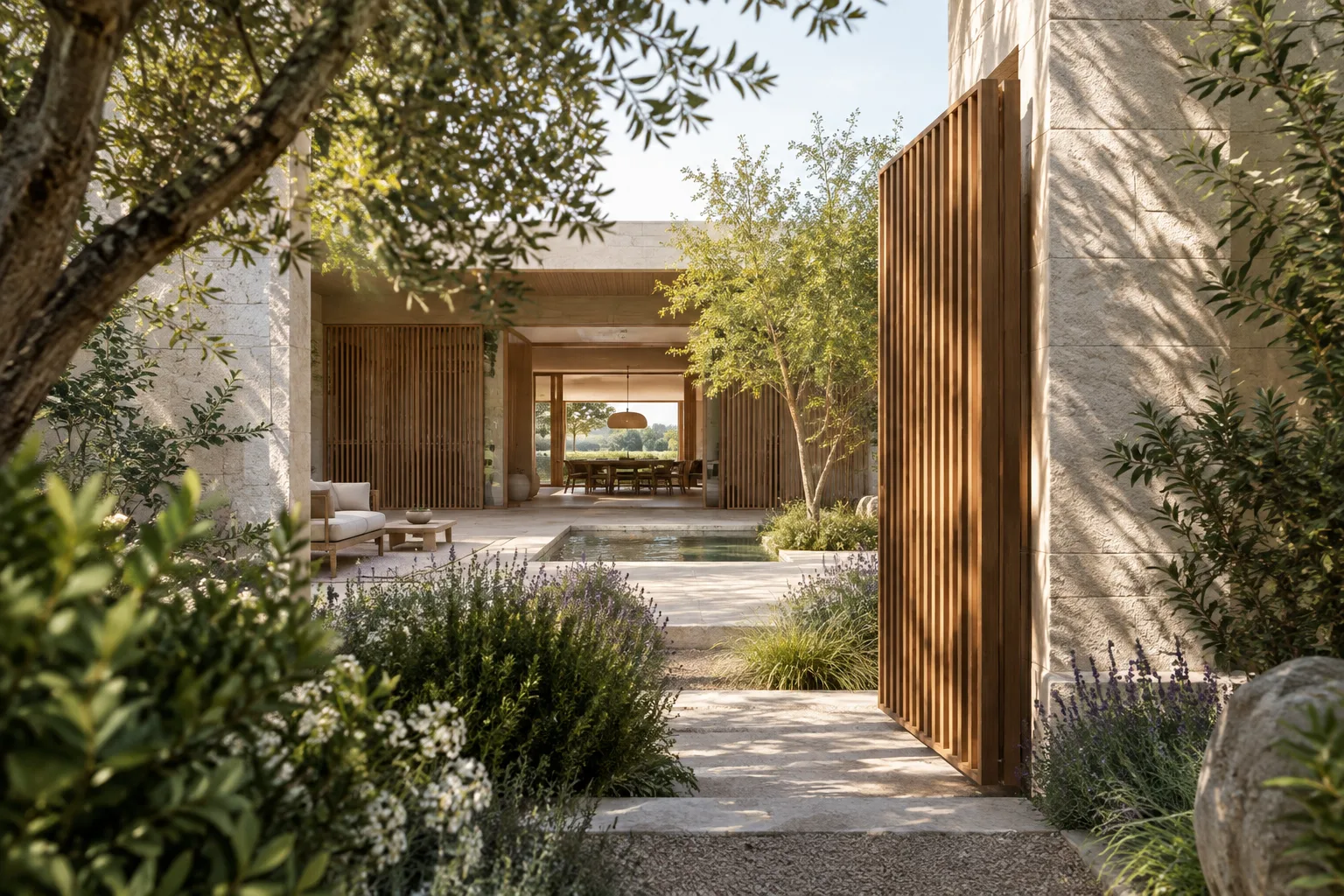
A calm architectural film of a compact courtyard house at early morning. Wide establishing shot from the garden entrance, the camera slowly glides toward the shaded courtyard. Pale stone walls, timber screens, soft natural light, quiet leaves moving in a light breeze.This example first establishes the overall view, then describes the camera moving from the garden toward the courtyard. The stone surfaces, timber screens and morning light define the visual character of the scene.
2. Make the space and materials specific
Rather than using general phrases such as “a modern interior,” describe the type of space, visible surfaces and quality of light. Use material names only if they align with your design decisions. For real projects, it’s important to keep the prompt consistent with approved materials and design decisions.
A slow interior reveal of a quiet reading room in a contemporary home. The camera pans gently from a warm oak bookshelf to a large window, revealing a limestone floor, linen curtains and a low reading chair. Overcast daylight creates soft, even shadows; restrained, photoreal architectural visualization.Here, the space’s function, camera direction, visible objects and lighting are described together. This approach turns the prompt from a list of stylistic adjectives into a scene that can be followed.
3. Describe the action and continuity
In a moving scene, clearly state what changes: does the camera move forward, does a curtain flutter, or does someone walk through the space? If you’re sequencing several events, give the scene a sense of beginning, development and ending. Google’s prompt guide recommends describing a detailed sequence of events for complex actions.
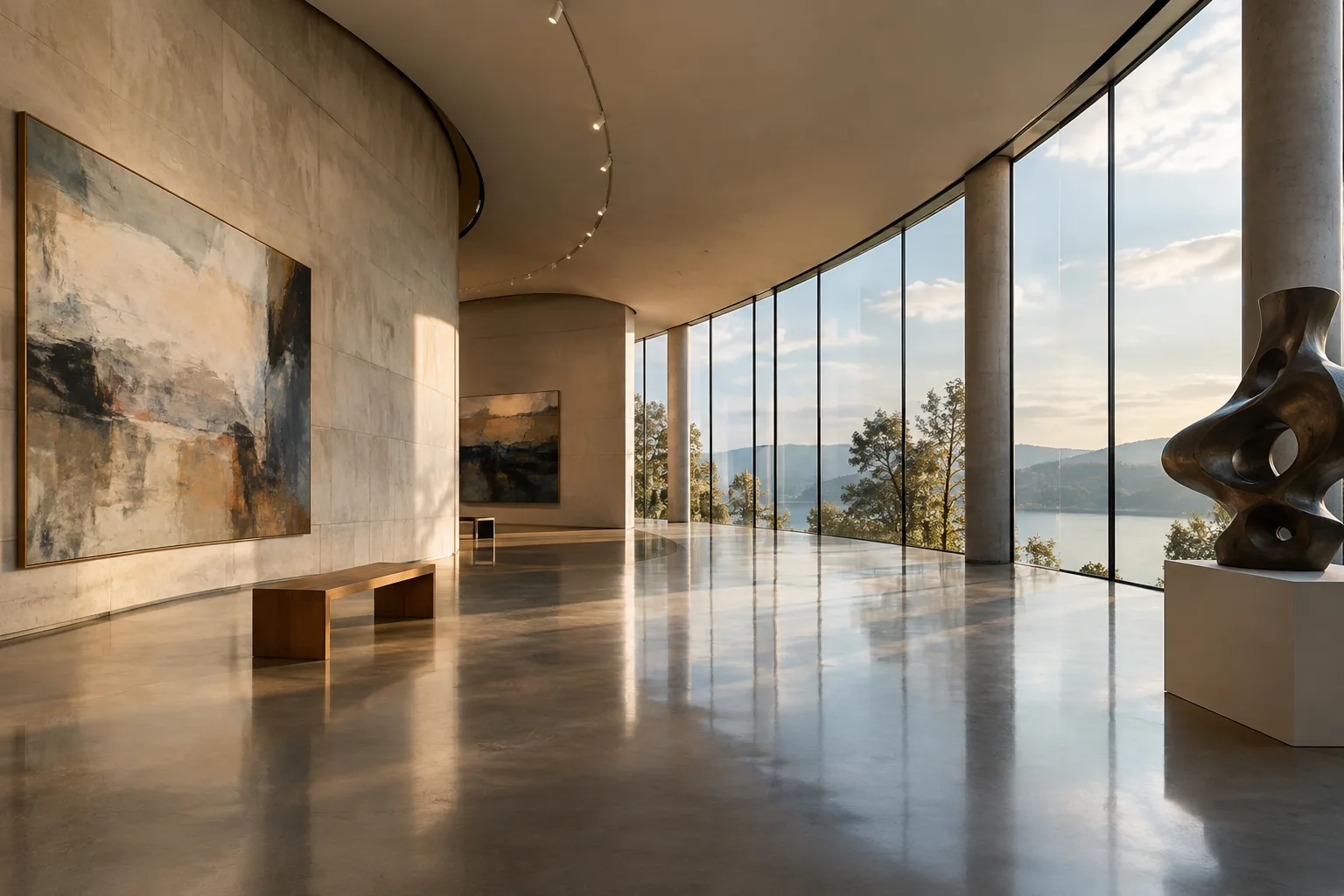
A single continuous architectural shot of a small urban gallery. Begin outside at the entrance, then move slowly through the doorway into the main room. A visitor crosses the far end of the space while sunlight shifts across the polished concrete floor. Keep the architecture calm and the camera movement smooth.This example connects the transition from outside to inside with the movement of a visitor in the distance in a single scene. If human figures aren’t needed in the project presentation, you can remove this action; the prompt should serve only the design idea you want to communicate.
4. Specify the style and lighting
State the desired visual approach at the beginning: photoreal architectural visualization, stop-motion or another style. Then describe the light source and its effect. Instead of relying on an ambiguous word such as “dramatic,” explain, for example, how evening light from a window casts a shadow on the wall.
Photoreal architectural visualization of a small exhibition pavilion at dusk. A low camera angle frames the entrance and the thin roof edge. Warm interior light glows through translucent panels, while the surrounding garden remains cool and dim. The camera makes a subtle lateral move; no sudden cuts.This prompt specifies the camera angle, contrast in lighting and degree of movement. Keeping the visual style consistent with other frames in a project presentation can be useful for teams looking for a common tone across different outputs.
5. Add audio separately if needed
The Veo guide notes that prompts can describe sound effects, ambient audio and dialogue. Audio isn’t essential for architectural storytelling, but if you want an atmosphere suited to the scene, add it clearly and separately from the visual description.
A quiet walkthrough of a narrow timber-lined passage leading to a bright garden room. The camera advances slowly at eye level, revealing soft daylight on the wood grain and a still reflecting pool beyond. Audio: gentle footsteps, faint leaves rustling outside, no music and no dialogue.The audio line clearly separates the sounds you want. If the project won’t use audio, leave this section out; also verify that audio generation is available in the service you choose.
Common mistakes
Relying too much on vague adjectives: Words such as “beautiful,” “impressive” and “modern” don’t define the framing or space on their own. Describe visible surfaces and lighting too.
Packing too many events into one scene: Combining camera movement, human action and environmental changes all at once can make the prompt more complex. Choose the main movement and keep the others in a supporting role.
Mixing visual and audio descriptions: If you want audio, describe it in a clear, separate section such as “Audio:”.
Assuming old model names are still current: The Veo 3.1 Preview API models were shut down on October 22, 2026. Don’t treat older examples as current API calls.
Treating the output as a project document: A generated video does not prove that the design decisions in the prompt are correct. Check that the design, materials and dimensions match the project source materials separately.
Next steps
First, change only one variable for the same scene—for example, keep the camera movement fixed and vary the lighting description. Compare the results side by side and note which description communicates the space more accurately. Then add fields for framing, camera movement, space, materials, lighting, action and audio to a prompt template your team can use.
If you’re using the Gemini API, check the latest video-generation documentation and Gemini Omni Flash availability. Gemini Omni Flash’s multi-turn editing capability is documented as an option for refining generated video conversationally; however, results from specific editing instructions aren’t guaranteed. Before generating, review your organization’s decisions on budget, access and the use of project data.
Sources and licensing
Google DeepMind’s Veo prompt guide and Veo page (sources K4 and K2) were used. Google Gemini API’s video-generation documentation and Veo 3.1 API shutdown information (sources K3 and K1) were reviewed for current model status. K1 and K3 are open documents licensed under CC BY 4.0; their content has been adapted into Turkish and rewritten for architectural workflows. Sources K2 and K4 were provided under free licenses.
Sources
3 sourcesSource texts are not republished; short quotes are marked, everything else is our own summary and commentary.
For architecture firms and visualization teams, this approach can help quickly communicate an idea for a moving presentation and make prompts reusable across the team. Writing camera, lighting and material decisions separately can make revision discussions more concrete.
For offices in Turkey, the key consideration is the video-generation tool’s current access and pricing terms; the sources don’t specify pricing or account requirements. The Veo 3.1 Preview API has also been shut down. Don’t build a workflow around old API examples without checking Gemini Omni Flash’s current terms, and don’t treat generated images as design validation.
Frequently asked questions
What details should an architectural video prompt include?
You can describe the framing and camera movement, visual style, lighting, space, action and, if needed, audio. Google’s Veo prompt guide lists these among the elements of an effective prompt.
Is Veo 3.1 Preview still available in the Gemini API?
No. According to Google’s Gemini API documentation, the Veo 3.1 Preview API models were shut down on October 22, 2026. The documentation points to Gemini Omni Flash for video generation.
Can Gemini Omni Flash edit video?
The Gemini API documentation says Gemini Omni Flash supports multi-turn conversational video editing, available through the Interactions API.