In brief
- ClippingSections creates one or more section planes from selected objects.
- When CustomDepth is enabled, the Depth value determines the thickness of the visible section.
- ClippingDrawings projects section and background geometry onto the World XY plane and organizes it into layers.
- Drawings update interactively when a section plane is moved; changes to objects or their properties require a separate update.
Section and drawing workflow in Rhino 8
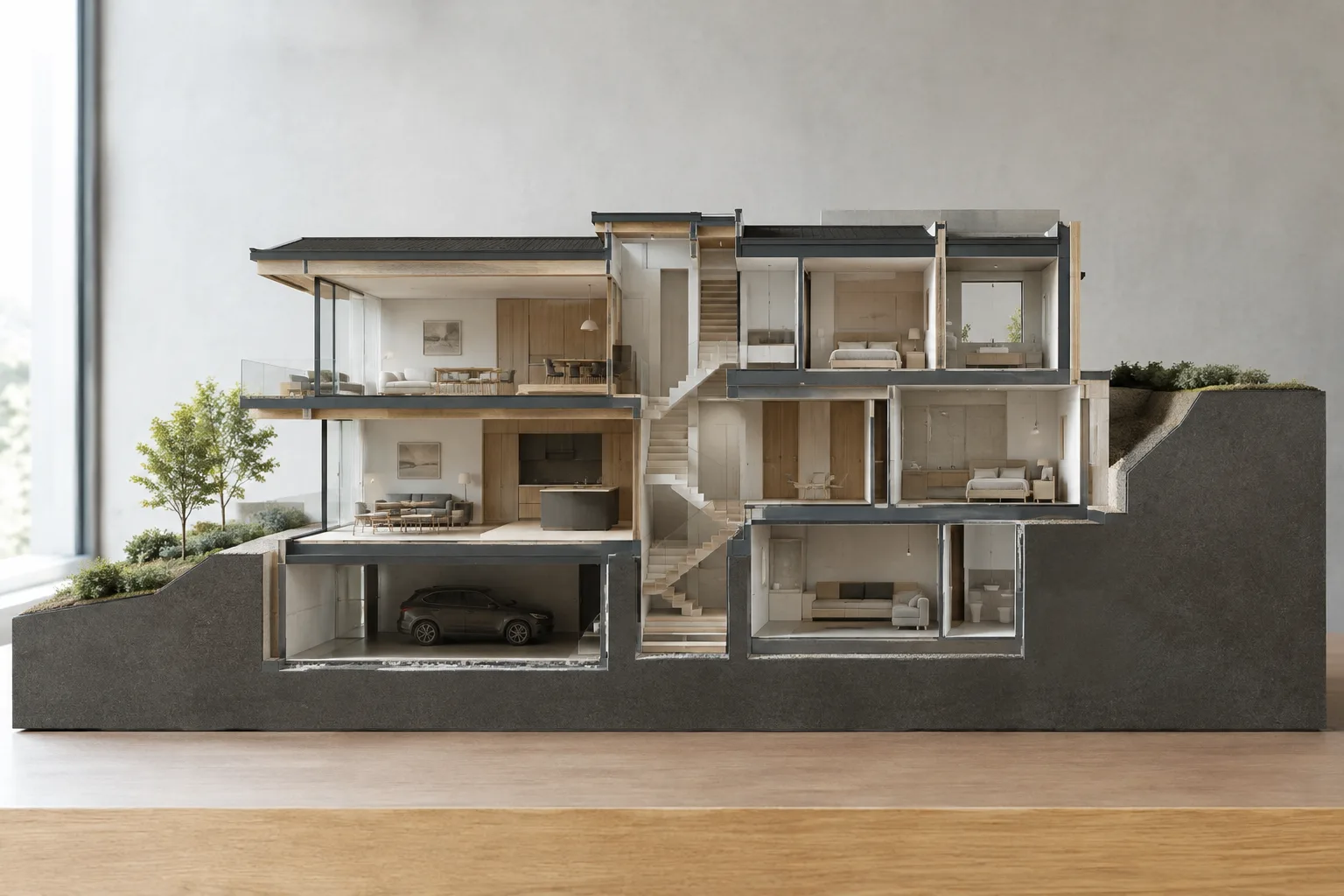
As described in McNeel’s Rhino 8 documentation, the ClippingSections command creates section planes in a model, while ClippingDrawings extracts section and background geometry from those planes to produce 2D drawings. This guide brings together the basic steps for using these Rhino 8 tools in architectural modeling and presentation work. Placing section planes, limiting their depth, and keeping drawings up to date are the main stages of the workflow.
Before placing a section plane, select the objects to section, then position the plane in a suitable viewport. When creating a section drawing, you can set fill, background, and view options separately. The documentation does not specify particular computer hardware or licensing requirements, so it offers no additional recommendations on those topics.
1. Place section planes
Run the command:
ClippingSectionsAlternatively, use the menu path Drafting > Sections > Create. First, select the objects to section and press Enter. Pressing Enter allows the section to be taken through all objects. Then place one or more section planes in the viewport. During placement, the widget appears red if the plane does not intersect the overall bounding box of suitable objects in World coordinates. Use this indicator to check the plane’s position.
The direction options determine how the section is oriented relative to the construction plane and the model. CPlane aligns the section parallel to the current construction plane. The X and Y options make the plane perpendicular to the construction plane and parallel to the X or Y axis, respectively. Custom uses a direction defined by two points. If you need to reverse the direction, Flip switches which side is cut and which remains uncut.
2. Set the visible depth and labels
To show a portion near the plane rather than a section with infinite depth, use the CustomDepth option. When its value is Yes, the Depth setting is available; with No, the section plane’s depth remains infinite. The Rhino 8 documentation gives 0 as the default Depth value. This produces thin sections. Choosing another value defines the thickness of the visible portion in model units.
| Setting | Recommended value | Effect |
|---|---|---|
| CustomDepth | Yes for a limited section; No for infinite depth | Determines whether the visible portion is limited by depth. |
| Depth | 0: thin section; another value: thickness in model units | Defines the thickness of the visible portion of the sectioned object. |
| LabelMode | Text, Dot, or None | Determines how the section name appears in the viewport. |
| SaveToNamedView | Enable if needed | Creates a named view corresponding to the section view. |
You can specify a prefix for section names; Rhino adds sequential numbers. For example, the prefix SEC produces names such as SEC_01 and SEC_02. The label display offers Text, Dot, and None options. Text label size is proportional to the widget size, and the annotation style active when the section plane is created determines the font. A view saved for a section placed in a perspective viewport will also be perspective; it will not become a parallel view.
3. Create 2D drawings from sections
After preparing the section planes, run the drawing creation command:
ClippingDrawingsYou can also use Sections > Create Drawings in the menu, then select one or more section planes. The All option processes all visible section planes. Specify the drawing insertion points; pressing Enter places the origin of the current drawing at the World Top origin. Drawings are projected onto the World XY plane and organized into layers. This layer structure helps manage visibility in the modeling and layout spaces.
Choose drawing options to suit your needs. ShowHatch controls whether hatches are created when the object’s section style specifies a hatch; ShowSolid controls whether planar surfaces are generated from sections through solid objects. AddBackground adds visible and hidden silhouette curves in front of the section plane. When adding a background, use Projection to choose a parallel or perspective projection. AddHidden and AddSilhouette determine whether hidden curves and silhouettes are drawn in the background. Line weight and display color can also be set by layer or taken from the sectioned object.
4. Updates and pre-delivery checks
Drawings update interactively when their associated section plane is moved. However, if the sectioned objects or their properties change, you need to refresh the drawing separately:
UpdateClippingDrawingsTo use the same options for multiple drawings, you can use the ApplyToAll setting. When a section plane is deleted, its associated drawings and layers are also deleted. Using Explode on drawing blocks removes the connection between drawing objects and their input objects, so consider this step carefully if you want to preserve linked update behavior.
Impact on architecture, interior design, and archviz workflows
These tools can be useful for architecture and interior design teams preparing section views and related 2D drawings from a model. Archviz artists can also reveal specific parts of a model to examine spatial relationships. Updating the drawing when the section plane is moved makes it easier to test different positions; however, the manual update required after changes to objects or their properties should be added to the delivery checklist.
The documentation does not provide information about compatibility with other software versions, hardware requirements, or licensing costs. This guide therefore covers the steps for Rhino 8; you should not assume the options are the same in other versions or office setups. Layer visibility, fill, and background options should also be checked in the drawing output.
Common mistakes
Proceeding without checking the placement when the section plane does not intersect the bounding box of suitable objects. A red widget is a cue to check its position.
Expecting
Depthto create a limited section whileCustomDepthis disabled. The documentation states thatCustomDepthmust be set toYesfor the depth setting to be available.Forgetting to refresh the drawing after an object or property changes. Moving the plane updates the drawing; other changes require the update command.
Overlooking that deleting a section plane also removes its associated drawings and layers.
Deciding on the required section direction, depth behavior, and output options before creating a drawing—and checking that drawings have been updated after model changes before delivery—can help you manage this Rhino 8 workflow more reliably.
Sources
1 sourceSource texts are not republished; short quotes are marked, everything else is our own summary and commentary.
The link between a section plane and a 2D drawing in Rhino 8 can offer architecture and interior design offices in Turkey a practical way to organize section work from a model. In particular, the interactive drawing update after moving a plane makes it easier to try different section positions.
The critical point in the workflow is that drawings must be updated separately when model objects or their properties change. Adding this step to the delivery checklist reduces the risk of using outdated section outputs. Since the sources do not provide information about hardware, licensing costs, or compatibility with other versions, offices should verify those details for their own setups.
Frequently asked questions
How do you create a section plane in Rhino 8?
Run the ClippingSections command, select the objects to section, and place one or more section planes in the viewport. Pressing Enter allows you to section all objects.
Can you create 2D drawings from sections in Rhino 8?
Yes. The ClippingDrawings command creates 2D drawings from section and background geometry. Drawings are projected onto the World XY plane and organized into layers.
When should ClippingDrawings drawings be updated?
Drawings update interactively when their associated section plane is moved. If sectioned objects or their properties change, you need to run the UpdateClippingDrawings command.