In brief
- A phasing group consists of phases added to tracks on the timeline.
- Visibility changes made in the Scene graph while a phase is selected are saved to that phase.
- Phases on the same track cannot overlap; create a new track to show phases at the same time.
- The documentation lists 6 years as the default timeline length and 40 days as the default duration for a new phase.
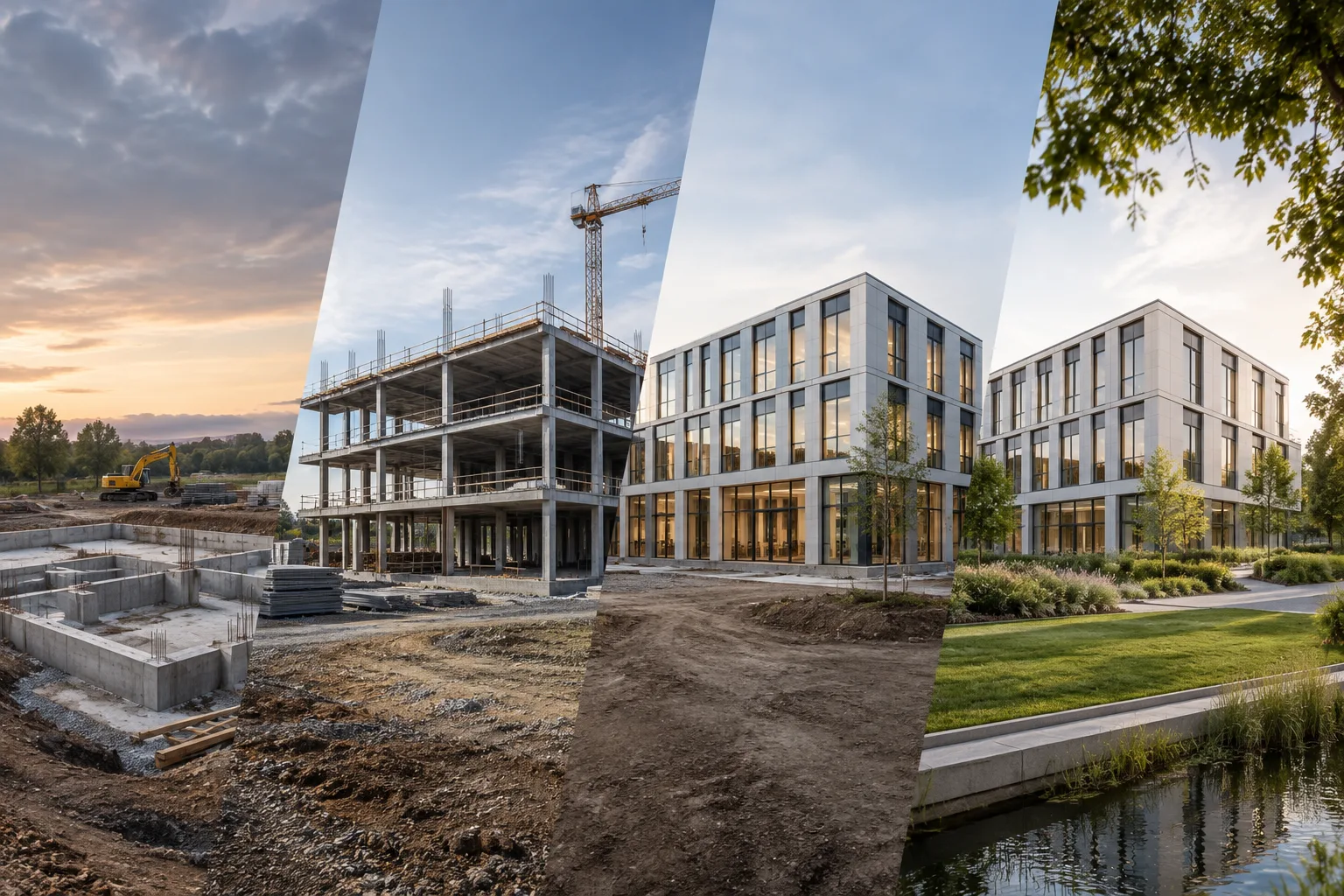
Twinmotion’s Phasing Tool can be used to show how a project progresses over time or to present different scene setups for the same project in videos and sequences. In the workflow described in Epic Games’ official documentation, scene element visibility is saved to different phases, which are arranged on tracks along the timeline. This makes it possible to present different stages of construction or alternative scene setups. This guide is based on Epic Games’ official Phasing Tool documentation. The documentation does not specify which Twinmotion version these features were implemented in, so the version scope cannot be confirmed.
1. Create a phasing group and the first phase
Click
Mediain the footer to open the Media dock.Select the
Phasing Groupicon in the Media dock and click theAddicon. When you create a new group, the first phase is automatically created on a new track.Make sure the first phase is selected on the timeline so that any changes you make to scene visibility are saved to the correct phase.
Open the
Scenepanel from the footer. In the Scene graph, use theEyeicons next to the relevant elements to change their visibility.
Visibility changes in the Scene graph are reflected in the Viewport and automatically applied to and saved in the selected phase. That’s why it’s important to select the target phase before you begin: your selection determines which project state your changes belong to. To show or hide multiple elements together, select several items using Ctrl or Shift, then click an Eye icon. The documentation also describes changing the visibility of multiple elements by holding down the left mouse button on an Eye icon and moving through the Scene graph.
To create a second phase, click the Create Phase icon while the first phase is selected. Select the new phase, then change the visibility settings in the Scene graph to reflect the new scene setup. If multiple phases need to share the same visibility settings, select several phases with Ctrl and apply the visibility changes to them. This can reduce the need to set up similar scene states individually.
2. Timeline settings and overlapping phases
When you create a new phasing group, its start date is the current date. By default, the timeline spans 6 years, with date markers enabled. According to Epic Games’ documentation, new phases have a default duration of 40 days. These initial settings can be adjusted to match the project schedule.
| Setting | Default value | Effect |
|---|---|---|
| New phase duration | 40 days | Sets how much time the phase occupies on the timeline; drag either edge of the phase to change it. |
| Timeline length | 6 years | Sets the initial timeline range; select another preset range from the timeline value menu. |
| Start date | Current date | Sets the timeline’s starting point; change it using the date field in the Properties panel. |
To change the start date, click the date field in the Properties panel, select a date from the calendar, and confirm with OK. To move forward or backward along the timeline, hold down the right mouse button on an empty area and drag. Use the Zoom in and Zoom out icons to zoom in or out; click the timeline value to select another preset range. To lengthen or shorten a phase, move the cursor to its left or right edge. When the Stretch cursor appears, drag the edge. Adjusting the duration can make a phase easier to read in relation to the corresponding period in the project schedule.
Phases on the same track are arranged chronologically and cannot overlap. If two phases need to appear during the same time period, create a new track using the New Track command in the track menu. Select the new track and click the Create phase icon. You can also rearrange a phase by dragging and dropping it elsewhere on the same track or onto another track. Separate tracks distinguish states that need to appear at the same time on the timeline.
3. Preview and manage phasing groups
To preview a phasing group in the Phasing tool, select the Date widget and move it along the timeline. Press F12 to view it in full-screen mode, then use the phasing slider. These controls let you check whether scene elements appear as expected on the selected dates before exporting for a presentation.
Phasing groups can be applied to videos and sequences. Epic Games’ documentation states that videos and sequences containing phasing can be exported locally or viewed in Local and Cloud Presentations.
Use the menus in the Media dock to manage groups and phases. Hover over a phasing group thumbnail and use the three-dot menu that appears to rename, delete, or duplicate the group. The three-dot menu next to a phase includes commands to rename, copy, paste, and delete it. The track menu offers options to create, copy, paste, rename, and delete tracks. These editing tools make it easier to restructure the timeline around the project narrative and manage its elements.
How it affects architectural and interior visualization workflows
The Phasing Tool can be used in architectural and interior presentations to explain construction stages, project progress, or different states of the same scene. Saving scene element visibility by phase lets you determine which elements appear in each period. Sequential states can be arranged on the same track, while separate tracks can be used for phases that need to appear together during the same time period. The documentation also explains how to apply this content to videos and sequences.
Before you begin, organize the elements in the Scene graph clearly, and check that the target phase is selected before changing visibility. This helps reduce the risk of editing the wrong phase. The documentation does not provide information about hardware requirements, licensing terms, or version compatibility; offices should check these details for their own setups.
Common mistakes
Not checking whether the target phase is selected before changing visibility settings.
Trying to place phases that need to appear at the same time on one track; phases on the same track cannot overlap.
Reviewing the timeline without first adjusting the start date, timeline range, or phase duration to match the project schedule.
Checking the change only in the Viewport and skipping the preview in the Phasing tool or full-screen mode.
These checks help ensure that phases are presented with the expected visibility settings and in the correct time range.
Sources
3 sourcesSource texts are not republished; short quotes are marked, everything else is our own summary and commentary.
For architecture and visualization offices in Turkey, the practical benefit of the Phasing Tool is that it can present construction progress or scene alternatives clearly on a timeline. This can make it easier to explain project states, but an efficient workflow requires keeping the Scene graph organized and selecting the correct phase before each change.
The documentation does not specify hardware requirements, licensing terms, or version compatibility. Offices should therefore verify that the tool is compatible with their existing workstations and Twinmotion installations. The most common operational risks are editing the wrong phase and trying to arrange overlapping phases on a single track. Starting with a small sample timeline and previewing it can help check the presentation flow.
Frequently asked questions
What is the Twinmotion Phasing Tool used for?
It is used to show a project’s progress or different scene states of the same project on a timeline. Phasing groups can be applied to videos and sequences.
How do you show multiple project phases at the same time in Twinmotion?
Phases on the same track cannot overlap. Create a new track and add the phase that needs to appear at the same time to that track.
What are the default durations in the Twinmotion Phasing Tool?
According to the official documentation, new phases are 40 days long by default, and the timeline spans 6 years. These values can be changed.