In brief
- The Gemini API model ID for Nano Banana 2.1 is listed as gemini-nano-banana-2.1.
- The model can generate images from text prompts; an existing image can also be edited by providing text and an image together.
- The guide mentions generation at 1K, 2K, and 4K resolutions; pricing information is not included in the source.
- Users are reminded that they must have the necessary rights to any images they upload.
What will you learn in this tutorial?
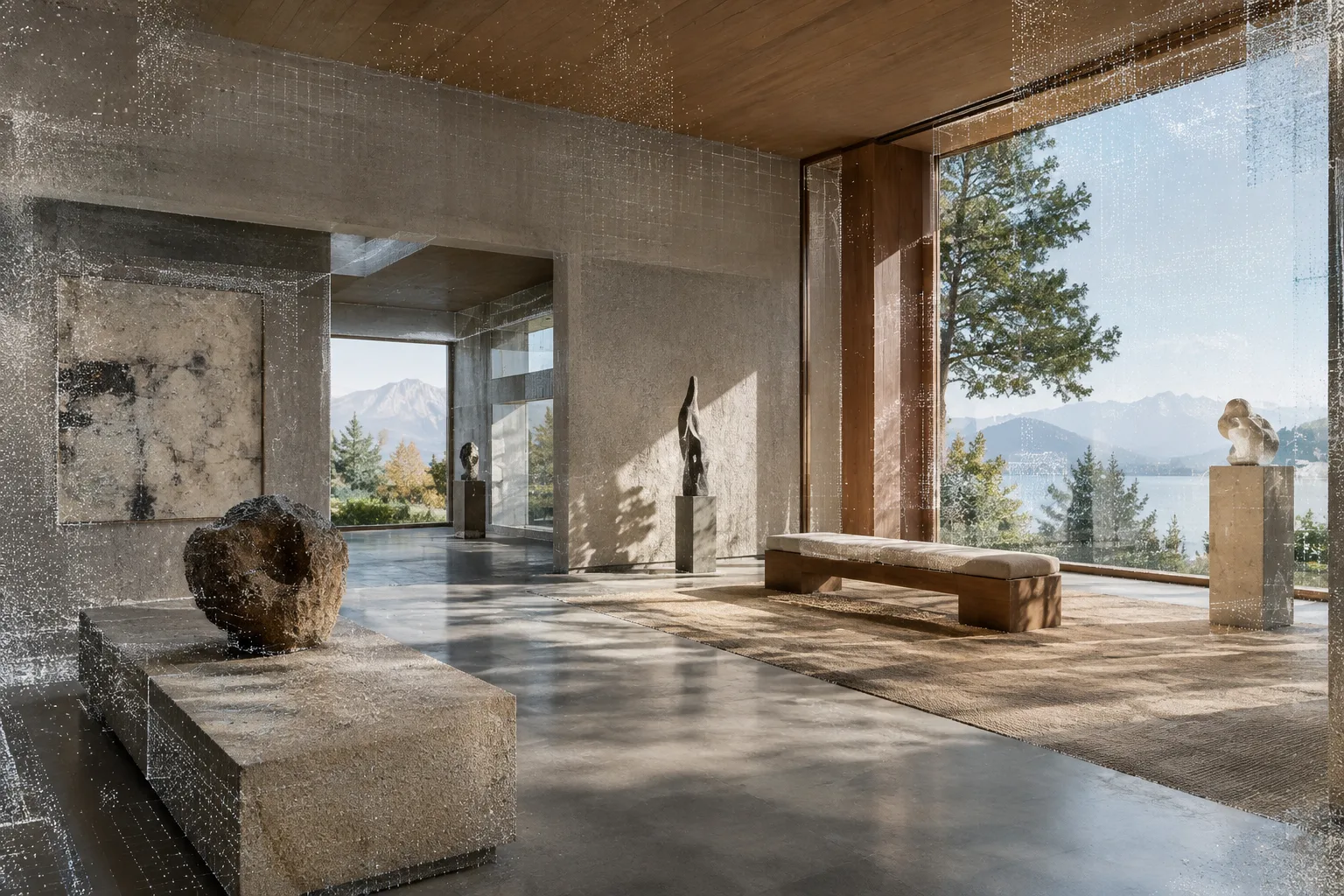
This tutorial offers a starter workflow for using Nano Banana 2.1 to explore architectural and interior design ideas. We’ll first describe a scene’s purpose and visual language, then use five prompts to cover exterior and interior concepts, materials, atmosphere, and editing an existing image. Treat the examples as clear instructions for the model, not as a guarantee of a particular result. Reviewing the output and refining the request is a natural part of image generation.
Google’s Gemini API documentation describes Nano Banana as the name for Gemini’s native image-generation capabilities. The guide lists Nano Banana 2.1 as its main efficiency model for image generation and conversational editing. Google says it has improved image quality, text generation, multi-turn consistency, and grounding with Google Search. These are the provider’s claims and do not mean the model will produce the same results for every architectural task.
Requirements: model, access, and images
The sample workflow uses the Gemini API. The guide gives gemini-nano-banana-2.1 as the model ID for Nano Banana 2.1 and provides examples in Python, JavaScript, Java, Go, and REST. API access uses a client library; the REST example reads the key from the GEMINI_API_KEY environment variable. These examples indicate that an API key is required. The sources do not explain pricing or free-tier terms, so check current access and cost conditions before getting started.
To generate an image from text, send a text prompt. To edit an existing image, include both a text instruction and an image input in the same request. The guide shows how to pass an image as Base64-encoded data; for multiple images, larger payloads, and supported MIME types, it refers readers to the image understanding documentation. For that reason, no specific file-size or format limit should be assumed here.
You are responsible for having the necessary rights to any drawing, photo, or render used as a reference. The guide also states that a SynthID watermark is added to all generated images. Review rights and usage terms before using generated images in a presentation, publication, or client project.
Step by step: five prompts for architectural images
1. Describe an exterior concept
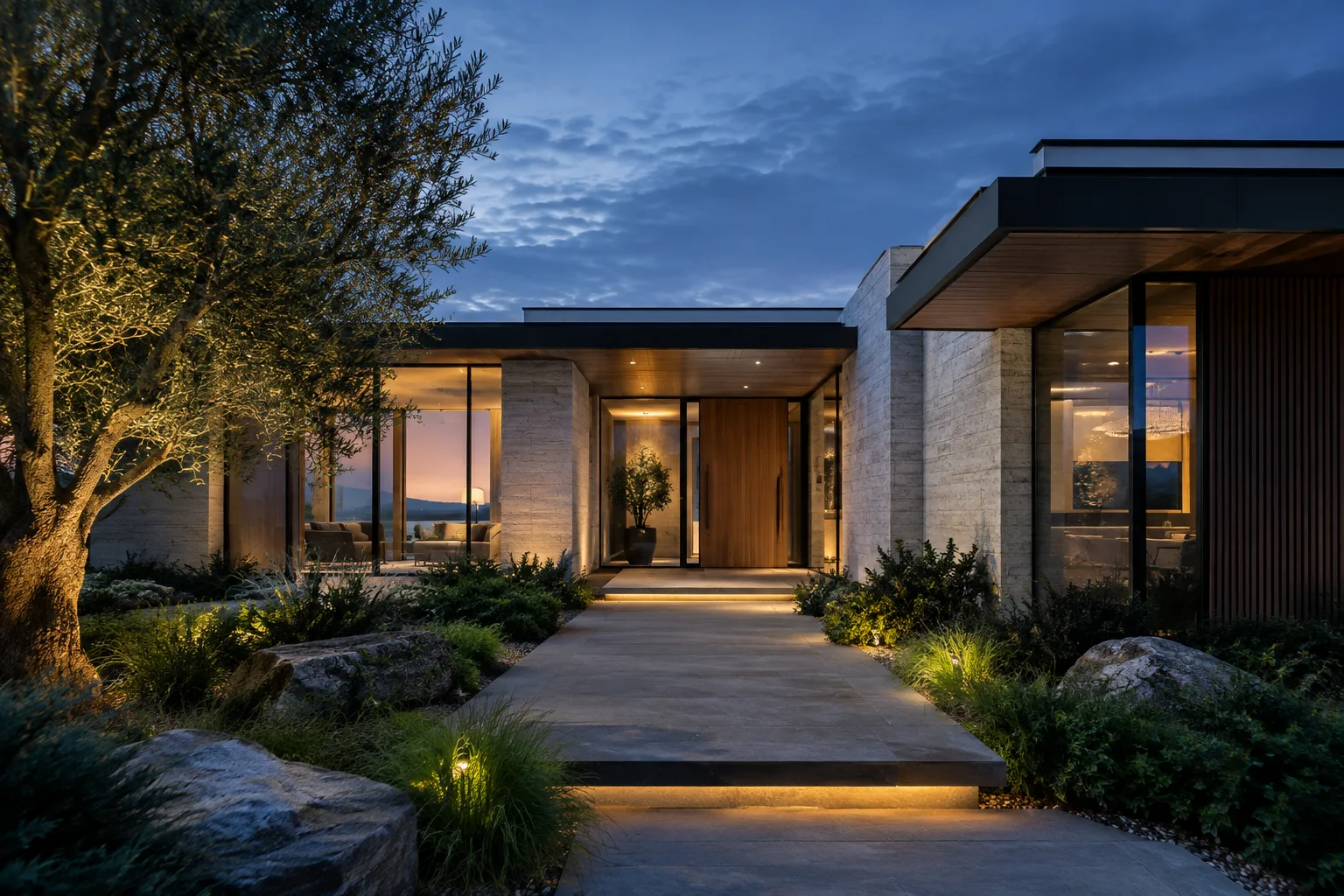
In your first attempt, clearly specify the building type, surroundings, material feel, and lighting conditions. Instead of listing disconnected adjectives, bring the scene you want the model to create together in one coherent description.
Create an architectural concept image of a small public library beside a quiet urban park. Use warm brick, pale stone, and large shaded windows. Show the building from a pedestrian eye-level view on an overcast morning, with a calm and welcoming atmosphere. Keep the composition focused on the entrance and the relationship between the building and the park.This prompt brings together the building’s function, surroundings, material palette, viewpoint, and atmosphere. If the surroundings or entrance aren’t clear enough in the first result, iterate with a new instruction that clarifies just that element rather than rewriting the whole request.
2. Set the mood for an interior
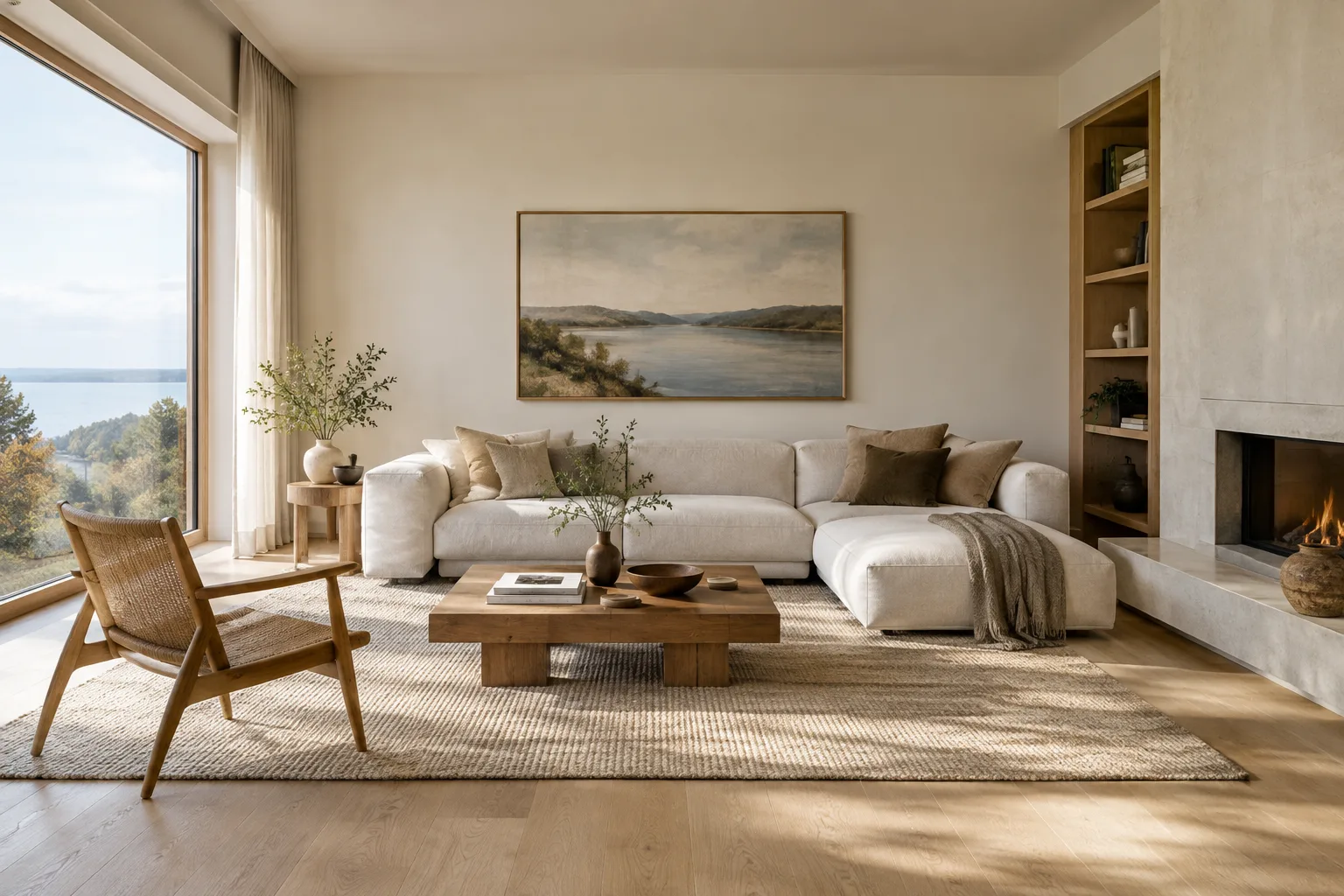
For interiors, the space’s intended use and how it should feel can make the visual direction more concrete. Make sure your choices of materials and lighting work together.
Create a visual concept for a compact apartment living room designed for reading and quiet evenings. Combine light oak, muted green fabric, and a soft mineral wall finish. Include a low bookcase, a comfortable chair, and indirect warm lighting. Make the room feel practical and uncluttered, with daylight entering from one side.Here, the function, materials, furniture, and lighting are described together. If the result feels too cluttered, you can make “practical and uncluttered” more explicit or specifically exclude unnecessary elements. Prompt instructions do not guarantee that every detail will be rendered exactly as requested.
3. Explore material and lighting variations
To compare different moods for a design idea, keep the basic description of the scene and change only the lighting or material emphasis. This makes it easier to assess the visual impact of each change.
Create an architectural visualization of a minimalist dining area with a long timber table and simple chairs. Emphasize the natural grain of the wood and a matte plaster wall. Use soft afternoon daylight and restrained shadows. Keep the palette warm and neutral, and avoid decorative objects that distract from the material surfaces.For a second attempt, you could describe the daylight differently while keeping the rest of the scene unchanged. This approach applies the prompt-design principle of giving clear, specific instructions to visual work. Changing just one variable at a time makes it easier to see which wording made a difference when you compare results.
4. Move from a schematic image to an atmosphere study
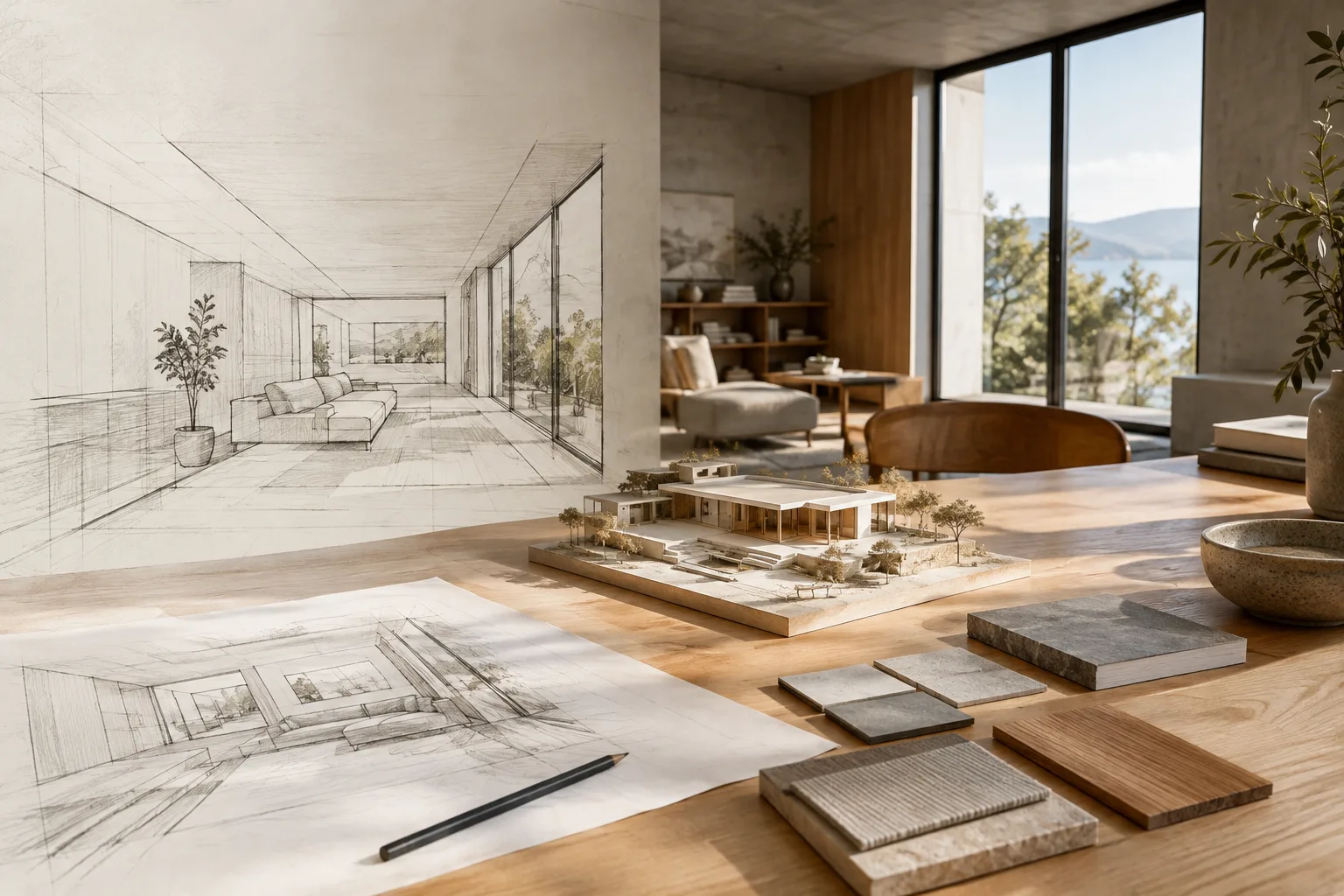
When you add a plan, sketch, or existing image as a reference, specify in your text instruction what you want to change about it. The guide explains that image and text inputs can be used together, and that text can instruct the model to add, remove, or replace elements, or adjust style or color.
Using the uploaded interior sketch as a reference, create a calm material and lighting concept for the same room. Explore pale timber, warm white walls, and a muted stone floor. Keep the request focused on the visual atmosphere and material impression; do not add decorative objects that are not needed for the concept.For this example, you must attach the reference image separately; the prompt alone does not upload it. In the API approach described in the source, text and image are sent as inputs in the same interaction. Compare the result with the sketch. If an important element has been interpreted differently, make the focus clearer in your next instruction.
5. Try changing one element while keeping the rest
Keeping the scope narrow during editing makes it easier to assess the requested change. The source documentation describes the ability to add, remove, or replace elements using text, but does not guarantee that a particular architectural element will be preserved perfectly in every case.
Edit the uploaded room image by changing the wall finish to a light textured plaster and making the overall color grading softer. Keep the requested change limited to the wall finish and color mood; do not introduce new furniture or decorative elements.Send the image and instruction together, then review the result. If the change has affected areas you didn’t intend, make the instruction narrower and clearer before trying again. The guide treats prompt design as an iterative process; the first result doesn’t have to be the final deliverable.
Common mistakes
Vague descriptions: A broad request such as “create a modern and beautiful interior” doesn’t clarify the function, materials, or atmosphere. Specify how the space will be used, which surfaces should stand out, and how the lighting should feel.
Changing too many variables at once: If you change the building, materials, colors, and lighting in every attempt, it’s harder to tell why the result changed. Define one main scene, then vary one aspect at a time.
Ignoring the rights to reference images: Google reminds users that they must have the necessary rights to uploaded images. Also bear in mind that generated images include a SynthID watermark.
Treating every request as a command for a guaranteed result: A prompt describes the result you want from the model; it does not, by itself, verify architectural dimensions, construction details, or project accuracy. Treat generated images as concept explorations, not design decisions or technical documentation.
Next steps: how to integrate this into the design process
For a project, start by choosing your goal: exploring atmosphere, testing material alternatives, or editing an existing image. Then record your initial description and the changes you make between attempts. This helps the team track which prompts produced which visual directions. Before using the results, compare them with the project drawings, material decisions, and client expectations.
For architecture and interior design practices, this approach can help teams discuss visual options during the concept phase. Visualization teams can experiment with edits to an existing image using text and image inputs. However, the sources do not describe a direct connection between the model and BIM, CAD, or specific 3D software. It is therefore more accurate to treat this workflow as a separate visual ideation step, rather than a replacement for existing modeling and production tools. API access and costs should also be assessed based on the expected production volume; the source materials do not provide pricing information.
Sources and license
This tutorial draws on Google’s Gemini API guides to image generation and prompt design. Both sources are licensed under CC BY 4.0; the content has been adapted into Turkish and reorganized with examples for architectural image workflows. The prompt examples were written specifically for this tutorial.
Sources
2 sourcesSource texts are not republished; short quotes are marked, everything else is our own summary and commentary.
Nano Banana 2.1 offers architecture practices and students looking to quickly discuss atmosphere and material options during the concept phase a visual exploration step worth trying. The ability to edit using a reference image can also support idea development from an existing sketch or image.
However, API access and costs should be checked before starting a project; the sources don’t provide pricing information. Generated images should be treated as concept inputs, not technical drawings or proof of accuracy. Check the usage rights for reference images and take the SynthID watermark into account.
Frequently asked questions
How do you generate architectural images with Nano Banana 2.1?
Send a text prompt through the Gemini API using the `gemini-nano-banana-2.1` model ID. Clearly describe the scene, function, materials, and lighting, then review the result and iterate on the prompt.
Can Nano Banana 2.1 edit an existing render?
The Gemini API guide says text and image inputs can be used together, with instructions to add, remove, or replace elements in an image, or adjust its style and colors.
Is Nano Banana 2.1 paid?
The documentation provided does not include pricing information. Check current API access and cost conditions separately.