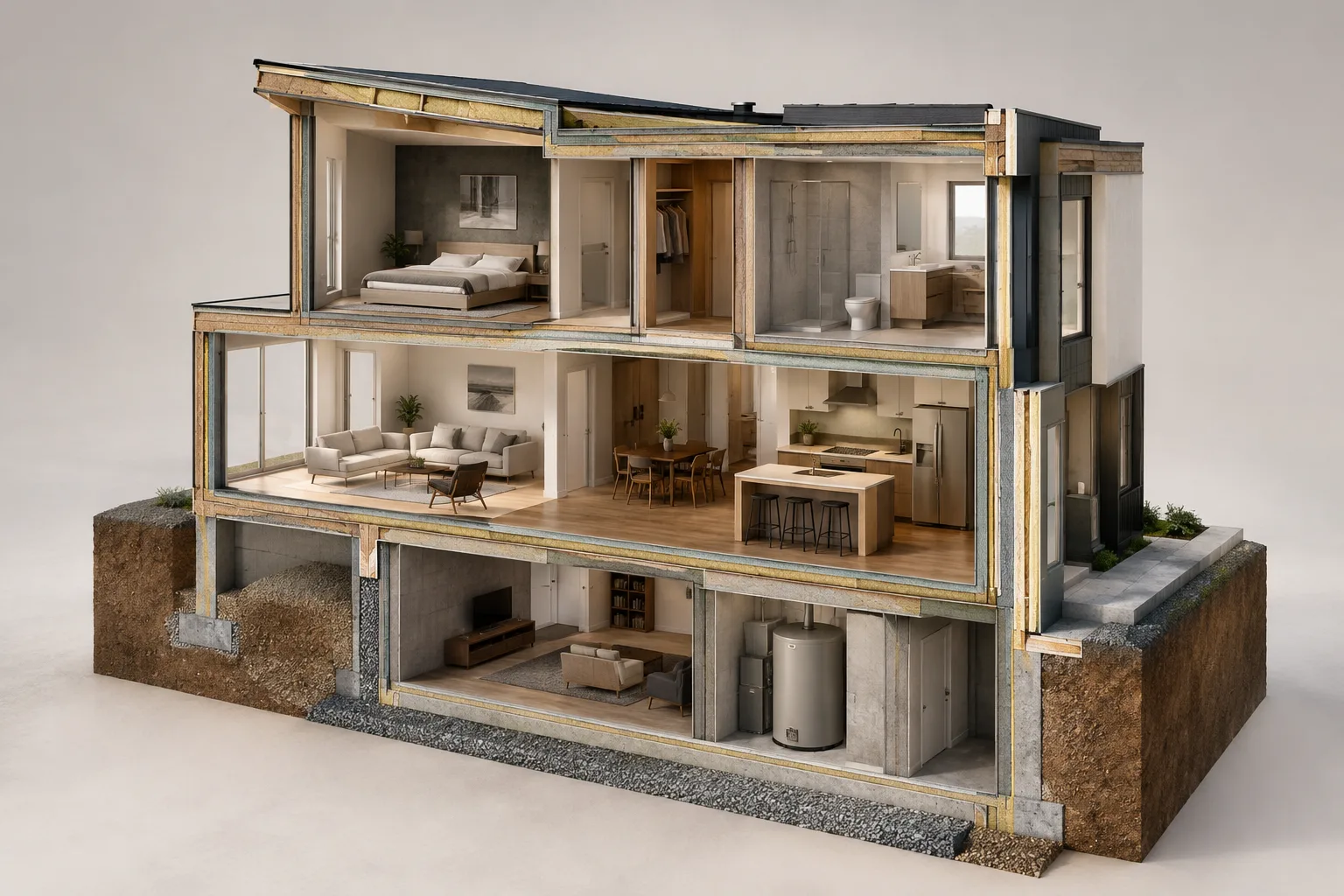
In brief
- With 3D Cutaway enabled, you can create a cutting plane from a floor plan, section, or 3D window.
- In a floor plan or section window, you can select an existing section line as a reference for the cutting plane.
- In the 3D window, you can define a custom plane using an element surface, an edge and a point, or three points.
- In the 3D window, choose Finalize to complete the operation or Cancel to discard it.
This guide covers the 3D Cutaway workflows described in Graphisoft’s Archicad 27 help documentation. The feature lets you inspect the resulting 3D view by dividing the model with a cutting plane. You can create the plane from a floor plan or section window, or from the 3D window; the available directions and placement steps vary depending on the window and method selected. Command names below are presented as they appear in the Archicad 27 documentation.
Creating a plane in a floor plan or section window
Before you begin, make sure 3D Cutaway is enabled. Then work in a floor plan or section window. Cutting-plane handles appear on all four sides of the window and are used to position the plane.
Drag one or more handles to move the plane to the desired position. By default, the movement is orthogonal. To create a section view along a principal direction, drag the handle to the appropriate position and click to place the plane. Then inspect the resulting 3D cutaway.
To cancel while dragging, move the handle back to the trash-can icon or press Esc. This cancels the positioning operation before the plane is placed.
To use an existing section line as a reference, select the line and use the
Create Cutting Plane Herecommand. The resulting cutting plane coincides with the selected section line but is independent of it. This means you can move and edit the cutting plane later without changing the section line. Use this option when you want to base the plane’s position on an existing section line.
When you need a cutting direction other than the predefined orthogonal directions, create a custom plane. Click one of the four cutting-plane handles to open the context menu, then choose Create Custom Cutting Plane. The command is also available from the Standard Toolbar. Define the cutting line with two clicks, then click and drag the line to set the cutting position. Check the resulting 3D cutaway.
Creating an orthogonal cut in the 3D window
Make sure 3D Cutaway is enabled in the 3D window. Hover over the handles on the four edges of the screen to preview the orthogonal cutting plane at the corresponding position. This preview helps you see the direction you’ll work in before selecting the plane.
When you click a handle, the model’s bounding box appears. The predefined planes cut parallel to this box. Drag the handle to position the plane on the model. When it is in the desired location, click, then choose the
Finalizecommand that appears on screen to complete the operation.To cancel while dragging the cutting plane, move it to one of the trash-can icons or press Esc. The
FinalizeandCanceloptions that appear after placement can also be used to complete or undo the operation. Check the view before confirming the cut to make sure the plane is in the correct position.
Defining a custom plane in the 3D window
If the predefined orthogonal directions don’t meet your needs, open the context menu for one of the handles and choose Create Custom Cutting Plane. Graphisoft’s Archicad 27 documentation describes three reference methods for setting the direction and position:
Use an element’s plane: For example, click the top surface of a roof to set the angle of the cutting plane. The visible rectangle shows the plane’s position. A second click defines where the plane is placed.
Select an edge as the rotation axis: Click an existing edge with the Mercedes cursor to define the rotation axis. Then click the point where you want the cutting plane to touch; this click sets its position.
Use three points: First, select three points to define the plane; for example, you can use hotspots on elements. These first three points define the plane. Then use two points to define the rotation axis, and finally select the point where you want the plane to touch to define its position.
When the plane is in the desired location, the Finalize command appears. If the result looks right, use this command to complete the operation and inspect the resulting 3D cutaway. This lets you set the cutting direction based on a surface, edge, or point reference in the model.
Using 3D cutaways in architectural and visualization workflows
Architects, interior designers, and visualization teams can use this method to inspect a specific part of a model in 3D. Starting from a floor plan or section window lets you position an orthogonal plane with the handles or use an existing section line as a reference. The 3D window supports working with orthogonal planes parallel to the bounding box, as well as defining a custom direction using surfaces, edges, or points. These are separate starting workflows; they do not mean that the same cutting plane is started from different windows.
Before you begin, decide whether the target view should be orthogonal or use a custom direction. For an orthogonal section, use the handles in the relevant window. If you need a different angle, switch to the custom-plane command and select the reference that will determine the direction and position. This approach can reduce the need to reposition a plane that was created using the wrong method.
The source documentation does not provide information about hardware requirements, licensing terms, or compatibility with other Archicad versions. These steps are based on the Archicad 27 help documentation; consult the documentation for your version if you’re using a different release. In particular, teams working with different versions should not assume that the commands and workflow are identical.
Common mistakes
Starting without checking whether 3D Cutaway is enabled: The documentation requires the feature to be enabled before creating a plane. Check this first.
Choosing an orthogonal plane when you need a custom direction: Use the
Create Custom Cutting Planecommand instead of the orthogonal handles.Treating a section line and a cutting plane as the same object: The plane created with
Create Cutting Plane Hereis independent of the line; editing the plane does not change the line.Leaving the operation unfinished in the 3D window: Check the result after positioning. Choose
Finalizeto accept it orCancelto undo it.Mixing up the click order for the custom-plane method: The references and steps differ for the surface, edge, and three-point methods. For the three-point method, first select the three points that define the plane, then the two points that define the rotation axis, and finally the position where the plane should touch.
Sources
2 sourcesSource texts are not republished; short quotes are marked, everything else is our own summary and commentary.
The guide’s practical value for offices lies in clearly distinguishing which window and reference to use when creating a section view. Using an existing section line as a reference and creating a custom plane in the 3D window are different starting options; choosing the right approach from the outset can reduce unnecessary trial and error.
The sources do not provide information about hardware demands, licensing costs, or cross-version compatibility. Teams in Turkey should verify the commands when using versions other than Archicad 27 and check the view before finalizing the plane. The `Finalize` and `Cancel` options let you review the result before confirming the operation in the 3D window.
Frequently asked questions
How do you create a 3D cutaway in Archicad 27?
Enable 3D Cutaway and use the handles in a floor plan, section, or 3D window to position the cutting plane. In the 3D window, you can complete the operation with `Finalize`.
How do you define a custom cutting plane in Archicad?
Choose the `Create Custom Cutting Plane` command. According to the Archicad 27 documentation, you can define the plane using an element surface, an edge and a point, or three points.
Can a section line in a floor plan be used as a 3D cutting plane?
In a floor plan or section window, select the line and use the `Create Cutting Plane Here` command. The resulting plane coincides with the line but can be edited independently.