In brief
- Nano Banana 2.1 can be used for image generation and conversational editing through the Gemini API.
- The API guide lists 1K, 2K, and 4K resolution options for the model.
- In an editing workflow, an image can be supplied as input alongside a text prompt.
- Google says generated images include a SynthID watermark.
What you’ll learn in this guide
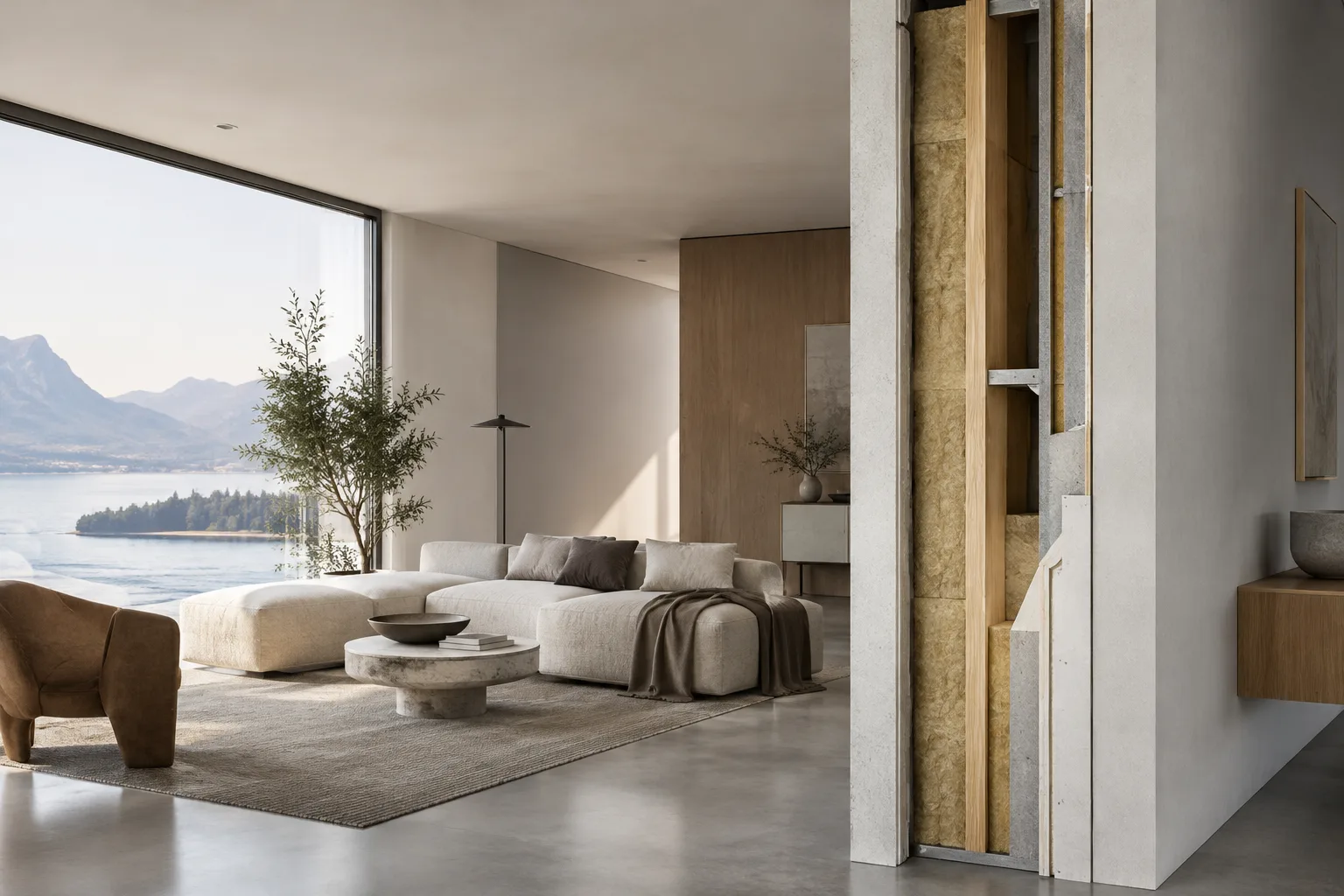
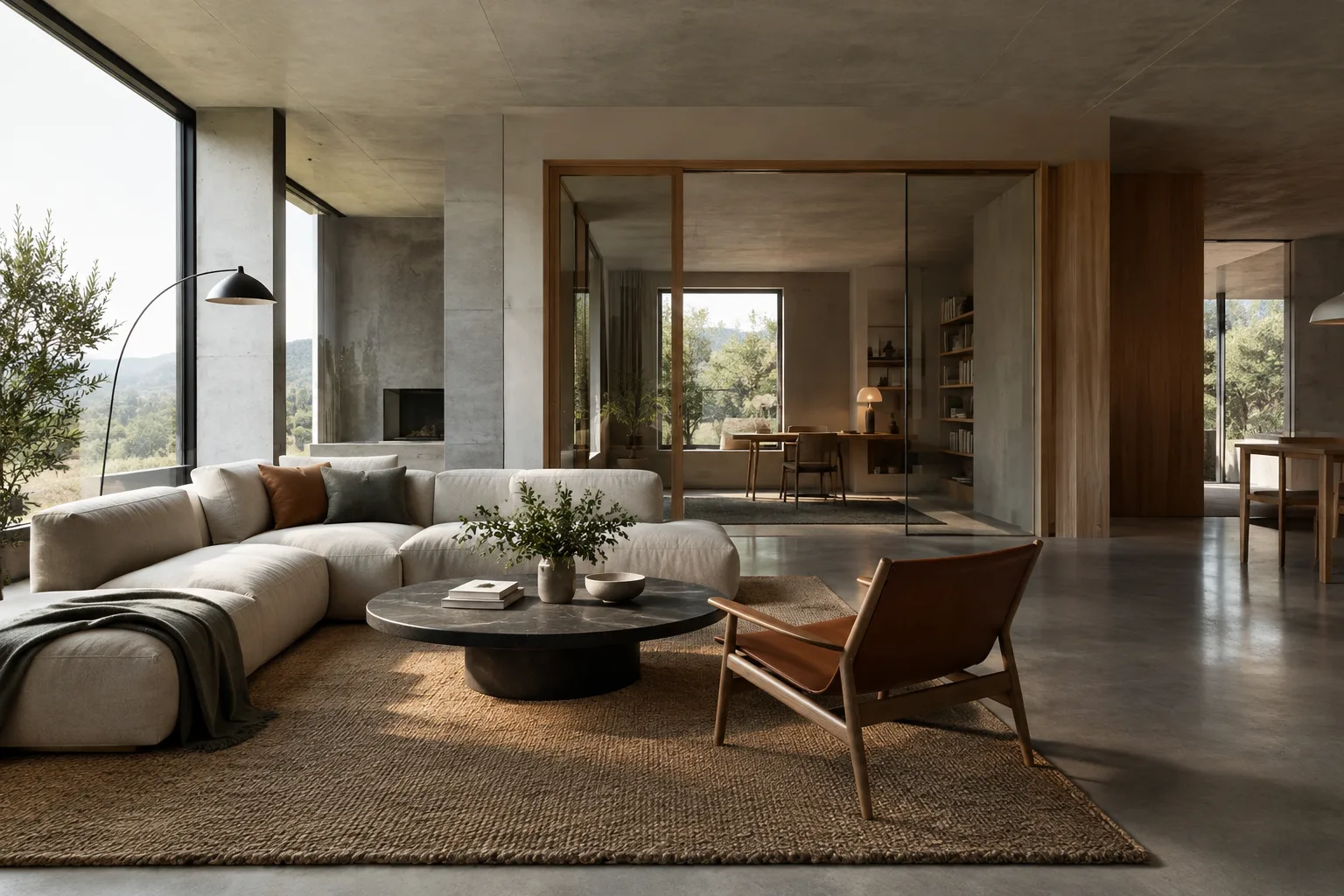
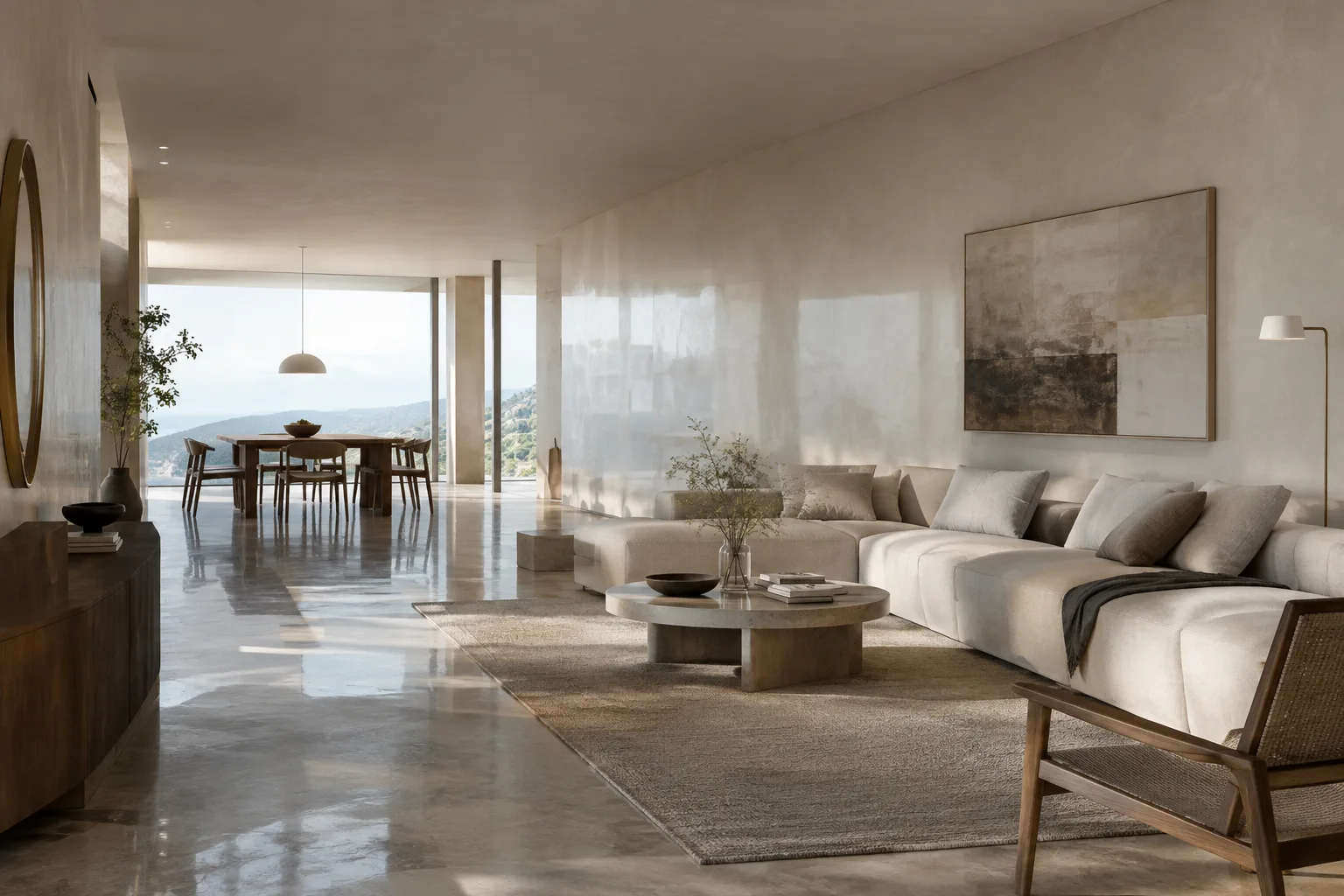
You’ll learn how to structure prompts when using Nano Banana 2.1 as an ideation and image-editing tool for architectural and interior visuals. The examples first generate an image of a new space, then change visual qualities such as materials and lighting using a reference image. The goal is not to produce drawings or technical project documents, but to create visual alternatives that can help inform design discussions.
Google’s Gemini API documentation presents Nano Banana 2.1 for image generation and conversational editing. The model can create an image from scratch using a text prompt, or make changes to an existing image using text and image inputs together. The guide gives examples of edits such as color grading, style changes, and adding or removing elements.
Requirements
This workflow runs through the Gemini API. The model ID is gemini-nano-banana-2.1; the examples in the documentation create requests using the Interactions API. Credentials are required to use the API client; in the REST example, these are shown as an environment variable named GEMINI_API_KEY. The source guide does not specify installation commands or a particular desktop software version, so no hypothetical installation steps are added here.
To edit an image, prepare a reference file that you own or have permission to use. The guide shows the image being sent to the model alongside a text prompt, with details such as the image’s MIME type specified in the request. In your own API workflow, provide the correct file format; the examples use PNG.
No graphics card requirements are specified. Since processing takes place through the API, the guide does not list a local GPU model or hardware threshold. Google’s product description says the model supports 1K, 2K, and 4K resolutions for image generation; consult the latest API documentation for details on using these options in a request.
Step-by-step prompt writing
1. Define the scene and visual goal
In your initial prompt, clearly describe the type of space, viewpoint, key materials, lighting conditions, and framing. Rather than packing a prompt with numerous conflicting goals, choose the design decisions that should take priority in the image. The example below is intended to generate a new interior concept:
Create a photorealistic architectural visualization of a compact urban apartment living room, viewed from eye level toward the seating area. Use warm oak flooring, pale mineral plaster walls, a built-in bookcase, and a restrained palette of natural linen and muted green. Soft morning light enters from the left. Keep the composition calm and the furniture realistically scaled.This prompt brings the space, camera direction, materials, and lighting together in one description. If the first result needs changes, use a new editing prompt that specifies the quality you want to change rather than rewriting everything from scratch.
2. Work with a reference image
Provide an existing concept image, a view of a working model, or a reference you have permission to use as input alongside a text prompt. The API examples in the guide combine text and image content in the same request. The text below is written to be used with a reference image:
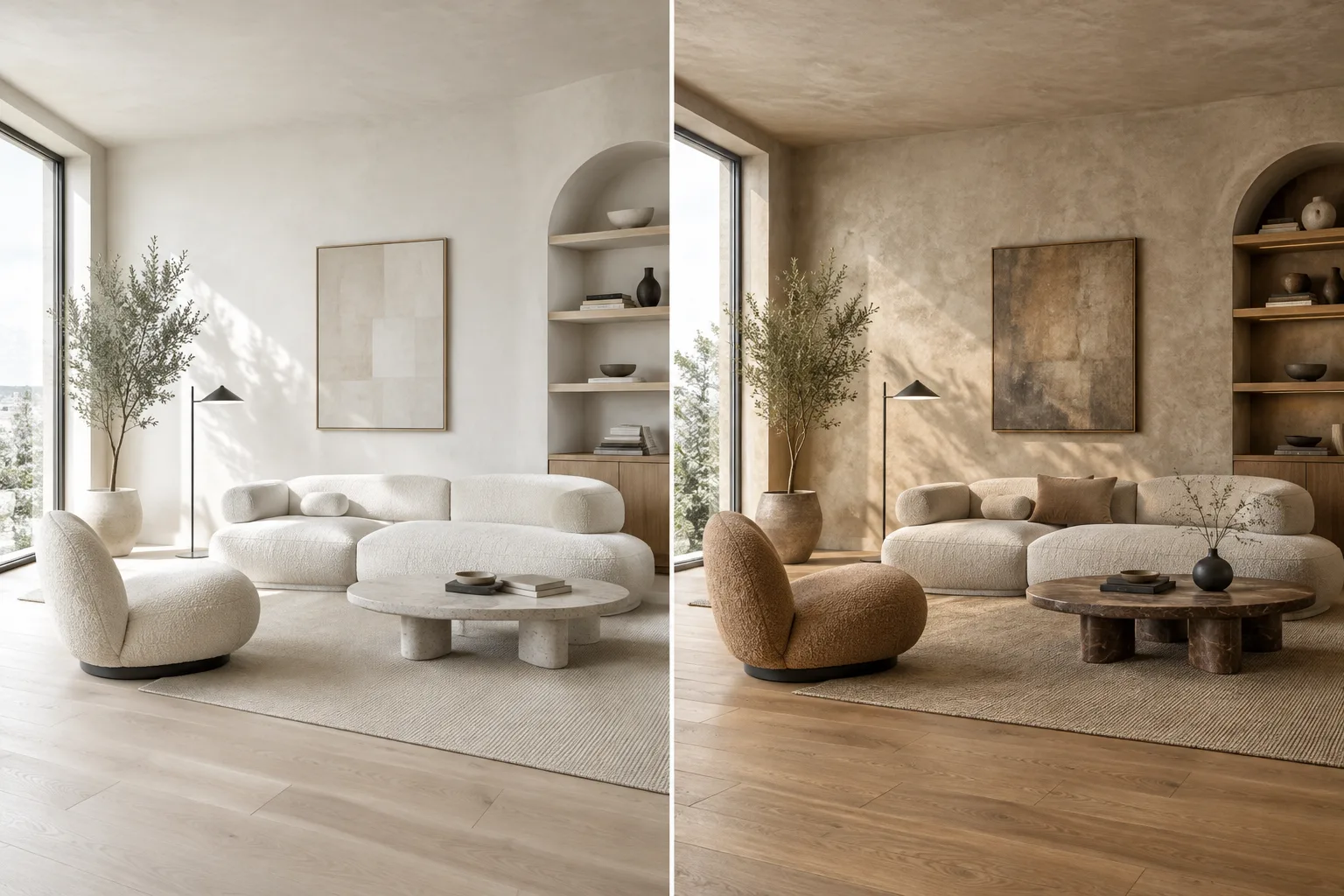
Using the provided reference image, create a refined interior visualization of the same room. Retain the visible room layout and camera viewpoint. Change the wall finish to light lime plaster and the floor to pale oak, with soft overcast daylight. Keep the result understated and realistic.This prompt asks the model to preserve the visible layout rather than redesign the reference entirely. There is no guarantee that the model’s result will match the reference exactly; treat the output as a visual alternative, not a design decision or a scaled technical representation.
3. Change one visual quality at a time
If the initial result has issues with lighting, color, or materials, target just one variable in the next round. This makes it easier to compare how different instructions affect the output. The documentation notes that color grading can be changed during image editing:
Keep the room composition and materials unchanged. Adjust only the color grading to a cooler, neutral daylight balance while preserving natural-looking shadows and realistic surface colors.This request keeps the composition and materials fixed and focuses on color balance. If you need to make several changes, applying them in separate rounds may make the results easier to evaluate; however, there is no guarantee that the requested changes will be preserved in each round.
4. Remove an unwanted element or add a new one
The guide lists edits that add elements to or remove them from an image using text among its supported use cases. Keep the request clear and limited when removing an unnecessary decorative item or adding a shelf to a blank wall as an interior alternative:
In the provided interior image, remove the small decorative objects from the console table. Leave the table, wall, lighting, camera view, and all other visible elements unchanged.This example asks for only one group of elements to be removed. Similarly, if you want to add a new element, describe its location and appearance, and specify which surrounding elements should remain unchanged.
5. Evaluate the result appropriately for the design process
When discussing the output with your team, keep the prompt and reference image alongside the result. Compare alternatives using criteria such as material feel, lighting, the atmosphere of the space, and unwanted changes. Do not treat proportions or details in the image as verified for construction documentation; use reliable scaled drawings and project data for that purpose.
Common mistakes
Trying to specify too many goals in one prompt: Changing material, camera, lighting, style, and furniture decisions all at once can make it difficult to understand which instructions affected the result. Start with the main goal and split additional edits into separate rounds.
Assuming the reference will be preserved exactly: Asking the model to preserve the layout and camera is useful guidance, but do not treat the result as a technically exact match.
Uploading an image with unclear usage rights: Google reminds users to have the necessary rights to uploaded images and not to generate content that infringes on others’ rights. Check permission to use the reference in advance.
Mistaking the output for a technical document: The workflow in this guide is for image generation and editing. The source makes no guarantees about dimensions, details, building systems, or construction accuracy.
Overlooking the watermark: Google says generated images include a SynthID watermark. Keep this in mind when considering how to use the output.
Where it fits in architectural and visualization workflows
Nano Banana 2.1 may be useful during ideation for architecture firms, interior designers, and students who want to quickly discuss different material atmospheres or interior visualization options. Editing a reference image with text makes it possible to discuss alternatives based on an existing image. However, the model’s output does not replace scaled project data or a controlled scene setup in visualization software.
When evaluating the tool in an office, check API terms of use and costs separately; the source text does not provide pricing or usage quotas, so costs cannot be calculated here. Hardware requirements are also not specified. Before using generated images in a presentation, design decision, or client deliverable, review them for accuracy, usage rights, and compatibility with the rest of your workflow.
Next steps
Start by choosing a single type of space and one visual goal, then experiment with short prompts. Next, request material, color, and element edits in sequence on the same reference, recording the input and result from each round. Then review the API examples to see how you can pass text and image inputs into your own production workflow. Consult Google’s Interactions documentation for how combined text and image outputs are handled in the API.
Sources and licensing
This guide has been adapted into Turkish using model information, workflows, and examples from Google’s Gemini API image generation documentation. Source: ai.google.dev/gemini-api/docs/image-generation. Unless otherwise noted, the page is published under the Creative Commons Attribution 4.0 (CC BY 4.0) license; code examples are specified as being under the Apache 2.0 license.
Sources
1 sourceSource texts are not republished; short quotes are marked, everything else is our own summary and commentary.
For offices and students in Turkey, the most practical aspect of Nano Banana 2.1 is that it opens up discussion of material and atmosphere alternatives based on an existing image. This can be useful for quick visual discussions, especially during early design decisions; however, the output should not be expected to replace scaled project drawings or a controlled 3D scene.
Before making a decision, check API access, usage costs, and image rights. The source does not specify pricing, quotas, or a hardware threshold, so review the current API terms before moving to regular production. Images intended for presentations should also be checked for accuracy and compatibility with the workflow.
Frequently asked questions
How do you generate an architectural image with Nano Banana 2.1?
You can send a text prompt through the Gemini API using the `gemini-nano-banana-2.1` model. The prompt can describe the space, materials, lighting, and framing.
Can Nano Banana 2.1 edit an existing interior image?
Yes. Google’s guide shows a workflow that supports image editing by combining text and image inputs. Adding or removing elements, and editing style and color, are among the examples.
Which resolutions are listed for Nano Banana 2.1?
Google’s API guide lists 1K, 2K, and 4K resolutions. This guide does not provide details on resolution settings in API requests, so consult the latest documentation.