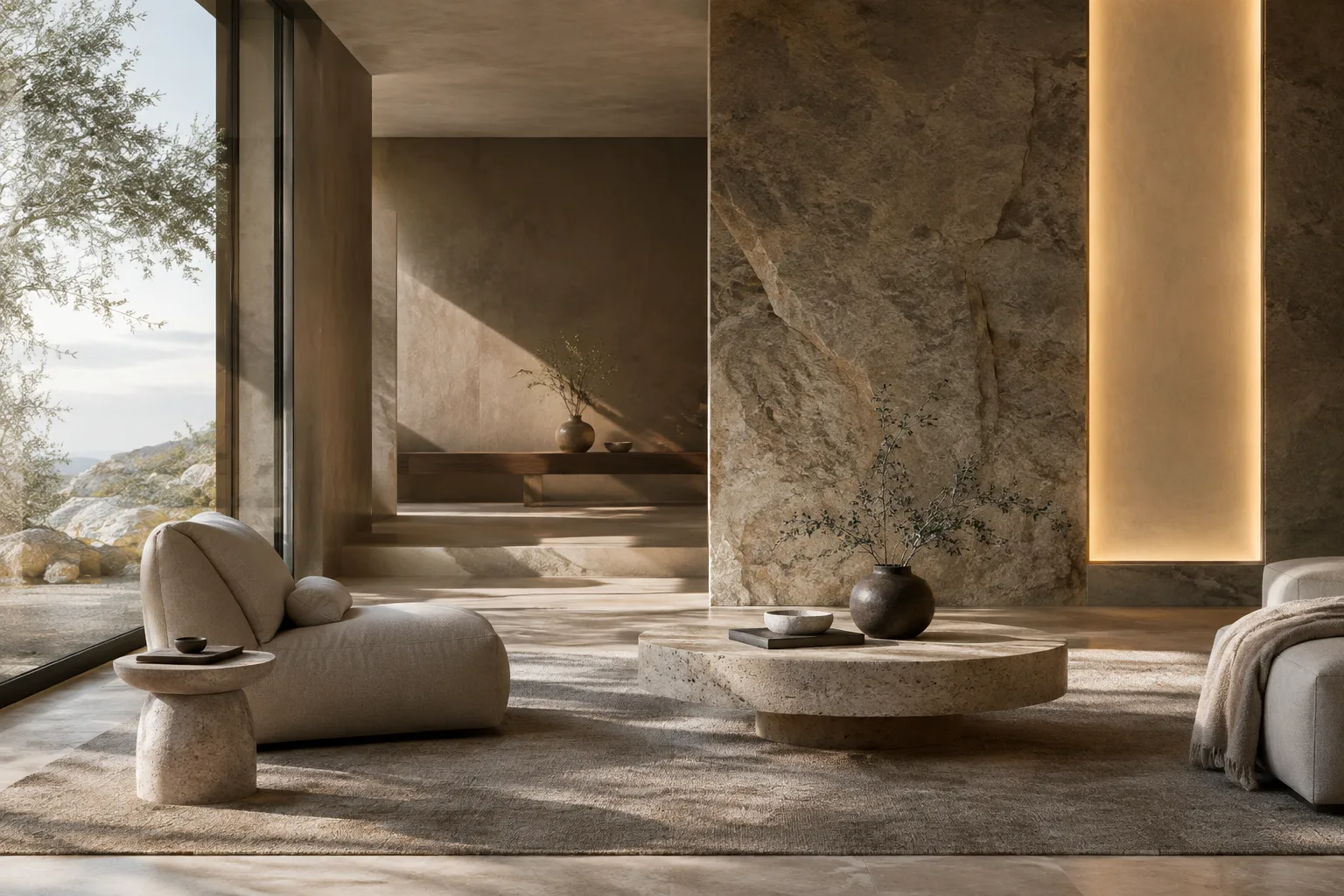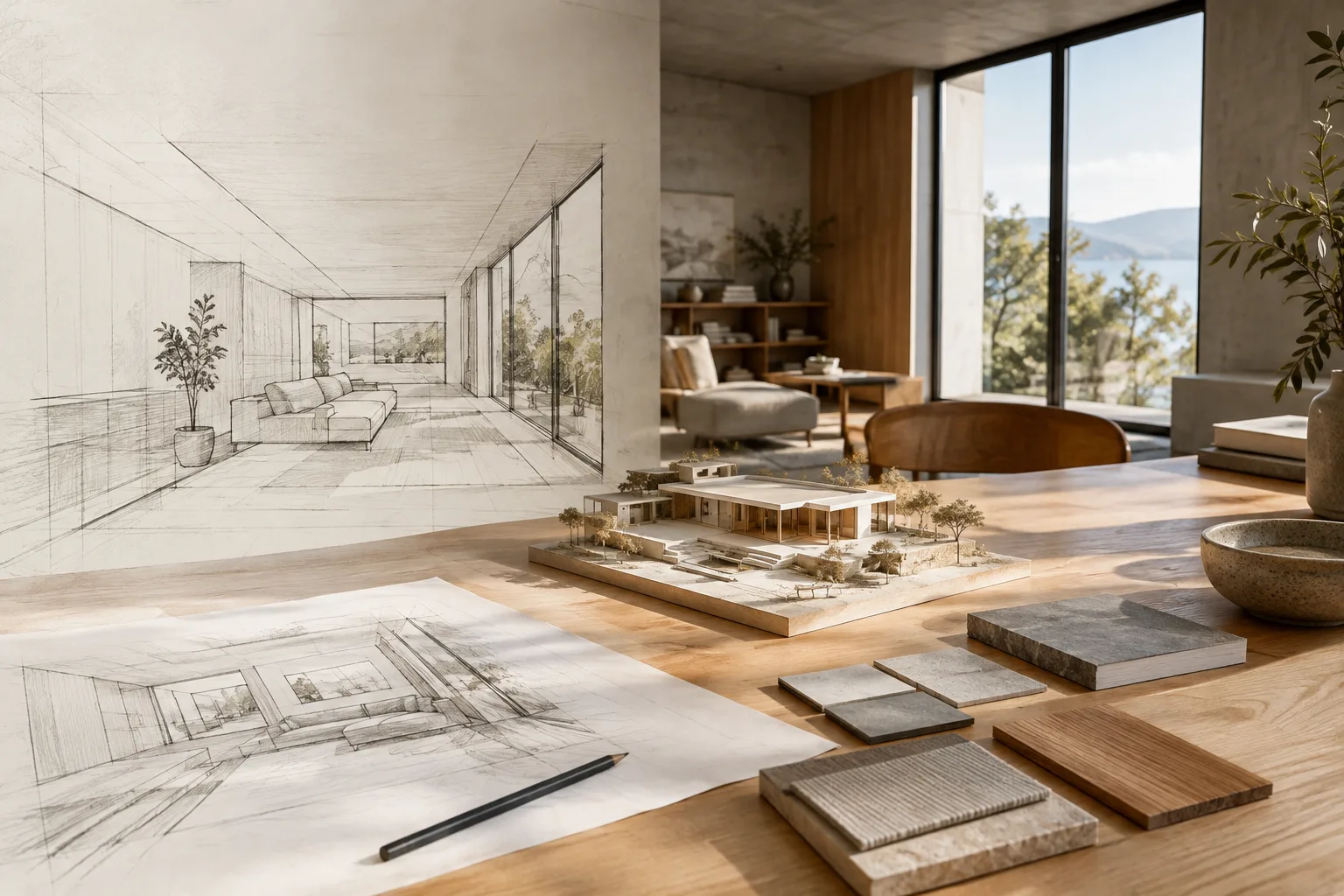
In brief
- The Gemini API documentation presents Nano Banana 2.1 for image generation and conversational editing.
- Clearly describing the space, framing, materials, and lighting in text prompts can help reduce ambiguity.
- An existing image can be supplied as input for adding or removing elements, or adjusting colors, with text instructions.
- You must have the rights to use any reference images you upload.
What will you learn in this tutorial?
This guide focuses on using Nano Banana as an ideation tool in architectural design and visualization workflows. The Gemini API documentation describes Nano Banana as the name for Gemini’s built-in image generation capabilities. The examples in this guide cover creating a new image from text and modifying an existing image with a text prompt.
The five prompts focus on interior concepts, facade atmosphere, material alternatives, controlled changes to an existing image, and requesting variations. They are starting points for visual exploration, not ready-to-use project drawings or technical documents. If the result isn’t what you want, revising the prompt and trying again follows the iterative workflow emphasized in the source materials.
Requirements: model and access
The examples use the model listed in the Gemini API documentation as gemini-nano-banana-2.1. The documentation describes Nano Banana 2.1 as an updated version of Nano Banana 2 and recommends it for new projects. The same page includes examples of image generation from text input and editing with both text and image input.
This workflow requires access to the Gemini API and a key to use in API requests. The official documentation shows how to interact with the API using examples in Python, JavaScript, Java, Go, and REST; here, we focus on natural-language prompts you can copy and adapt rather than code setup. Account creation, access, and any usage fees aren’t covered in detail in this tutorial; check the API’s official documentation for current terms.
If you want to edit an image, you need to be able to provide it as API input. The documentation includes examples of sending images in Base64 format; for multiple images, large payloads, and supported MIME types, it also refers readers to the image understanding page. Make sure you have the rights to use an image before uploading it.
Step by step: 5 prompts for architectural visuals
The prompts below are original examples for architectural visualization workflows. Describing the type of space, visual qualities, key materials, and lighting conditions puts into practice the source materials’ approach of giving clear, specific instructions. They also specify what should not appear in the result.
1. Create an interior concept
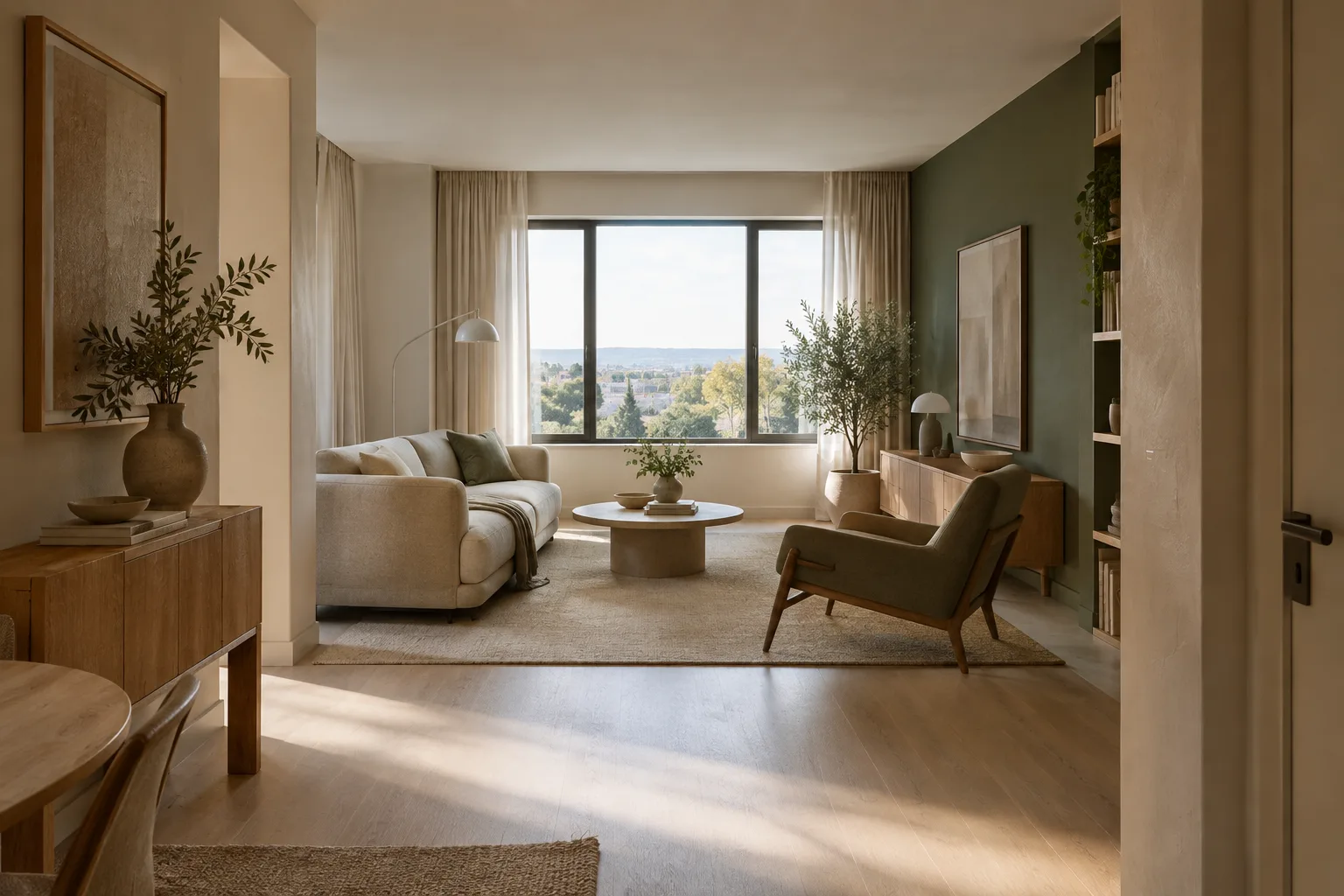
Create an architectural visualization of a calm contemporary living room in a compact urban apartment. Show a wide view from the entrance, with a clear view of the seating area and the window. Use pale oak, warm off-white plaster, a muted green textile accent, and soft daylight. Keep the composition uncluttered and the materials visually distinct. Do not add people, signage, or decorative text.This prompt defines the room type and viewpoint, along with the material palette and lighting. If the framing or color balance isn’t right in the first result, change only the relevant part rather than rewriting the whole description. For example, asking for softer light or reframing the view toward the window gives clearer instructions for another iteration.
2. Describe the facade atmosphere
Create a photorealistic architectural visualization of a small public library facade on a quiet city street. Use light-colored brick, deep window reveals, and a simple timber entrance canopy. Show the building at eye level on an overcast afternoon, with soft shadows and a restrained palette. Keep the facade as the main subject and omit readable signs, logos, and people.For a facade visual, specifying the main material, scale, and viewpoint together is a useful starting point. This prompt doesn’t verify the dimensions of a particular drawing or compliance with regulations; it should be used to explore visual concepts. If you use the result in a presentation, don’t treat it as proof of the design’s technical accuracy.
3. Explore a material alternative
Create an interior material study of a quiet hotel lobby. Focus on the reception wall, floor, and seating area. Use dark stone at the reception, light terrazzo flooring, and soft beige upholstery. Show the materials in natural side light with a close architectural composition. Avoid labels, swatches with writing, and people.The goal here is to explore the visual relationships between materials in the same space. Don’t use the output as a sample, technical specification, or color code: the source materials explain image generation and editing capabilities, but don’t guarantee the technical performance of generated materials or a match with a physical sample.
4. Request a single change to a reference image
First, add the image you want to edit as API input. Then use a text prompt that clearly specifies what you want to change, such as the one below.
In the provided interior image, change only the wall finish behind the dining table to warm white plaster. Keep the furniture, camera view, lighting, floor, and all other visible elements unchanged.According to the official documentation, you can provide an image along with text to request edits, add or remove elements, or make style or color adjustments. Specifying what should change “only” and listing the elements to preserve narrows the scope of the request; it doesn’t mean that every other detail will necessarily remain fixed. Review the result and repeat the correction prompt as needed.
5. Request variations on a concept
Create a second visual direction for the same small apartment living room. Retain the entrance viewpoint and the open view toward the window, but explore a cooler palette with light grey plaster, walnut furniture, and a muted blue textile accent. Use soft morning daylight. Do not add new furniture types, people, labels, or text.When requesting variations, specify separately which features should stay the same and which should change. In this example, the viewpoint and overall room layout remain fixed while the color and material direction changes. If the new image doesn’t offer a distinct direction, describe the elements you want changed more explicitly in the prompt.
Common mistakes
Giving vague descriptions: A short prompt like “make a stylish interior” leaves the space, material choices, and framing open to interpretation. Specify the room type, key surfaces, lighting, and desired visual qualities.
Requesting several changes at once: Changing the walls, furniture, lighting, and camera all at the same time in a reference image makes it harder to see which instruction affected the result. Try one change first, then request further edits in stages.
Treating the image as technical verification: A generated image doesn’t, by itself, verify dimensions, product information, or implementation decisions. Evaluate important design decisions separately using project documents and appropriate professional checks.
Overlooking rights to the reference image: Make sure you have the right to use the image you upload. The official guide cautions against creating content that violates others’ rights or misleads, harasses, or harms people.
Next steps: office and visualization workflows
For your first attempts, keep the same visual goal and change one element of the prompt at a time. For example, change only the lighting first, then only the material palette. This makes it easier to compare which descriptions produce more suitable results. In a team workflow, saving the prompts and selected outputs alongside project files can help track how alternatives were created.
Architects and interior designers can explore this method during early concept discussions, while visualization artists can use it to investigate materials and atmosphere. Before putting it into production, however, check API access, terms of use, budget, and compatibility with your existing software workflow. The source materials explain model selection and image input/output examples; they don’t provide information about direct transfer to specific 3D software or project file compatibility.
Sources and license
This tutorial has been adapted into Turkish based on Google’s Gemini API documentation for image generation and editing, as well as its prompt design strategies guide. Both sources are licensed under CC BY 4.0. The prompt examples are original applications created for architectural and interior use, not copies of examples in the source materials.
Sources
2 sourcesSource texts are not republished; short quotes are marked, everything else is our own summary and commentary.
For architecture and interior design firms, the most practical use is to quickly compare different material and atmosphere directions during the concept phase. Image editing can also make it easier to explore small alternatives based on an existing reference; however, the results shouldn’t be treated as substitutes for technical drawings or implementation decisions.
For firms and students in Turkey, it’s important to check API access, terms of use, and costs in advance. The sources don’t provide fee information, so don’t assume a budget. Direct transfer to 3D software and compatibility aren’t documented either. Before adding the tool to a workflow, it’s worth running a small test and clarifying the role of the generated image in the project.
Frequently asked questions
Can Nano Banana edit an existing interior image?
The Gemini API documentation shows that you can provide an image along with text to request that elements be added or removed, the style be changed, or colors be adjusted. You must have the rights to use the uploaded image.
What model name can I use for Nano Banana 2.1?
The Gemini API documentation lists the model ID as `gemini-nano-banana-2.1`. The documentation recommends Nano Banana 2.1 for new projects.
Can images generated with Nano Banana be transferred to 3D software?
The sources explain image generation and editing, but don’t provide information about direct transfer to specific 3D software or project file compatibility.