In brief
- Animated Phasing Effect can be used to animate the construction process in Lumion 11 and later.
- The Layer Visibility method requires building components to be organized as separate objects and layers.
- Move and Advanced Move effects can be used in individual clips or with Entire Movie selected.
- In Lumion 12 and later, a project can contain up to three Clip Planes.
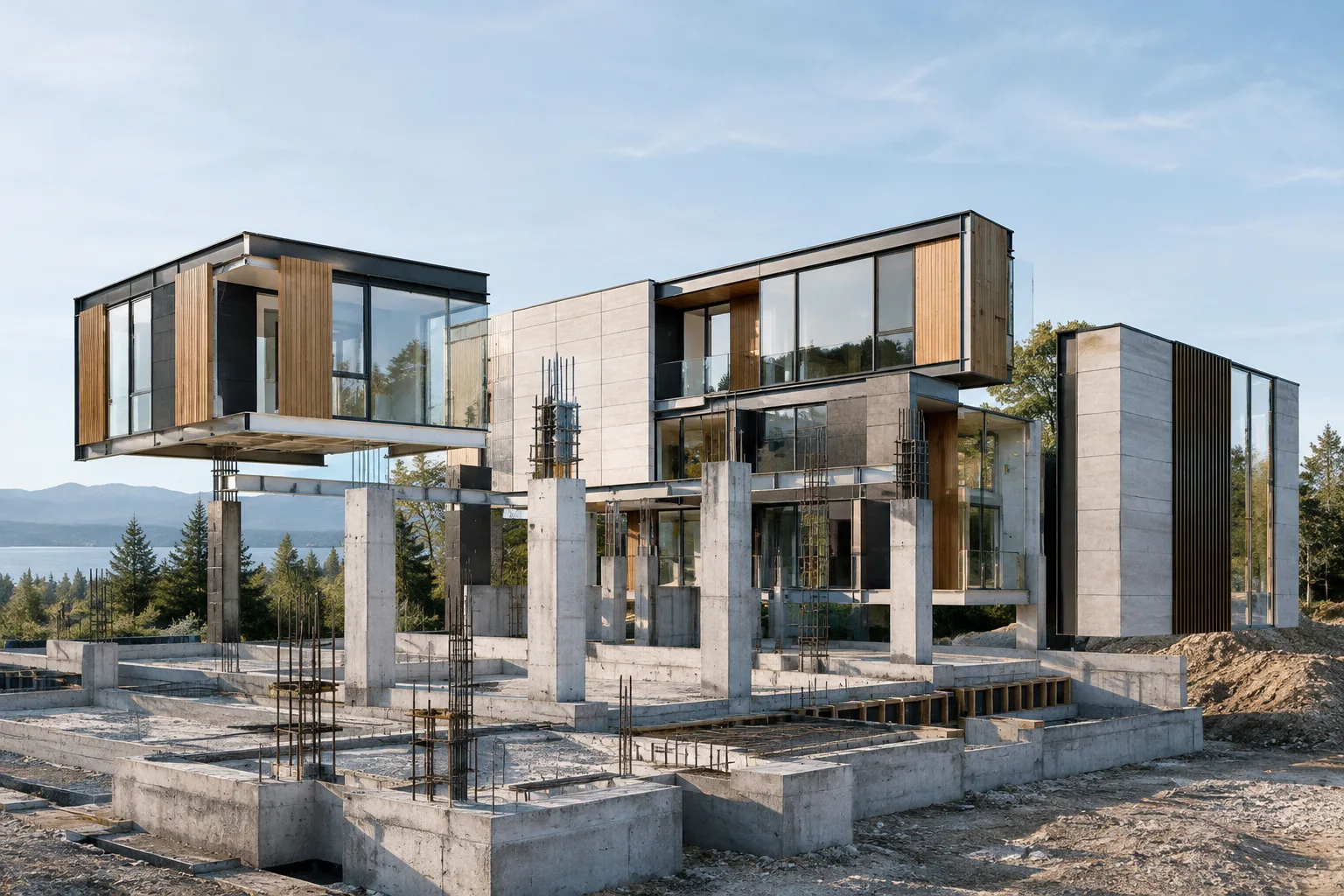
Lumion’s official support documentation offers options such as Animated Phasing, layer visibility and motion effects for visualizing the construction process. Animated Phasing Effect is available in Lumion 11 and later, while the other methods rely on importing building components as separate objects and organizing them in the scene. Lumion 12 and newer versions allow up to three Clip Planes in a project. The steps below can help you turn elements such as floors, columns, roofs, walls and windows into a clear construction sequence.
1. Choose a method that suits the story
Consider Animated Phasing to show stages using a ready-made animation approach. Available in Lumion 11 and later, the effect includes animation presets designed to present the construction process. You can start with this option to communicate how components relate to one another during construction. The source specifies this version range for Animated Phasing; you should not assume that other effects are available in the same way in every version.
Choose the Layer Visibility method to reveal building groups in sequence. To use it, import elements such as floors, columns, roofs, walls and windows as separate objects, then place them on different layers. You can control which groups appear at each stage by changing layer visibility.
Use the Move or Advanced Move effects if you want components to move into the scene. This approach also requires importing components as separate objects. You can edit the animation in individual clips or with Entire Movie selected.
The right choice depends on what the video needs to communicate. If the goal is to show the building emerging layer by layer, Animated Phasing or Layer Visibility is a good starting point. If the motion of individual components is the focus, consider Move and Advanced Move. Before choosing a method, clarify how the components are separated in the modeling application and the order in which they should appear throughout the animation.
2. Set up stages with layer visibility
Import building components into Lumion as separate objects. The official documentation lists floors, columns, roofs, walls and windows as examples.
Use Align to position the components together. This keeps them aligned in the scene so that changing visibility does not disrupt the building’s position.
Place different components on separate Layers. Organizing layers by construction stage makes it easier to manage when each group appears.
Use Layer Visibility Effect to show layers in sequence. This lets you define which building components are visible at each stage.
Preparation is important with this approach: it should be clear which components each layer contains and what order the animation follows. For example, grouping components according to how they will be presented makes visibility transitions easier to follow. The source recommends additional support materials about how layers work; since it does not specify menu paths or effect values, check the interface in the version of Lumion you are using.
3. Using Move, Advanced Move and Clip Plane
Import the building components you want to move into Lumion as separate objects.
Use Align to match the components’ starting positions. This helps keep their relationship to the building clear as they move.
Use the Move or Advanced Move effect to set up motion stages. You can edit the animation in individual clips or across the entire film using Entire Movie.
If you want to show the construction process using a sectional effect, consider including Clip Plane from Advanced Move Effect in the animation.
| Setting | Recommended value | Effect |
|---|---|---|
| Number of Clip Planes | Up to 3 per project in Lumion 12 and later | Clip Plane can be included in an animation using Advanced Move Effect; this limit specifies how many can be used in a project. |
This number is an upper limit stated in the official documentation, not a performance recommendation. If the animation can be created with fewer Clip Planes, you should not assume that more are necessary. The documentation also specifies this limit for Lumion 12 and later; do not assume the same number applies to other versions.
4. Prepare the animation in another application
Creating construction stages outside Lumion is also an option. Official support content notes that construction animation plugins and/or MAXScripts can be used to animate building components in 3ds Max. The prepared scene can then be imported into Lumion as an animated model.
Before choosing this workflow, verify the process for importing animated objects into Lumion and whether the tools you use are compatible with your existing workflow. The source does not specify a particular plugin, MAXScript, file format or export setting. Check the technical details required for your project separately, and do not assume compatibility or settings that are not mentioned in the documentation.
Version notes and architectural visualization workflow
For architecture, interior design and archviz teams, these methods make it possible to present not just the final design but also the sequence in which it takes shape. The layer method focuses on controlling the visibility of component groups, while motion effects are used to manage how parts move in the animation. The documented version range for Animated Phasing is Lumion 11 and later; the Clip Plane limit applies to Lumion 12 and later. Official documentation also notes that effect categories were reorganized in Lumion 12. Therefore, do not assume that effects will appear in the same category or location across different versions.
Lumion’s official learning resources include in-app tutorials, sample projects and video lessons. Topics include model importing, animation, effects and rendering. Sample projects can be used to inspect scene layouts and effect stacks. These resources can help you learn the interface and workflow, especially when setting up a new animation method in Lumion.
Check project compatibility when upgrading versions. The Lumion 11.0 documentation states that this version is installed separately rather than as a patch to older versions. It also notes that projects and models saved in Lumion 11.0 cannot be opened in earlier Lumion versions. Checking the transfer of projects and models before uninstalling an older installation is a sensible precaution to reduce the risk of file loss or version incompatibility. The sources do not specify special hardware requirements or licensing costs for these animation methods, so these points should be verified separately.
Common mistakes
Trying to set up Layer Visibility or a motion method without importing components as separate objects.
Starting the animation without checking component positions using Align.
Not organizing layers by construction stage, which can make the visibility sequence harder to follow.
Assuming the three-Clip Plane limit in Lumion 12 and later also applies to other versions.
Assuming projects and models saved in Lumion 11.0 can be opened in earlier versions.
Sources
3 sourcesSource texts are not republished; short quotes are marked, everything else is our own summary and commentary.
For architecture firms and visualization teams in Turkey, the practical value of these methods lies in making the construction sequence part of the presentation. Working with separate components requires organization and preparation at the outset; in return, layer visibility and motion effects can make it easier to control the narrative.
Before getting started, it is important to clarify the Lumion version in use and project-sharing requirements across the team. The sources do not provide hardware requirements or licensing costs for these techniques; firms should verify these points based on their own circumstances. The fact that projects and models saved in Lumion 11.0 cannot be opened in earlier versions should also be considered when sharing files.
Frequently asked questions
Which effects can be used for construction animation in Lumion?
You can use Animated Phasing Effect, Layer Visibility Effect, Move and Advanced Move. The documented version range for Animated Phasing is Lumion 11 and later.
How many Clip Planes can a project contain in Lumion 12?
According to the official support documentation, a project can contain up to three Clip Planes in Lumion 12 and newer versions.
How can building components be shown in stages in Lumion?
Import components as separate objects, use Align to match their positions, and place them on different Layers. Then use Layer Visibility Effect to show the layers in sequence.